How to Set Up a Password Manager: A Step-by-Step Guide
Securing your many online accounts is only a few clicks away thanks to password managers that can store them all for you. In this article, we will explore how to set up a password manager, its benefits, and provide a step-by-step guide on how to get started.
Why You Need a Password Manager
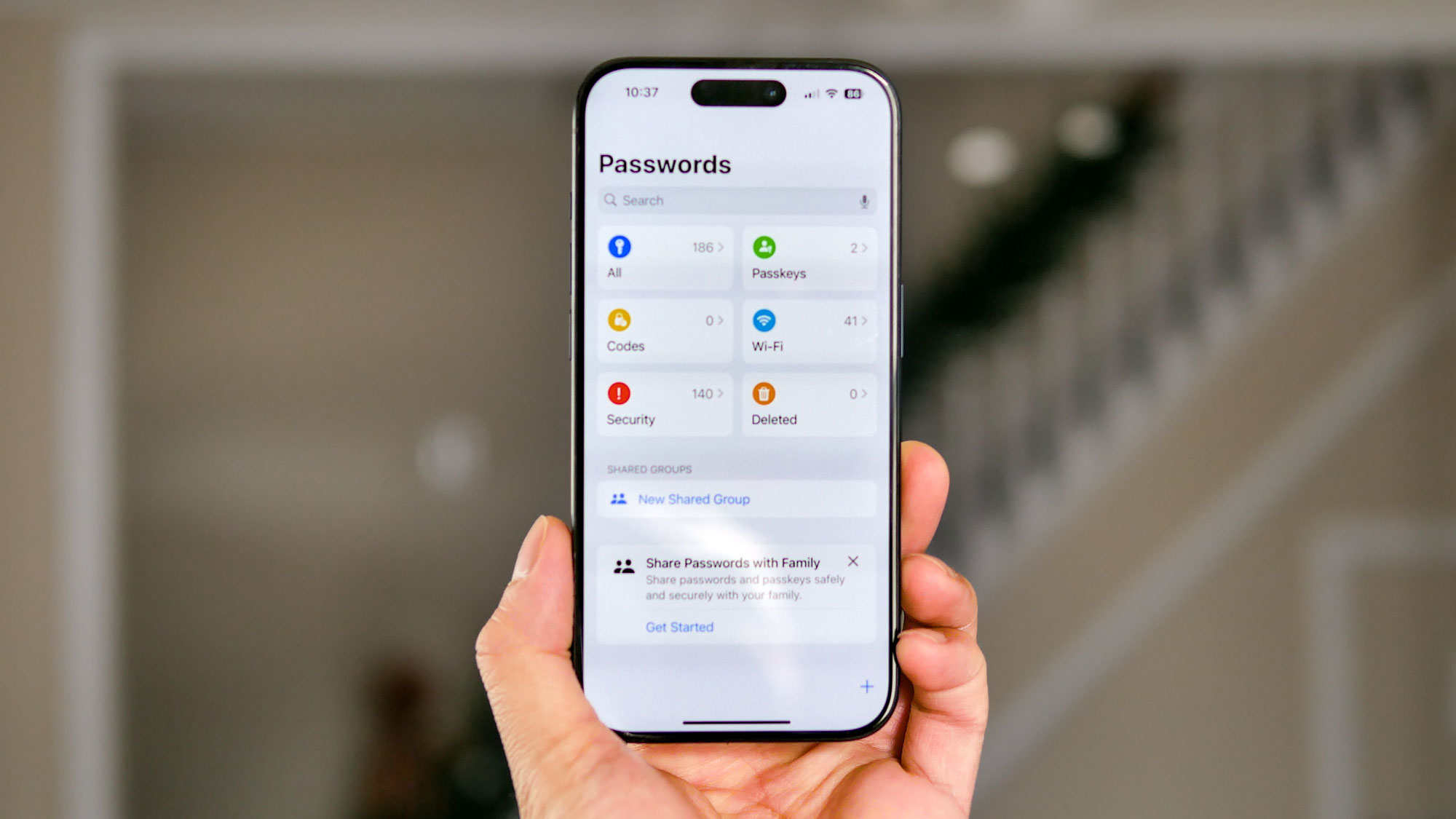
With the increasing number of online accounts we have, remembering unique and complex passwords for each one can be a daunting task. This is where a password manager comes in handy. A password manager is a software application that securely stores and generates unique and complex passwords for all your online accounts.
Benefits of Using a Password Manager
- Generates unique and complex passwords for each account
- Stores all your passwords in a secure vault
- Automatically fills login credentials for you
- Warns you about weak passwords and password reuse
- Provides two-factor authentication
Choosing the Right Password Manager
There are many password managers available in the market, each with its own set of features and pricing plans. Some popular password managers include LastPass, 1Password, and Dashlane. When choosing a password manager, consider the following factors:
- Password generation and storage
- Password autofill and auto-login
- Two-factor authentication
- Encryption and security
- Customer support
- Pricing plan
Step-by-Step Guide to Setting Up a Password Manager
Step 1: Download and Install the Password Manager
Download and install the password manager software from the official website or app store.
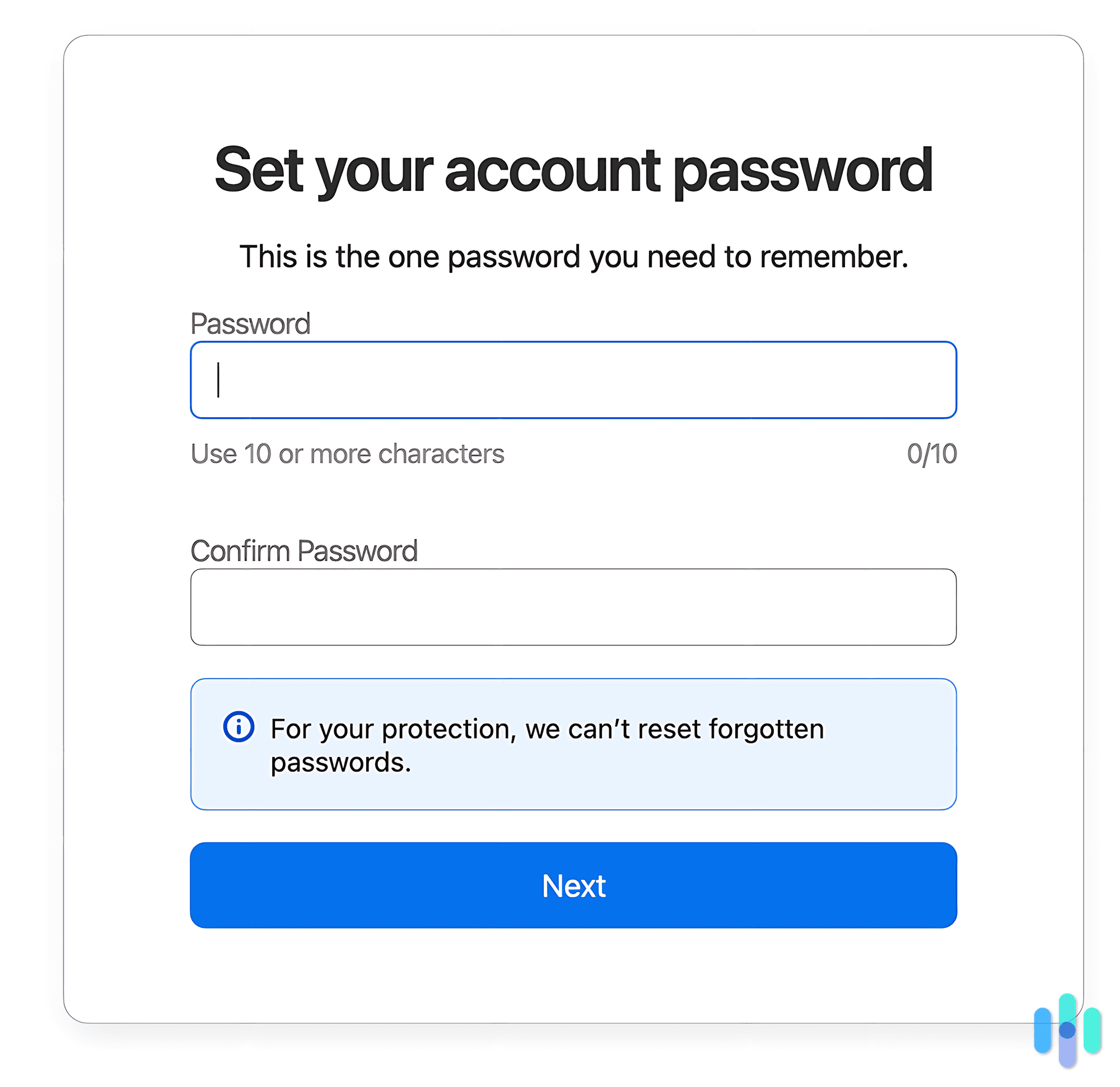
Step 2: Create an Account
Create an account with the password manager by providing your email address and password.
Step 3: Import Existing Passwords
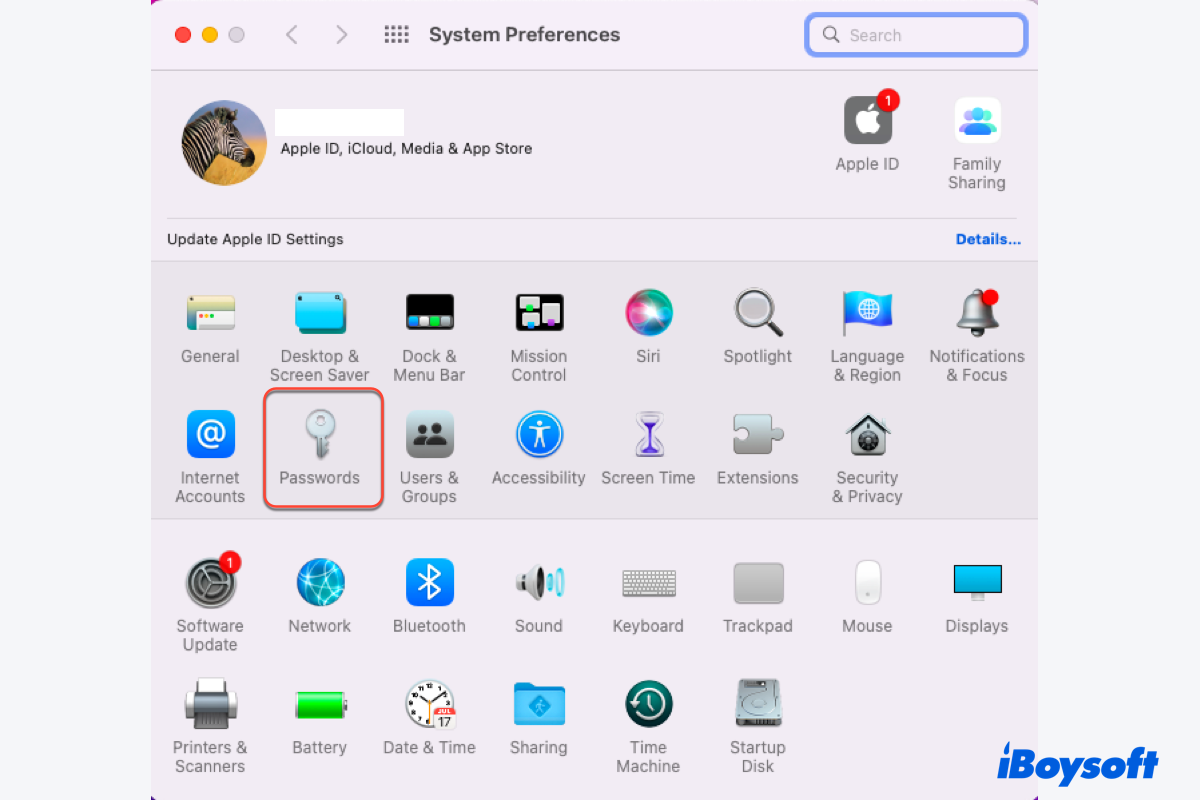
Import your existing passwords from your browser or other password storage apps.
Step 4: Generate New Passwords
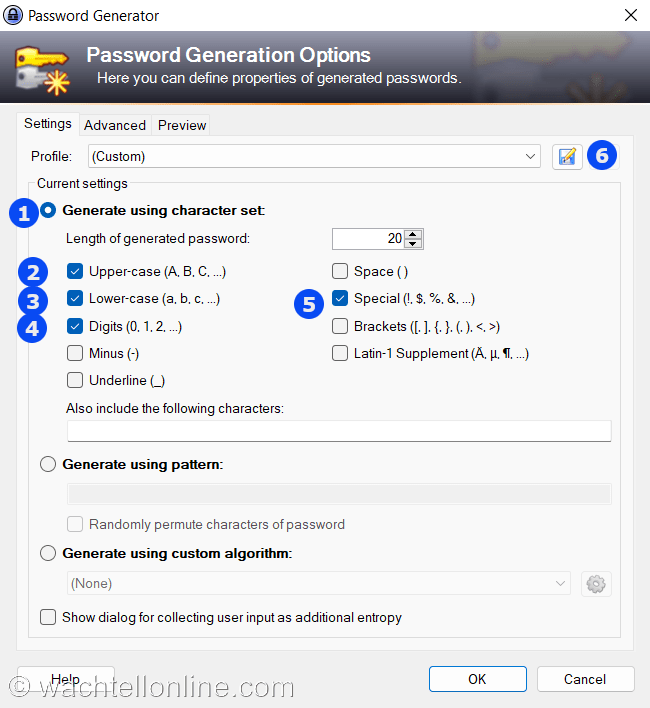
Generate new passwords for your online accounts using the password manager's password generator.
Step 5: Set Up Two-Factor Authentication
Set up two-factor authentication to add an extra layer of security to your account.
Step 6: Share Passwords (Optional)
Share passwords with trusted individuals, such as family members or colleagues.
Best Practices for Using a Password Manager
Here are some best practices to keep in mind when using a password manager:
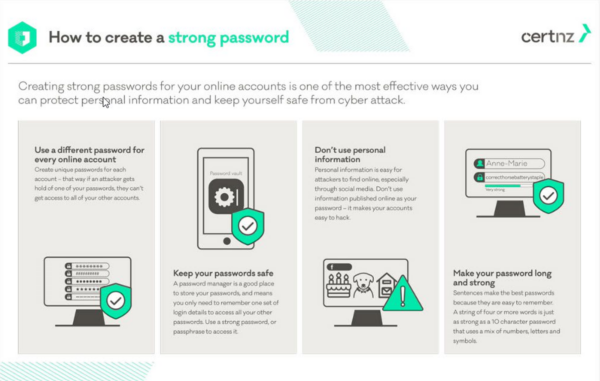
- Use strong and unique passwords for each account
- Keep your password manager software up to date
- Use two-factor authentication whenever possible
- Regularly review and update your passwords
- Use a password manager that offers encryption and security
Conclusion
Setting up a password manager is a simple and effective way to secure your online accounts. By following the steps outlined in this article, you can get started with a password manager and enjoy the benefits of strong password security. Remember to always use strong and unique passwords, keep your password manager software up to date, and use two-factor authentication whenever possible.