How to Personalize Windows 11 Desktop
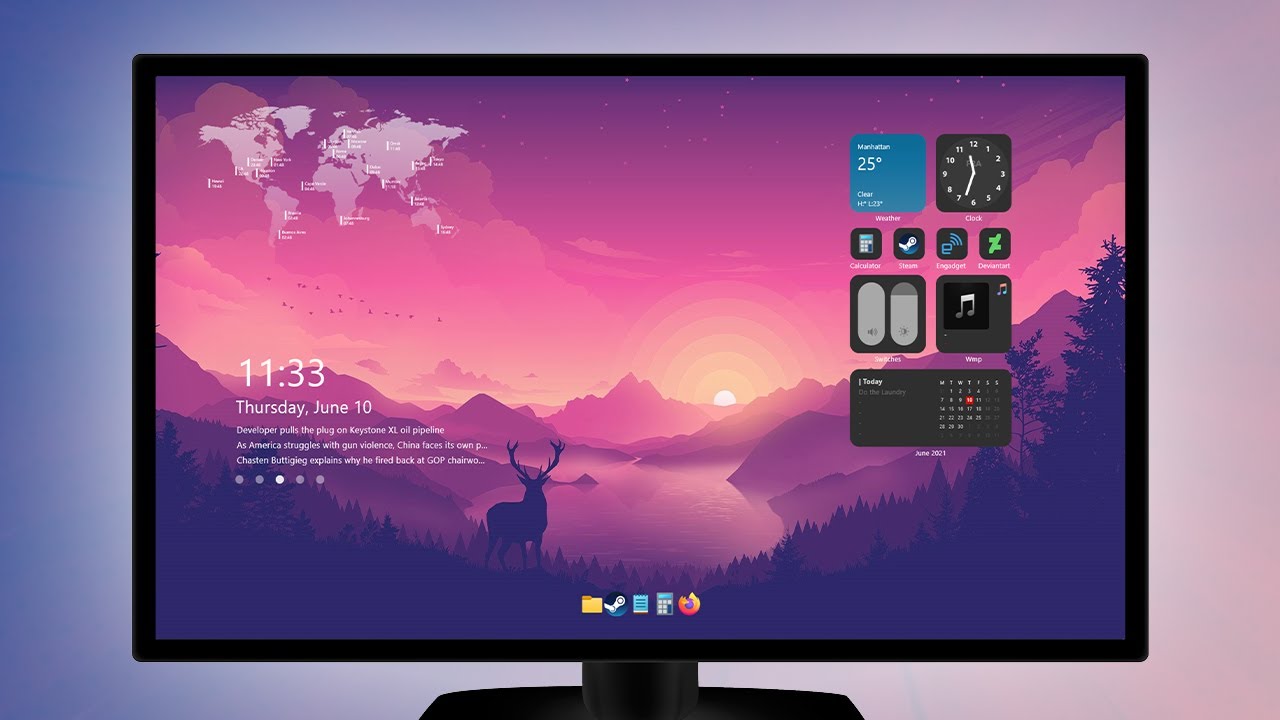
Windows 11 offers a wide range of personalization options to help you customize and tailor your Windows PC to your unique preferences and style. By following these steps, you can transform your Windows 11 desktop into a space that reflects your personality, functionality, and productivity needs.
Personalization Settings in Windows 11
The Personalization settings in Windows 11 offer a wide range of options for customizing your desktop. You can start by opening the Windows Settings app and navigating to the Personalization section. From here, you can access various settings that allow you to change the look and feel of your desktop, including themes, backgrounds, and accent colors.
Changing Your Desktop Background
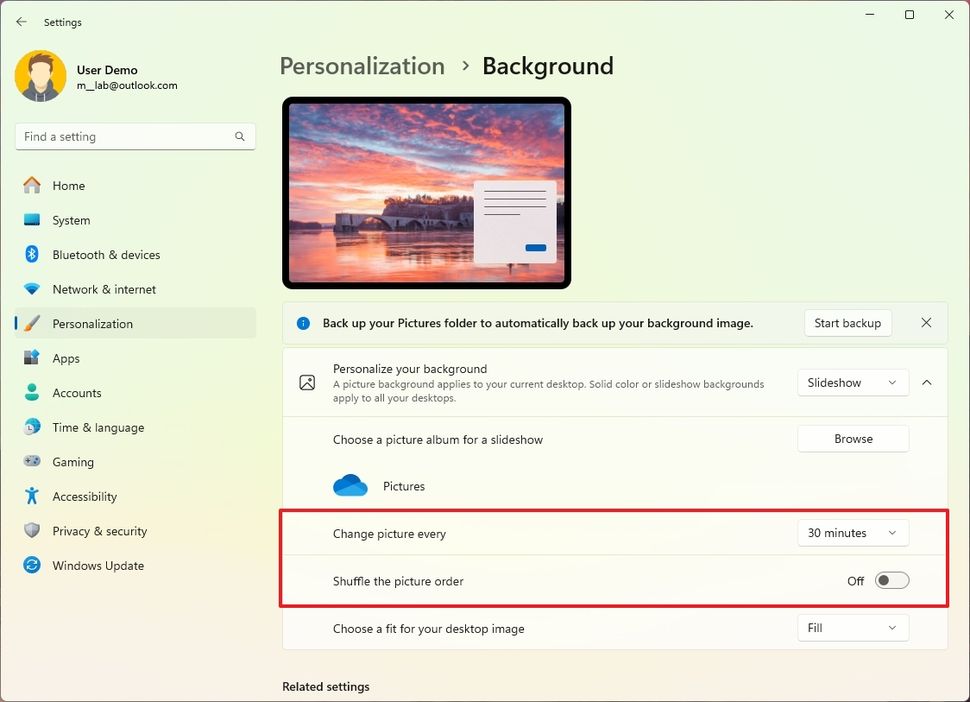
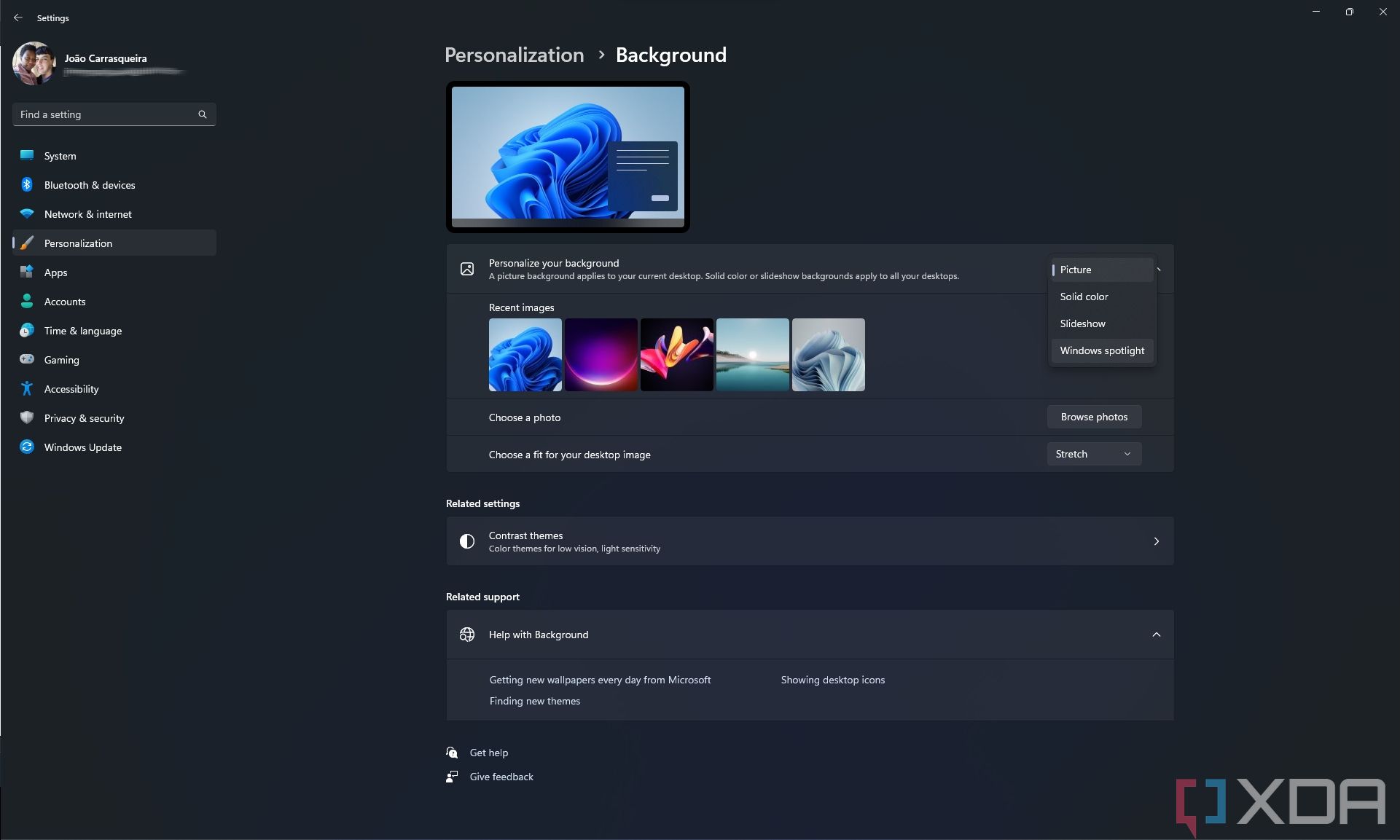
One of the easiest ways to personalize your Windows 11 desktop is to change the background image. You can choose from a variety of built-in options, including solid colors, pictures, and slideshows. To change your desktop background, follow these steps:
- Open the Windows Settings app and navigate to Personalization.
- Select "Background" and choose a background option from the list.
- Click "Browse photos" to select a personal image or picture to use as your background.
Customizing Your Lock Screen
The lock screen is the first thing you see when you start or lock your Windows 11 PC. You can personalize the lock screen by changing the wallpaper, screen saver, and other settings. To customize your lock screen, follow these steps:
- Open the Windows Settings app and navigate to Personalization.
- Select "Lock screen" and choose a lock screen wallpaper from the list.
- Customize the lock screen settings to include your name, message, or other information.
Personalizing Your Taskbar
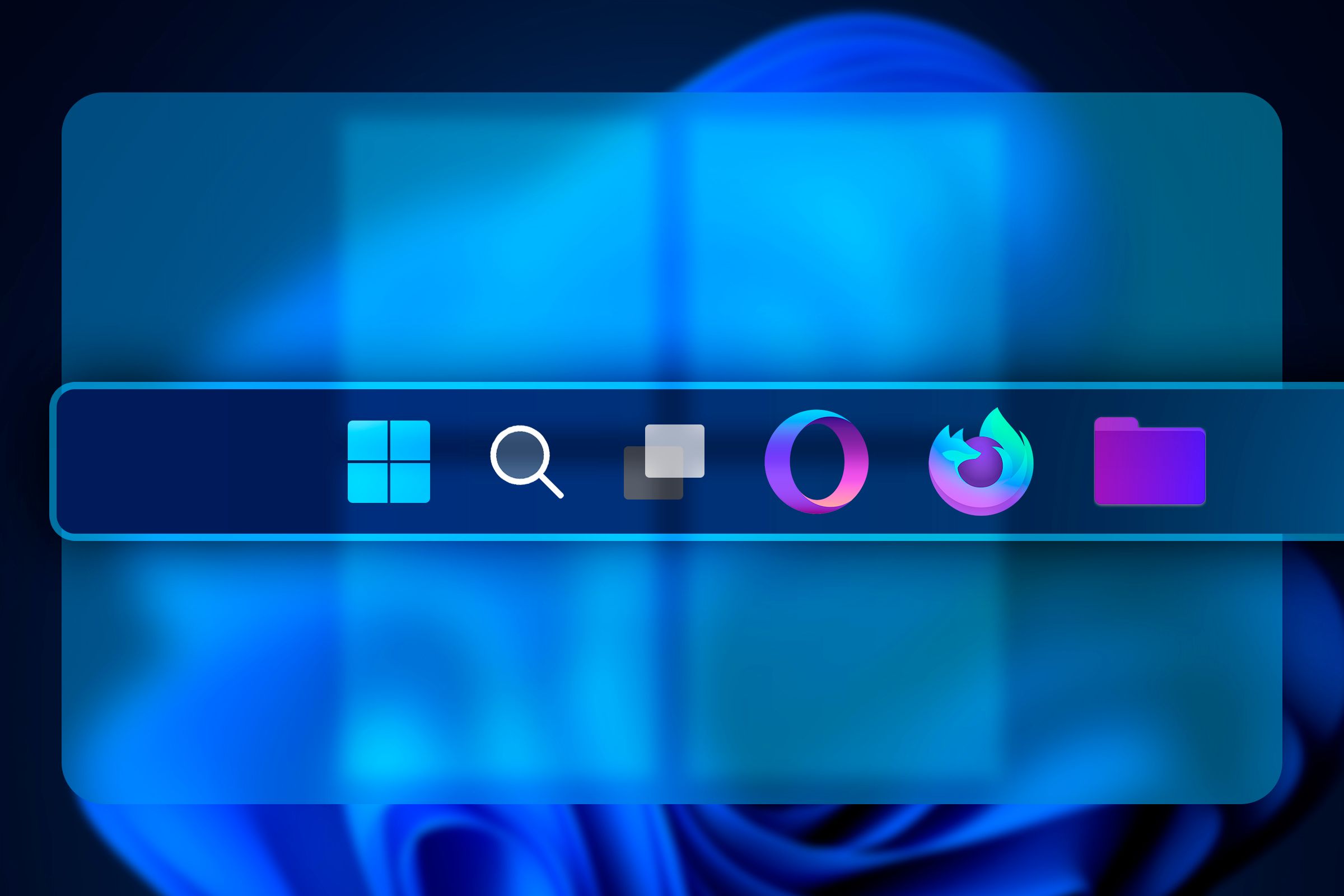
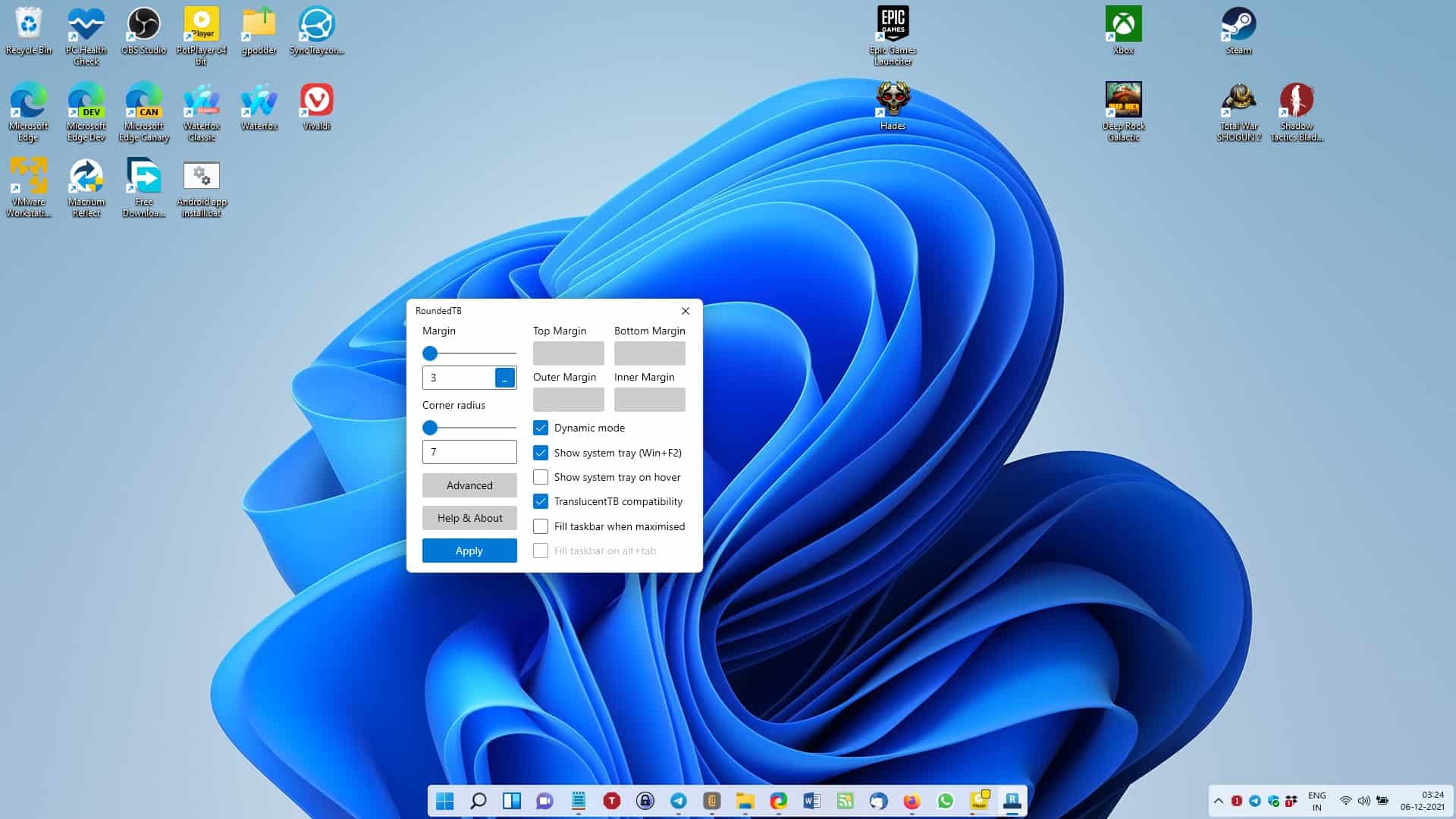
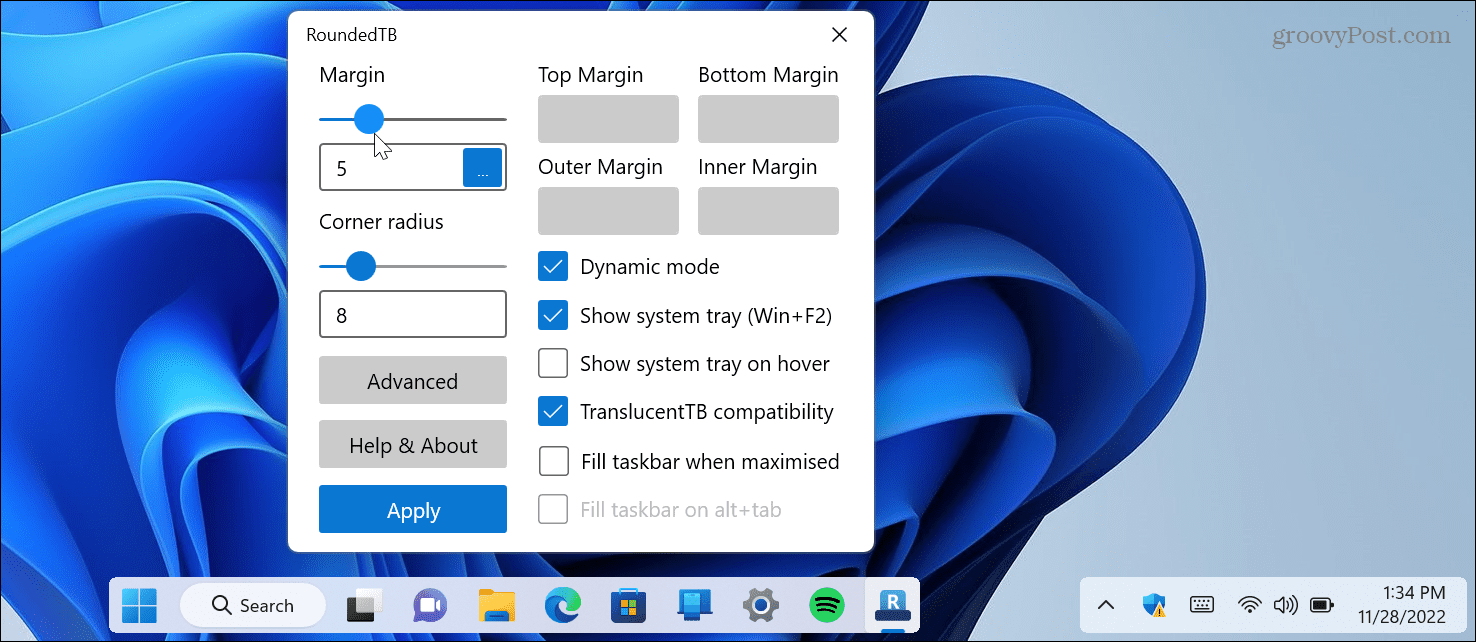
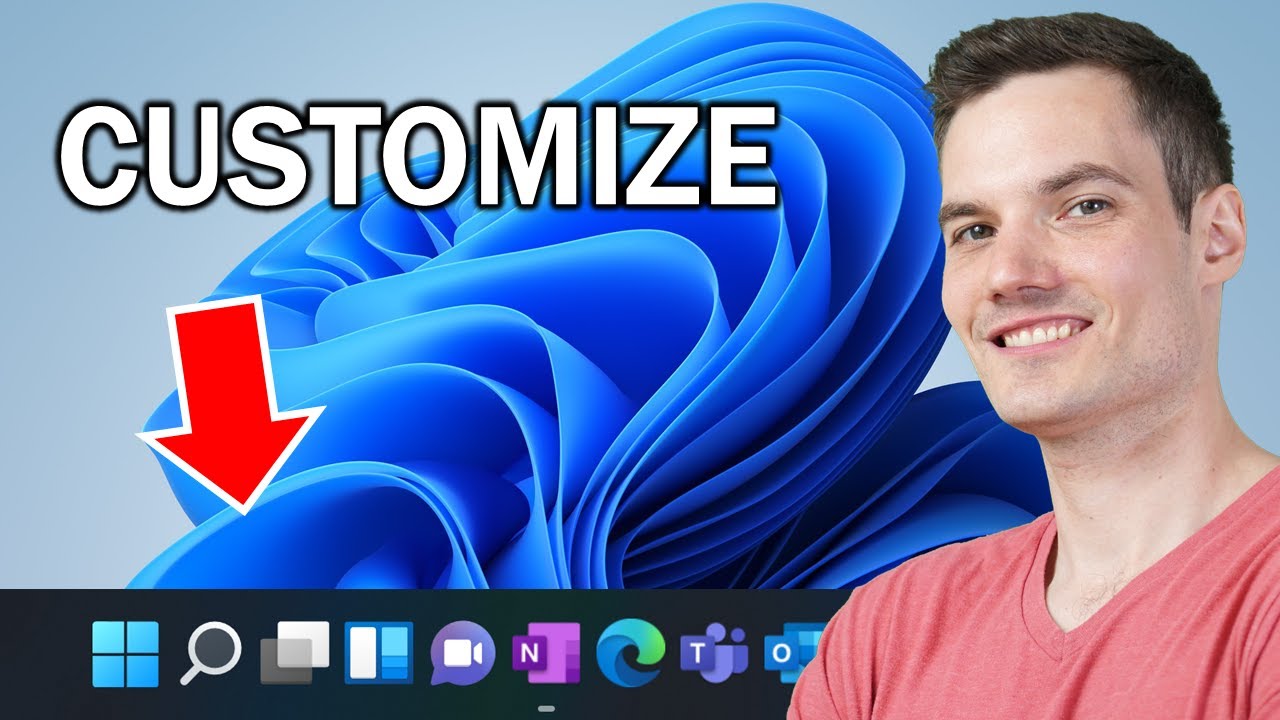
The taskbar is the bar at the bottom of your Windows 11 desktop where you can pin frequently used apps, folders, and websites. You can customize the taskbar to show more or fewer items, and even change the way it looks. To personalize your taskbar, follow these steps:
- Right-click on the taskbar and select "Taskbar settings."
- Customize the taskbar settings to include or exclude items.
- Change the taskbar size and transparency.
Customizing Your Start Menu

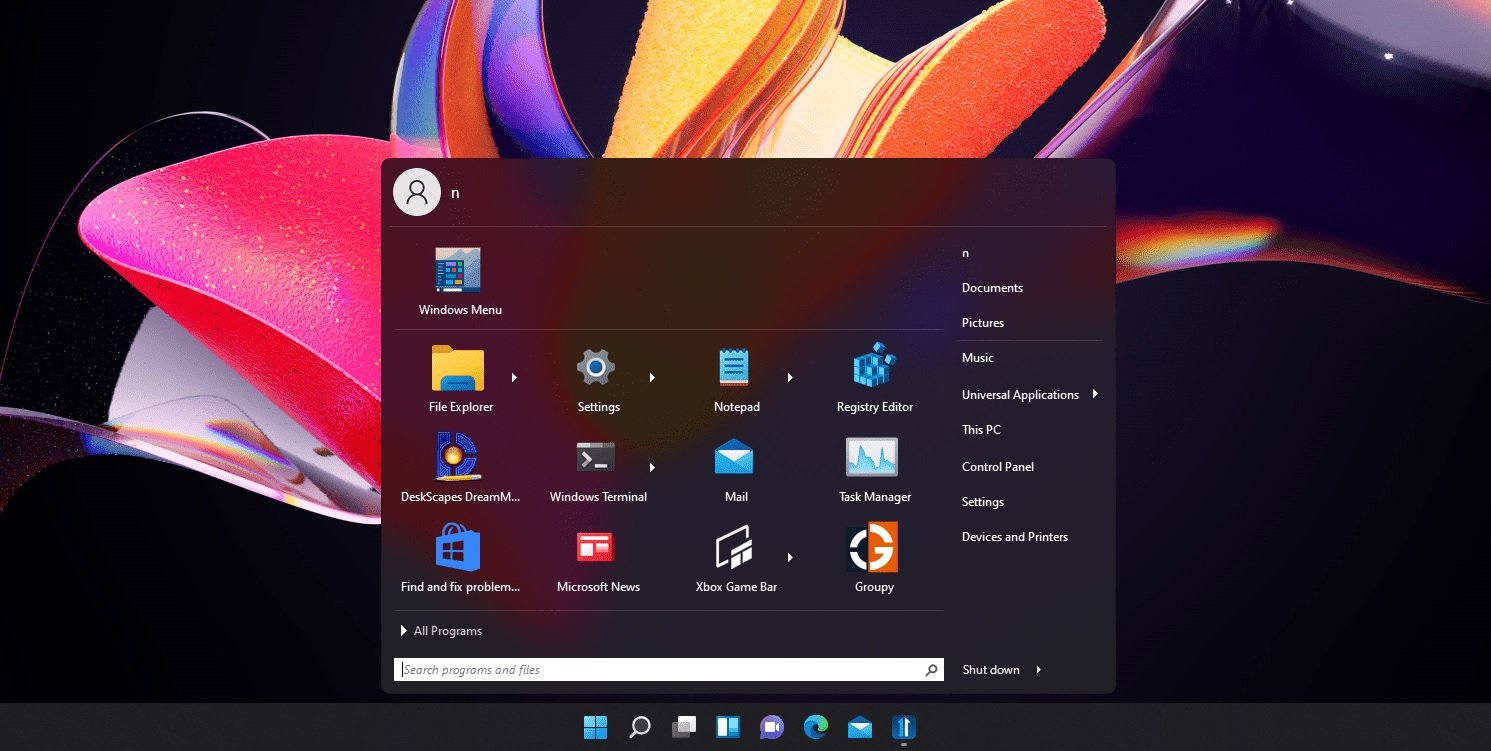
The Start menu is the central point of access to your Windows 11 desktop. You can personalize the Start menu by pinning or unpinning apps, adjusting the layout, and customizing its appearance. To customize your Start menu, follow these steps:
- Right-click on the Start menu and select "Personalize" or "Customize.".
- Pin or unpin apps, adjust the layout, and customize the appearance of the Start menu.
Changing Folder Colors
Windows 11 allows you to change the color of your folders to make them easily visible. To change folder colors, follow these steps:
- Right-click on a folder and select "Properties."
- Click on the "Customize" tab and select the color you want to use for the folder.
- Apply the changes.
Conclusion
Windows 11 offers a wide range of personalization options to help you customize and personalize your desktop. By following these steps, you can transform your Windows 11 desktop into a space that reflects your personality, functionality, and productivity needs. Whether you want to change your desktop background, customize the lock screen, personalize the taskbar, or change folder colors, Windows 11 has you covered.
How to personalize Windows 11 desktop - A Beginner's Guide
Why Personalize Your Windows 11 Desktop?
Personalizing your Windows 11 desktop is an essential step in making it function the way you want. You can personalize your desktop to reflect your personality, make it more functional and efficient, and customize it to meet your productivity and performance needs.
Getting Started
Getting started with personalizing your Windows 11 desktop is easy. You can begin by opening the Windows Settings app and navigating to the Personalization section. From here, you can access various settings that allow you to change the look and feel of your desktop, including themes, backgrounds, and accent colors.

:max_bytes(150000):strip_icc()/001_change-desktop-background-windows-11-5190733-523c06e76c4c421cb9c2dc375d3242af.jpg "Windows 11 Customization Guide: Full Personalization Tips - NSF")



:max_bytes(150000):strip_icc()/D4-CustomizeYourWindows11Taskbar-annotated-38a6c1dc437a46e6b2a0a0e5335ca567.jpg "How to Pin to Taskbar in Windows 11: Apps, Files, & More")
