Configuring Google Home for Smart Home Automation
Experience the transformative power of smart home automation with Google Home, making your living space convenient and easy to manage with seamless integration of devices, customized routines, and effortless troubleshooting. In this comprehensive guide, we'll explore the ins and outs of configuring Google Home for smart home automation, ensuring a tailored experience that fits your unique lifestyle needs.
Understanding the Basics of Google Home Automation
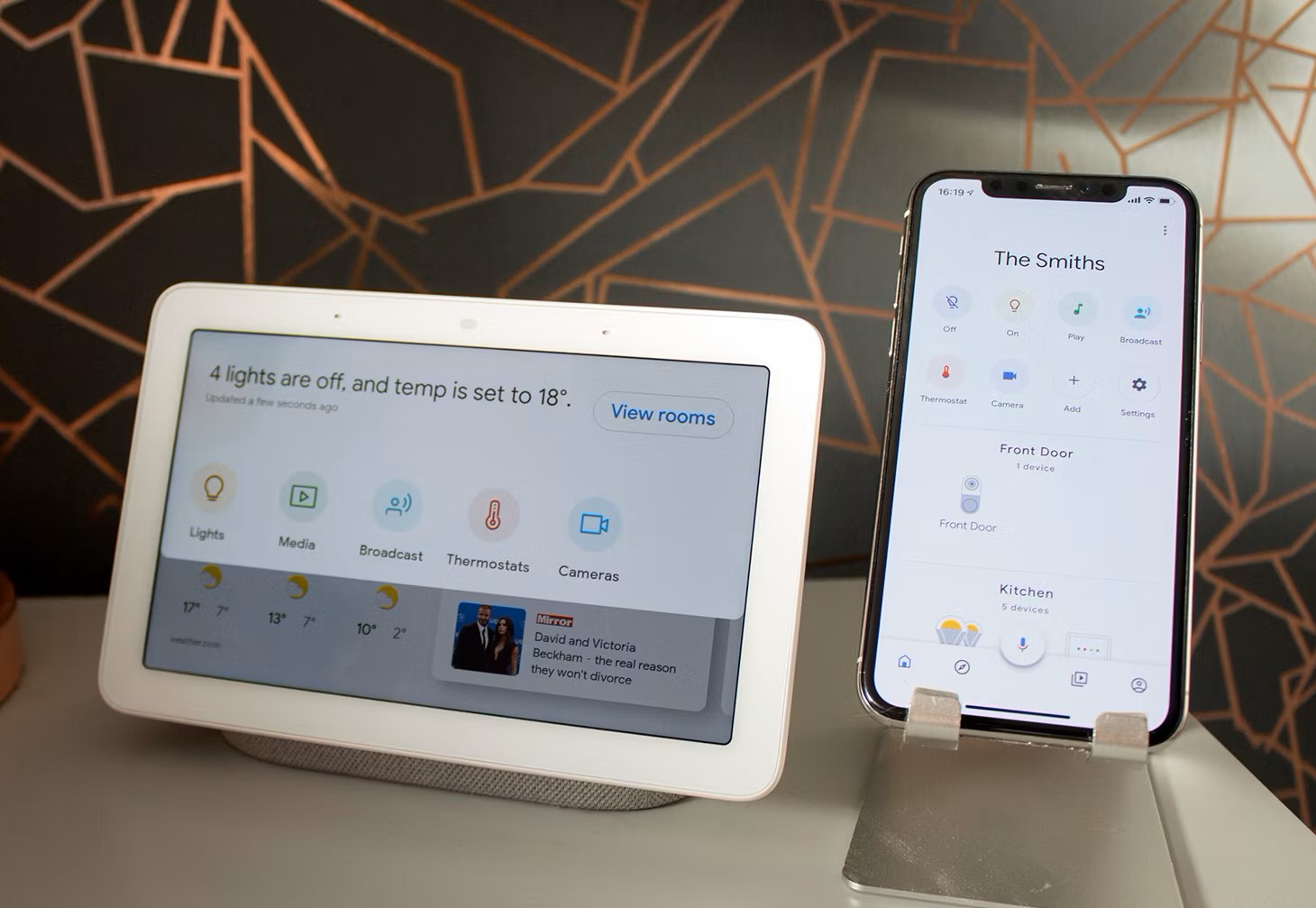
Google Home is an intelligent personal assistant that enables you to control your smart devices, access information, and manage your daily routines using voice commands. The Assistant integrates with a wide range of devices, from thermostats and lighting systems to security cameras and door locks. To configure your Google Home for smart home automation, you'll need to:
- Set up your Google Home device and connect it to your Wi-Fi network.
- Ensure all your smart devices are compatible with Google Home.
- Install the Google Home app on your mobile device or tablet.
- Connect your devices to the Google Home app using the Home app's settings.
Creating and managing Routines
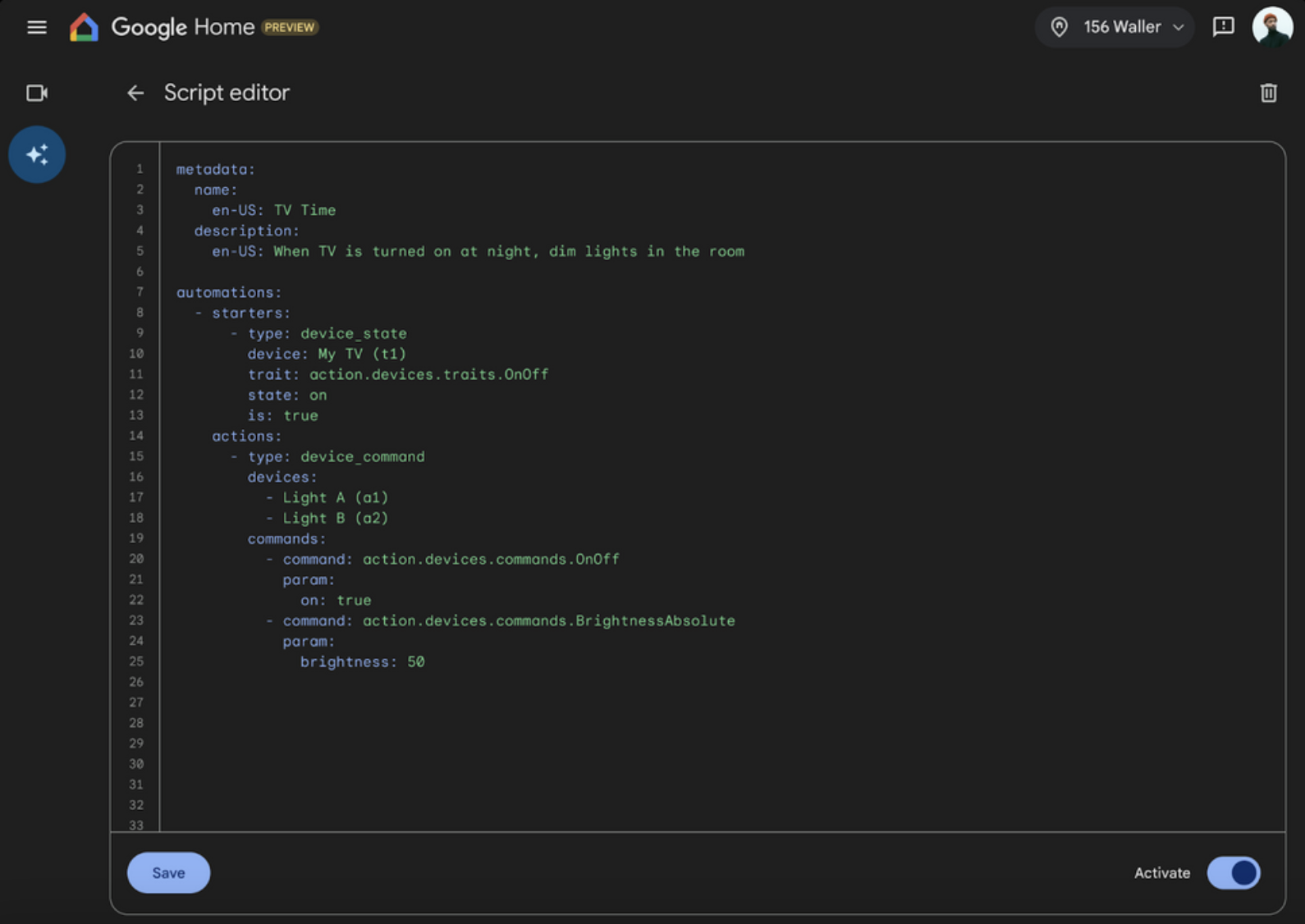
The new automation editor in Google Home provides a user-friendly interface for creating personalized routines that automate your smart devices. Customizable routines include:
- Goodnight, which turns off all devices in your home.
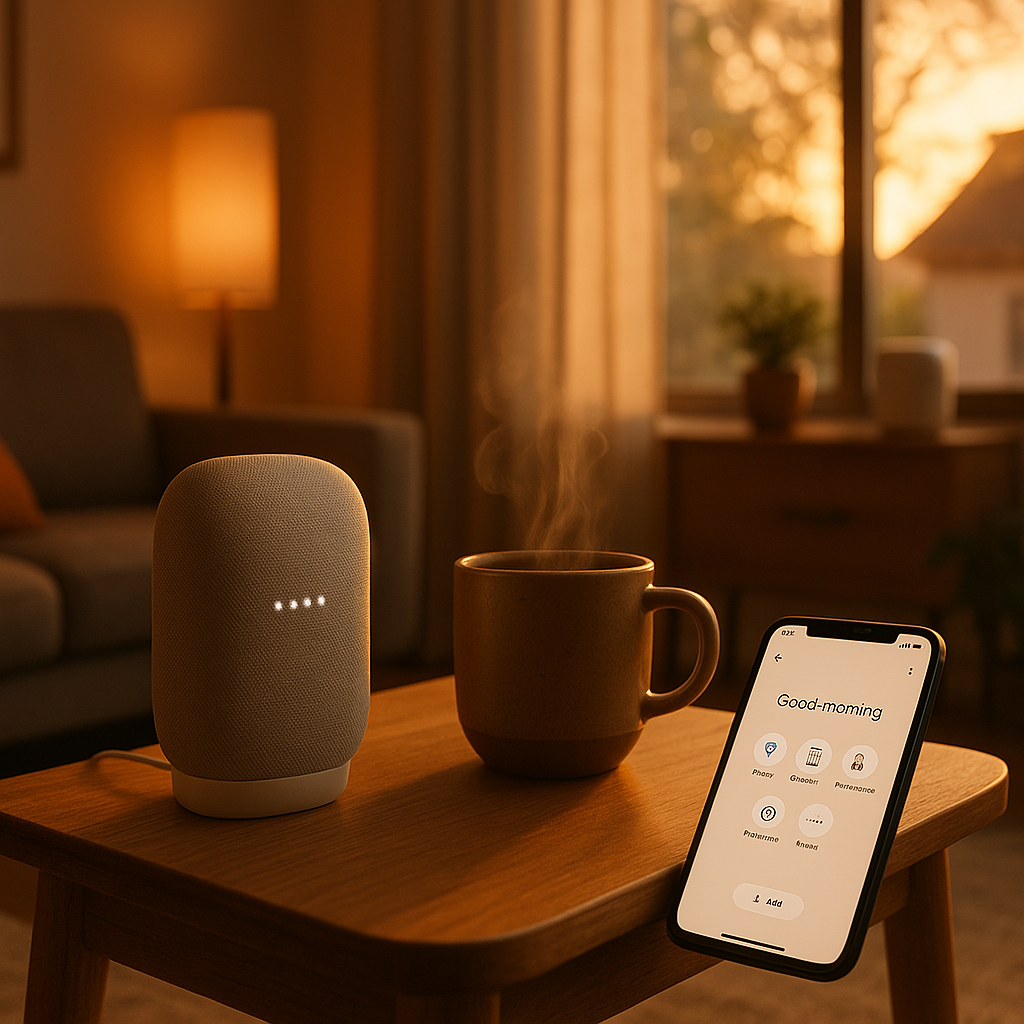
- Good morning, which starts the day with a relaxing wake-up routine.
- Weekend or workweek, which enables you to customize settings for specific days.
Setting Up Google Home Devices
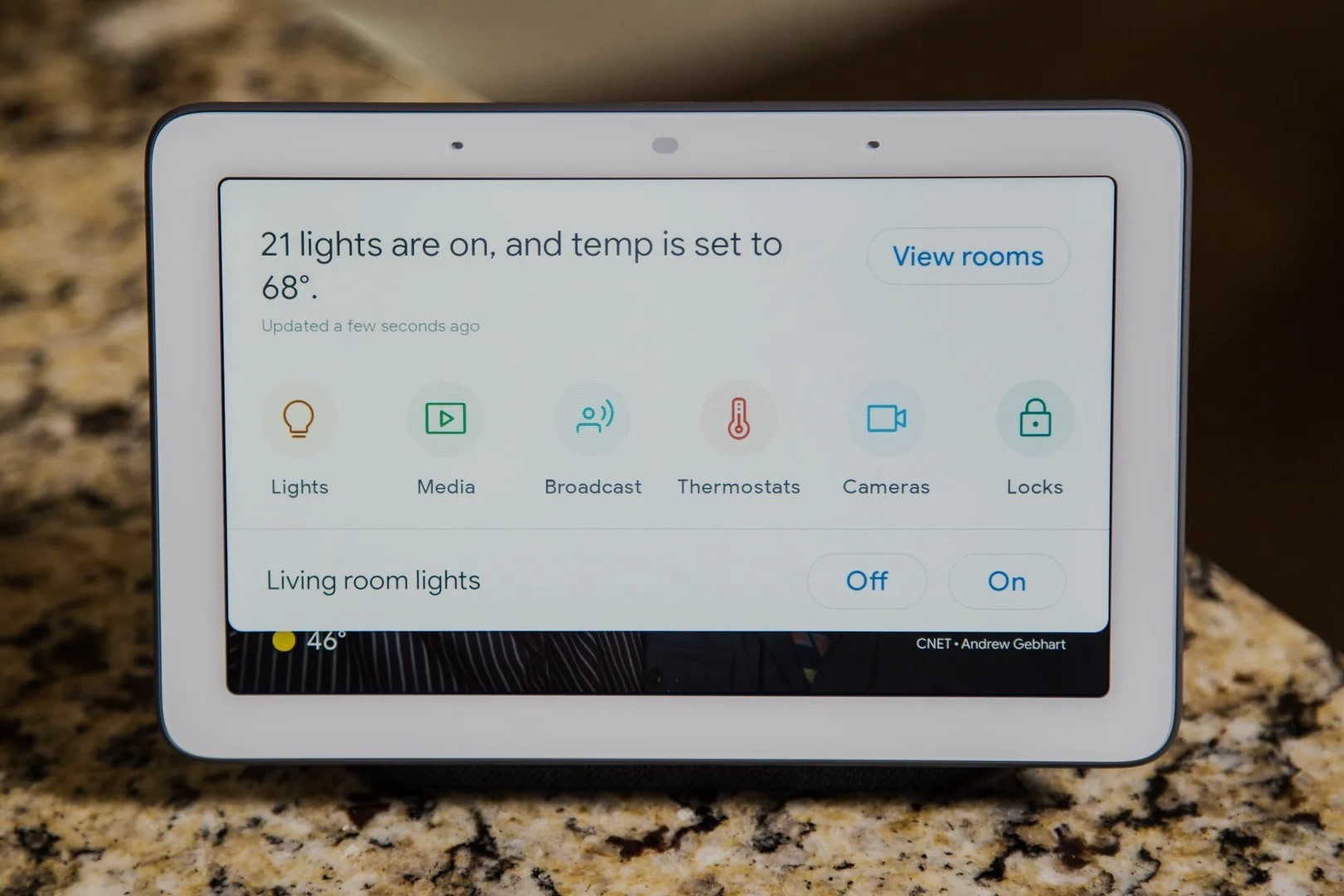
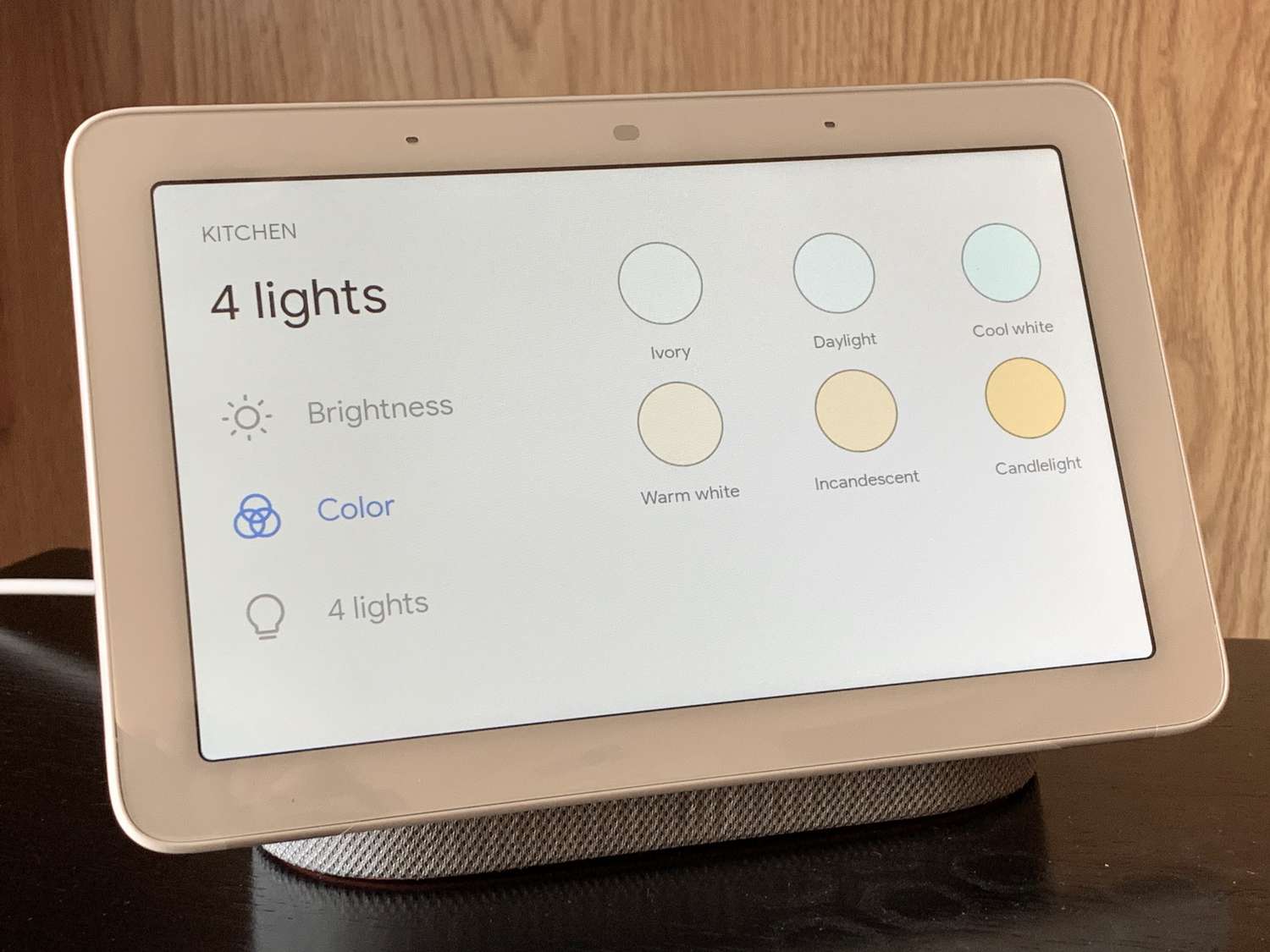
Google Home offers a range of devices, including the Google Nest Mini, Nest Hub, and Google Home speakers. To set up these devices, follow these steps:
- Connect your device to a power source.
- Download and install the Google Home app.
- Follow the in-app setup instructions.
Integrating Smart Devices
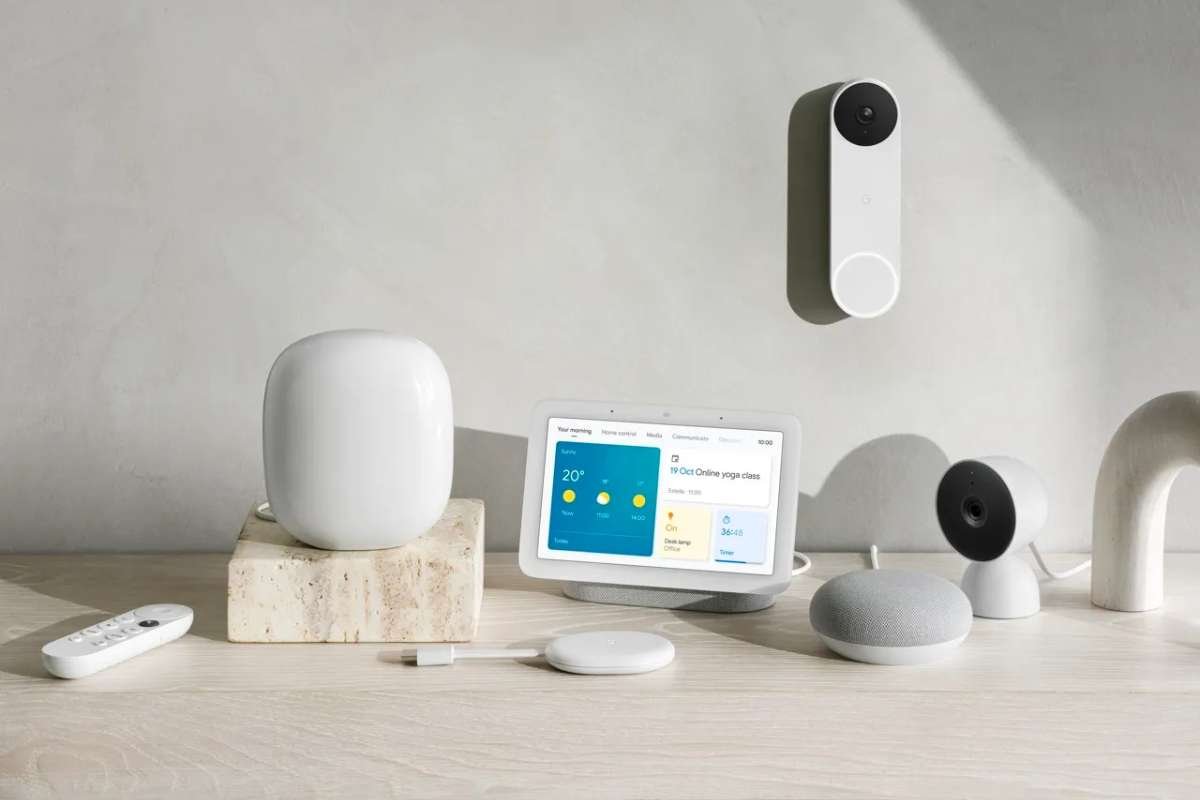
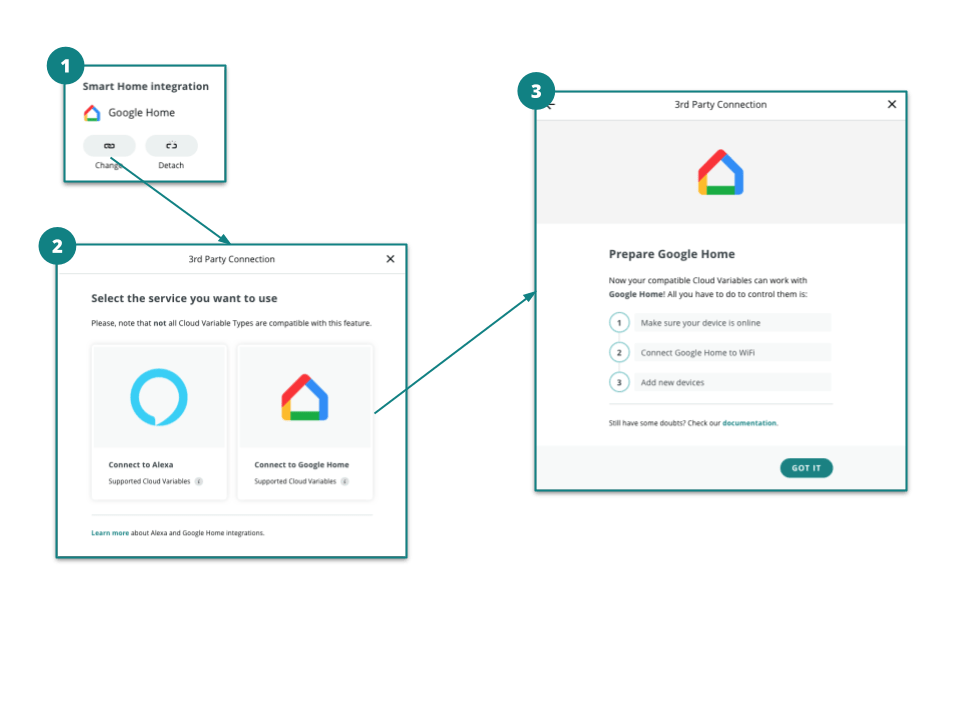
Connecting your smart devices to Google Home involves a few simple steps:
- Download the device manufacturer's app and sign in to your account.
- Open the Google Home app and navigate to the "Devices" tab.
- Use the '+' icon to add a new device.
- Follow the on-screen prompts to complete the connection process.
Extending Google Home with Advanced Features
Take your smart home to the next level with advanced features like room-specific controls, auto-shutoff, and smart scenes:
- Set specific scenes for individual rooms or events, enabling seamless automation.
- For room-specific control, choose the "Add device" option and designate a room for the device.
Dealing with Common Issues
When issues arise, use these troubleshooting tips:
- Restart your device and router.
- Update your Google Home app to the latest version.
- Check for loose connections between devices.
- Reset your device to its factory settings.
Final Tips for Mastering Google Home Automation
Ultimate control over your smart home is within reach with Google Home. Our expert advice can serve as a comprehensive starting point for elevating your living environment to truly intelligent levels of automation. Here are the bottom line takeaways:
- Establish a routine or sequence that works best for you, including light and temperature control.
- Investigate your smart home's expanded portfolio and examine the directions for reaping the benefits you are paying for.
- Give some thought to increasing your home's securitiy defenses.