How to Set Up AirPods: A Comprehensive Guide
If you've just purchased a new pair of AirPods, you're probably eager to start using them right away. However, setting up your AirPods can be a bit tricky, especially if you're new to using wireless earbuds. In this article, we'll provide a step-by-step guide on how to set up your AirPods, including pairing them with your iPhone and other devices.
Choosing the Right AirPods Model
Before we dive into the setup process, it's essential to note that there are several AirPods models available, each with its unique features and capabilities. If you're unsure which model to choose, here's a brief summary of the different models:
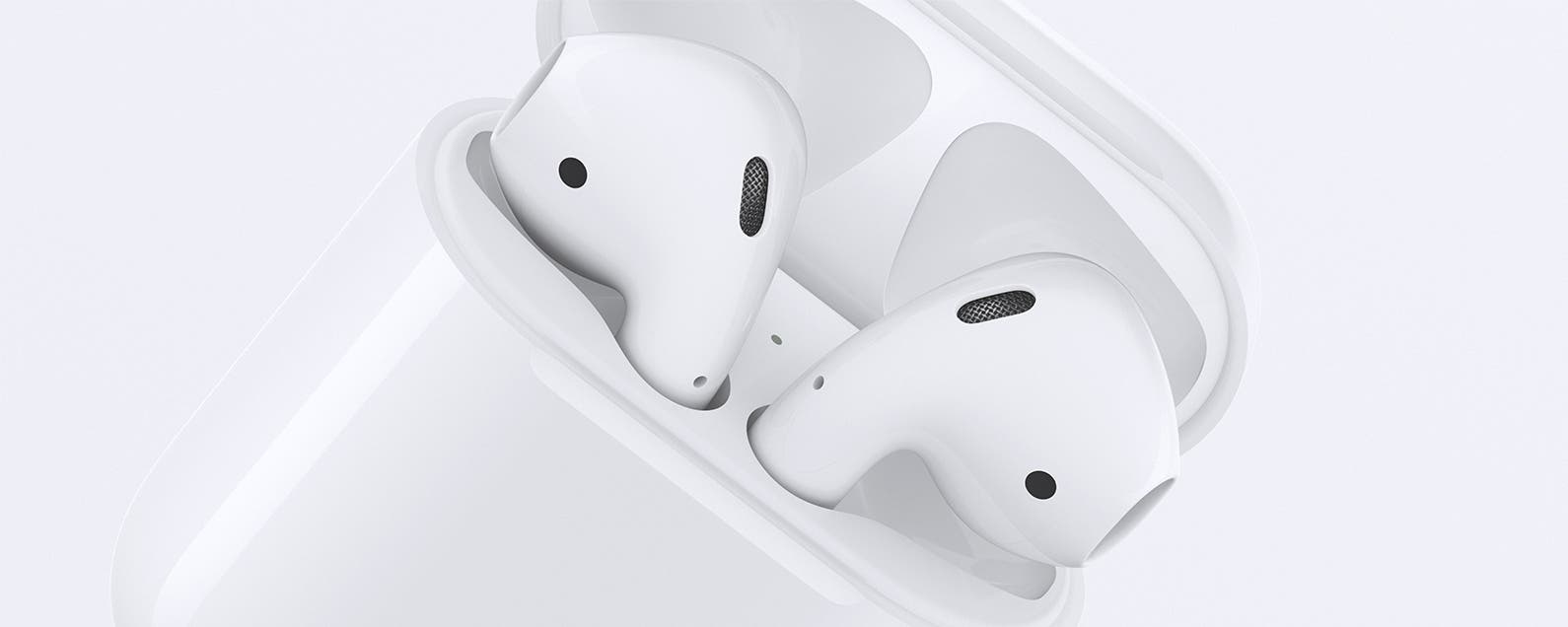
- Original AirPods: The classic AirPods model that comes with basic wireless connectivity and a sleek design.
- AirPods 2: An upgraded version of the original AirPods with improved sound quality and longer battery life.
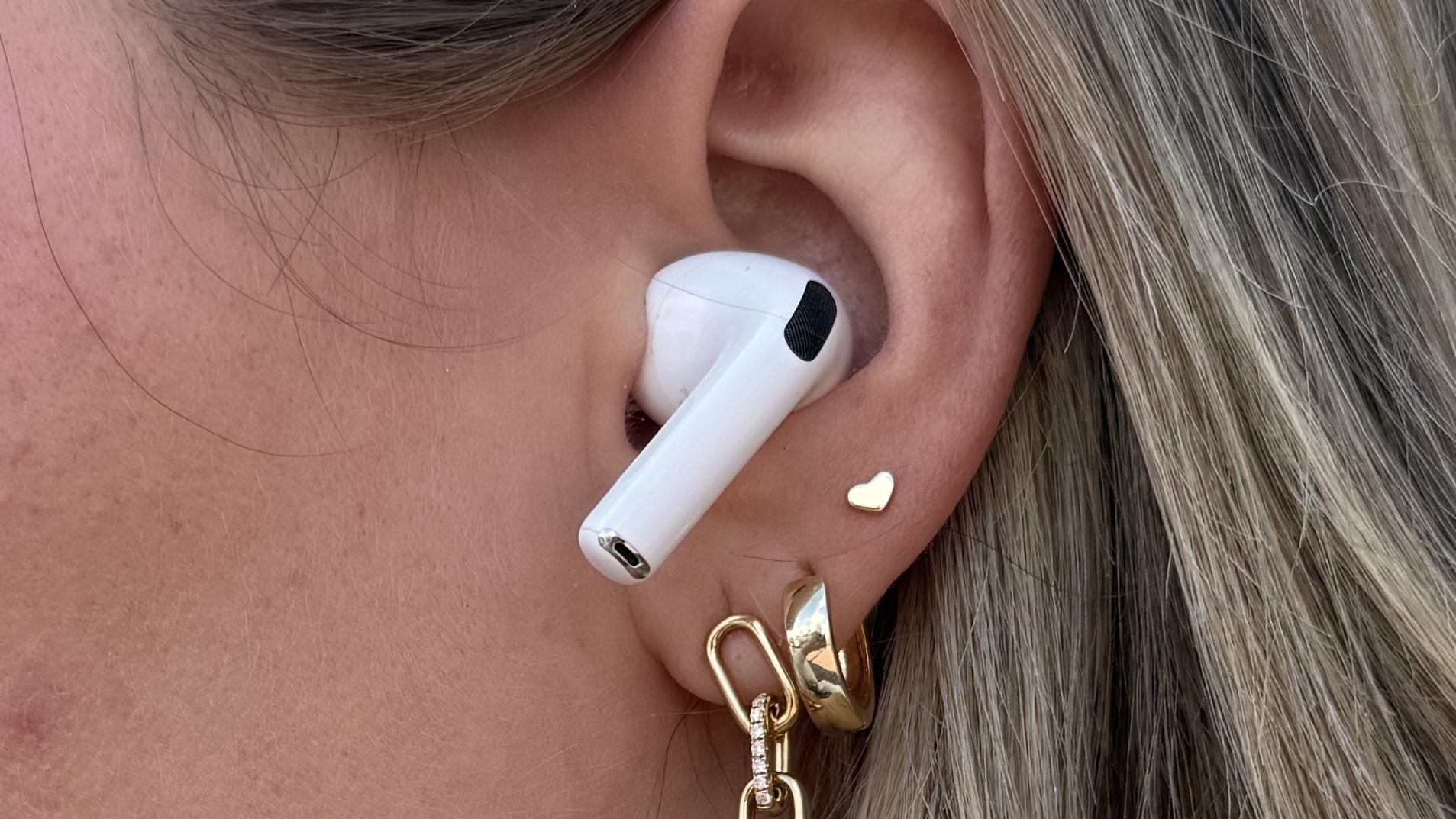
- AirPods 3: The latest version of the AirPods with advanced features like spatial audio and water resistance.
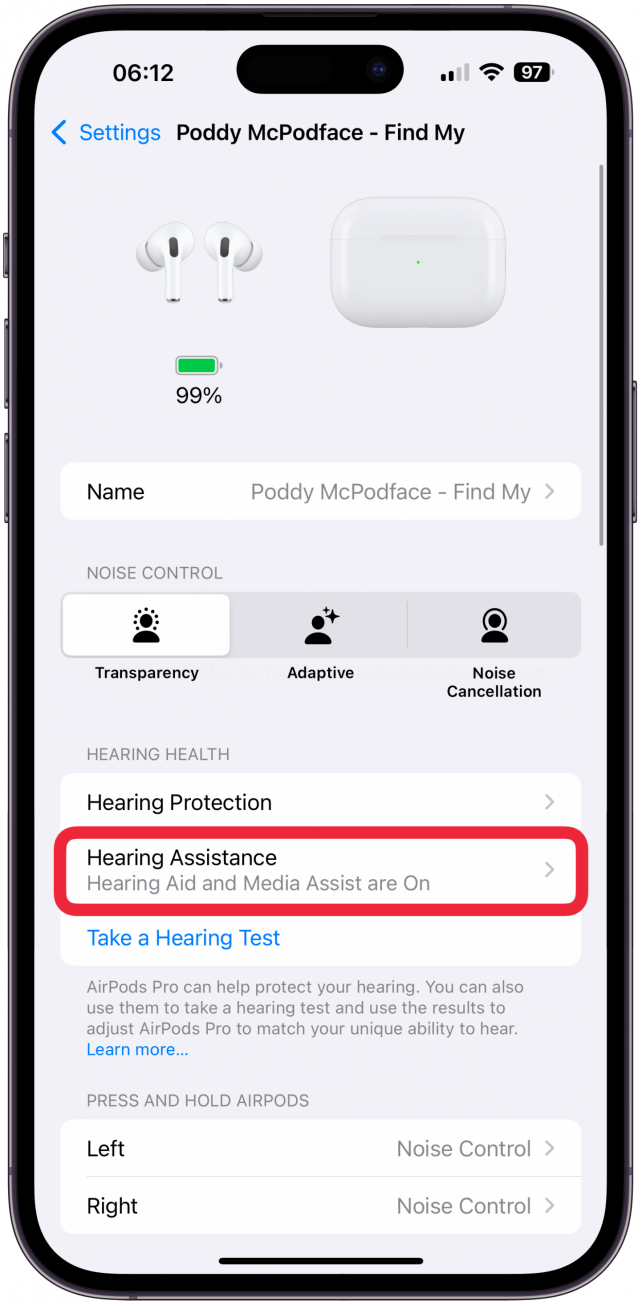
- AirPods Pro: The top-of-the-line AirPods model with active noise cancellation, water resistance, and three sizes of ear tips.
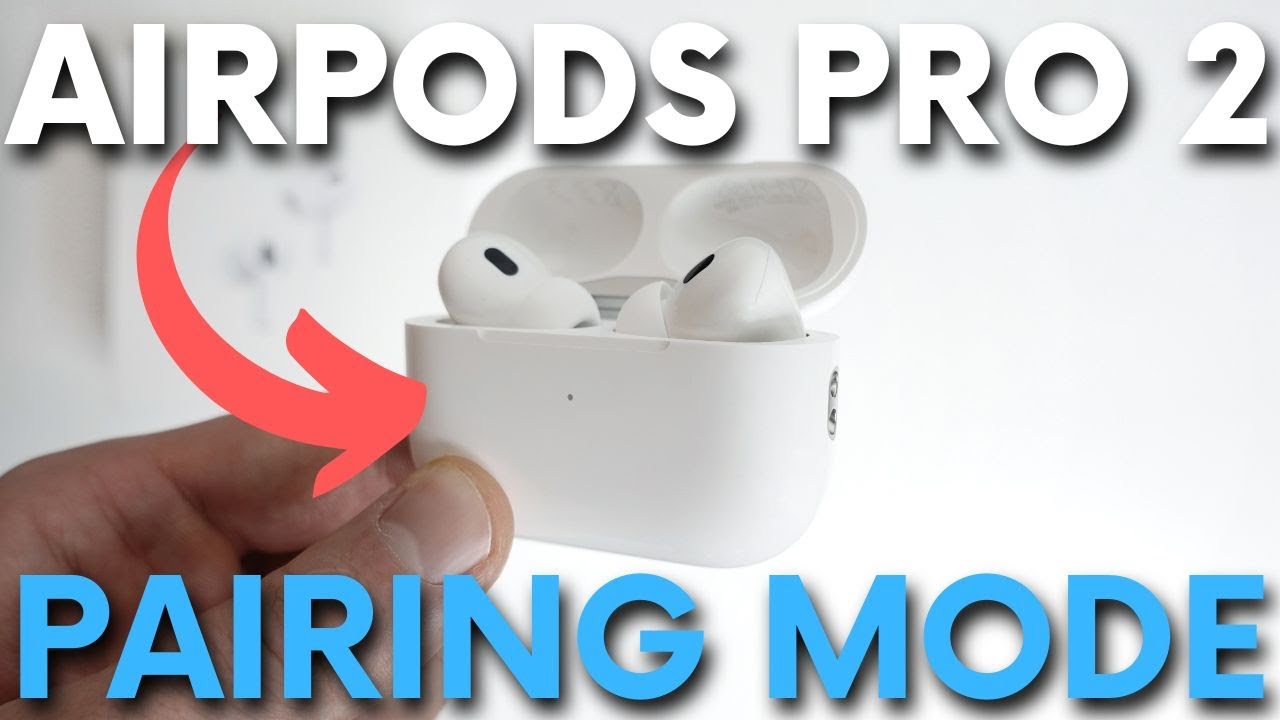
- AirPods Pro 2: An upgraded version of the AirPods Pro with improved sound quality and longer battery life.
- AirPods Max: Over-ear headphones with advanced features like active noise cancellation and spatial audio.
Setting Up Your AirPods
Automatic Setup
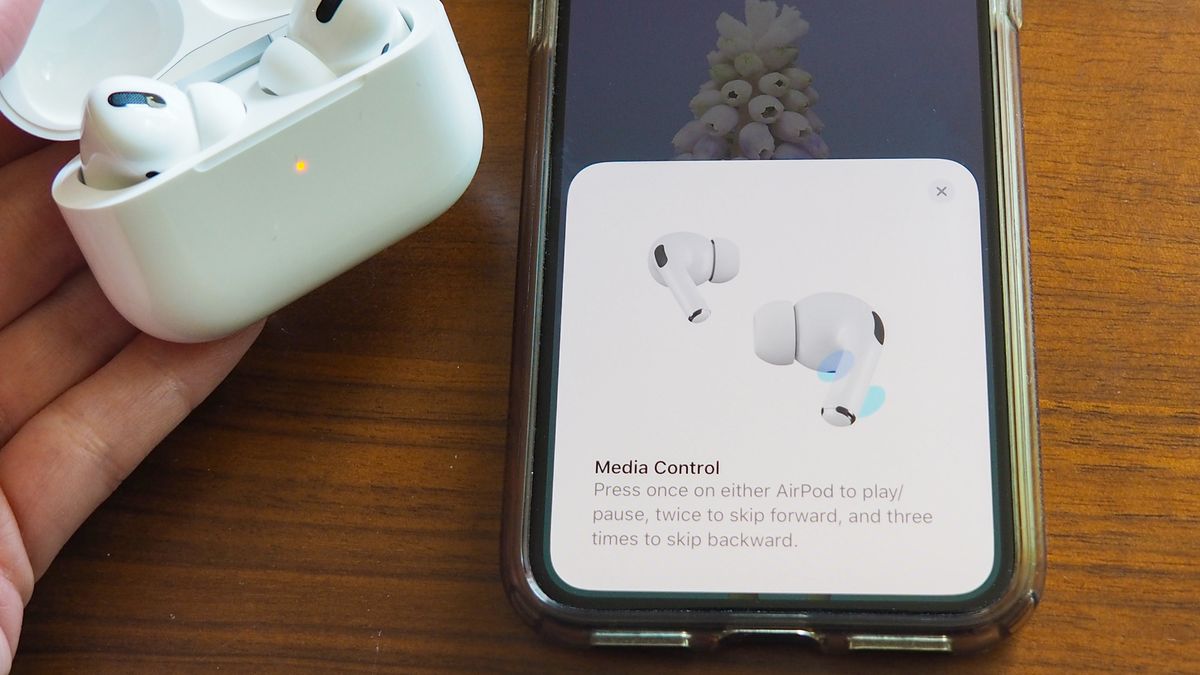
The easiest way to set up your AirPods is through the automatic setup process on your iPhone. Here's how:
- Make sure your iPhone is running iOS 12 or later.
- Open the Apple pairing box and put your AirPods in the case.
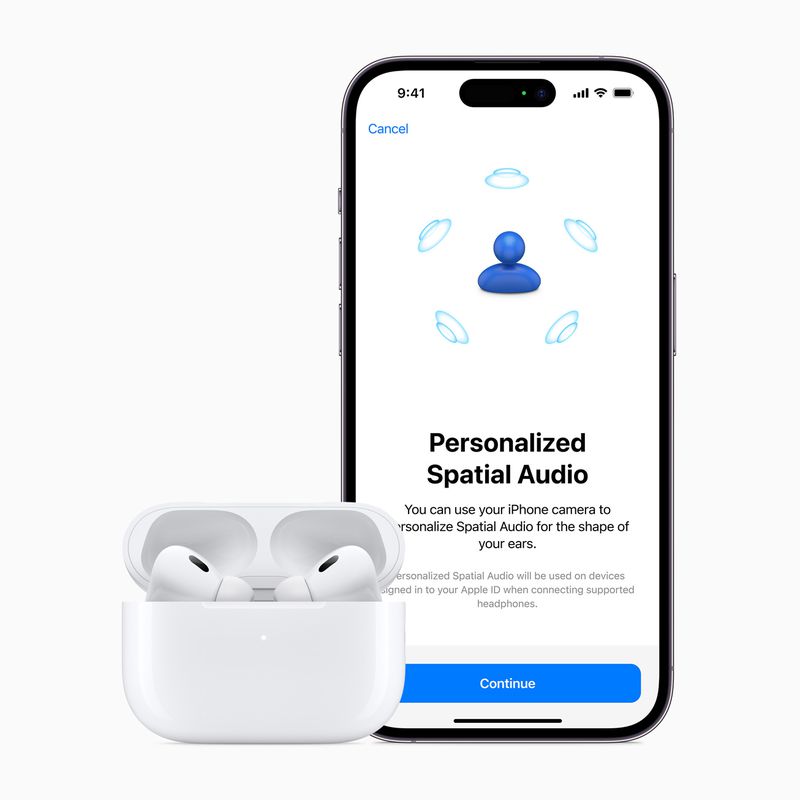
- Put the case next to your iPhone, and the AirPods will automatically pair with your device.
- Follow the on-screen instructions to complete the setup process.
Manual Setup
If you need to manually set up your AirPods, follow these steps:

- Put the AirPods in the charging case and close the lid.
- Open the case and go to Settings on your iPhone.
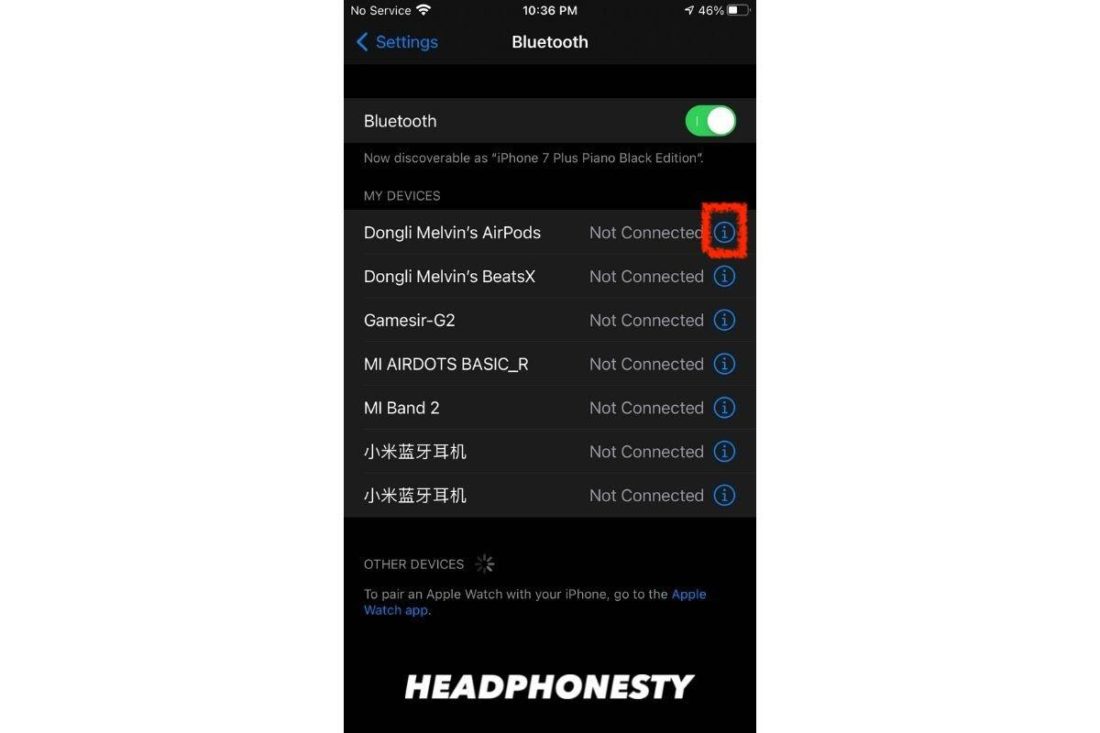
- Tap on Bluetooth and turn it on.
- Tap on "i" next to your AirPods name and select "Connect."
- Follow the on-screen instructions to complete the setup process.
Connecting Your AirPods to Other Devices
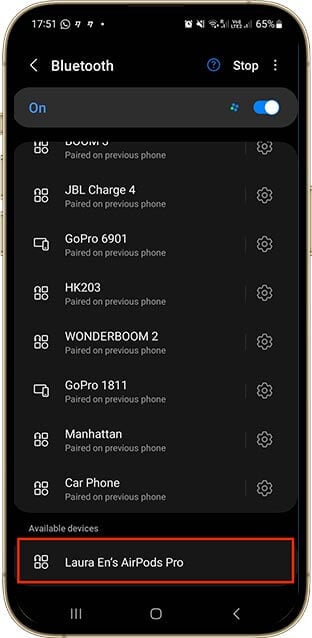
Once you've set up your AirPods with one Apple device, they will automatically connect to your other Apple devices where you're signed in to the same Apple account. However, you can also manually connect your AirPods to other devices, including:
- Mac and PC
- iPad and Android devices
- Other Apple devices signed in to the same Apple account
Troubleshooting Common Issues
While setting up your AirPods can be a breeze, you might encounter some common issues along the way. Here are some troubleshooting tips to help you resolve common issues:
- My AirPods won't connect to my iPhone:
- Make sure the AirPods are charged and in the charging case.
- Check that your iPhone is running the latest software.
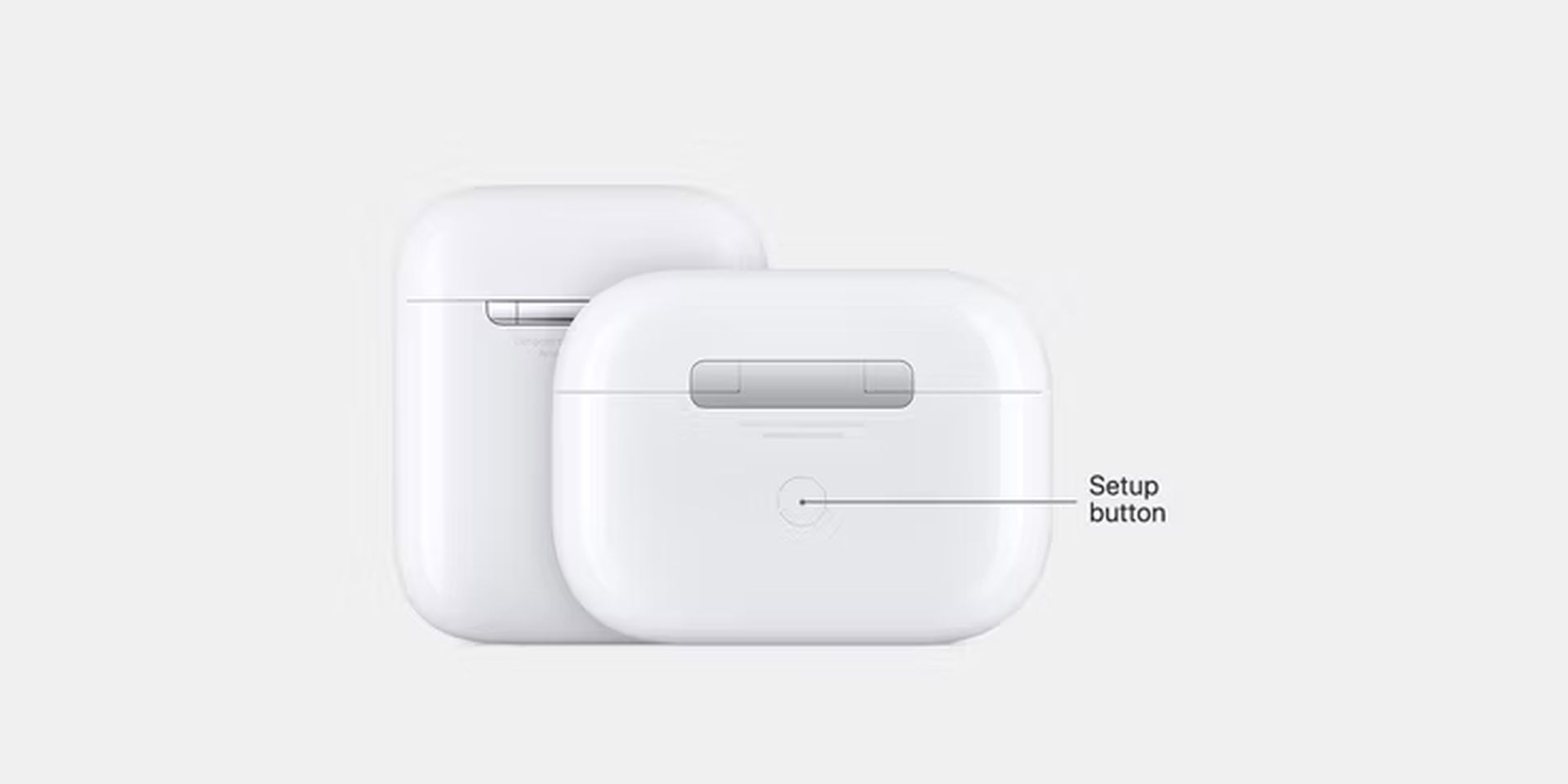
- Reset your AirPods to their factory settings.
- My AirPods are paired with the wrong device:
- Go to Settings and tap on Bluetooth.
- Tap on the information icon next to your AirPods name.
- Tap on "Forget This Device" to unpair your AirPods.
- My AirPods won't play audio:
- Check that the volume is turned up.
- Make sure the audio is not muted.
- Try restarting your AirPods or iPhone.
Conclusion
Setting up your AirPods is a relatively straightforward process, especially if you follow the steps outlined in this guide. Whether you're a beginner or an experienced user, our tips and tricks will help you get the most out of your AirPods and troubleshoot common issues.
Now that you've learned how to set up your AirPods, it's time to explore the world of wireless audio and discover the convenience and superior audio quality that AirPods have to offer.


:max_bytes(150000):strip_icc()/Untitled-50d95f80185044b7a4ed33555829d02e.jpg "How to Connect AirPods to iPhone: A Step-by-Step Guide for Seamless ...")