How to Recover Deleted Data Securely: A Comprehensive Guide
Jul 15, 2025
Losing important files on your Windows PC can be stressful, but knowing how to securely recover them is essential for both personal and professional users. Whether files were deleted accidentally, corrupted, or lost after a system crash, Windows offers a range of methods to help you get them back. This guide covers 12 proven ways to recover your files securely, with easy-to-follow instructions to ensure you can restore deleted data quickly and safely.Understanding Data Recovery
Data recovery refers to the process of retrieving deleted, lost, or inaccessible data from storage devices. This can be due to various reasons such as file deletion, corruption, or system crashes. The primary goal of data recovery is to restore data securely, without causing any further loss or damage.
Preparation is Key
Before attempting to recover deleted data, it's essential to act quickly and take the necessary precautions. This includes:
- Turning off your PC immediately to prevent further file overwrites.
- Verifying which files were deleted and confirming that they are not accessible.
- Using a data recovery tool to scan the storage device for recoverable files.
Method 1: Check the Recycle Bin
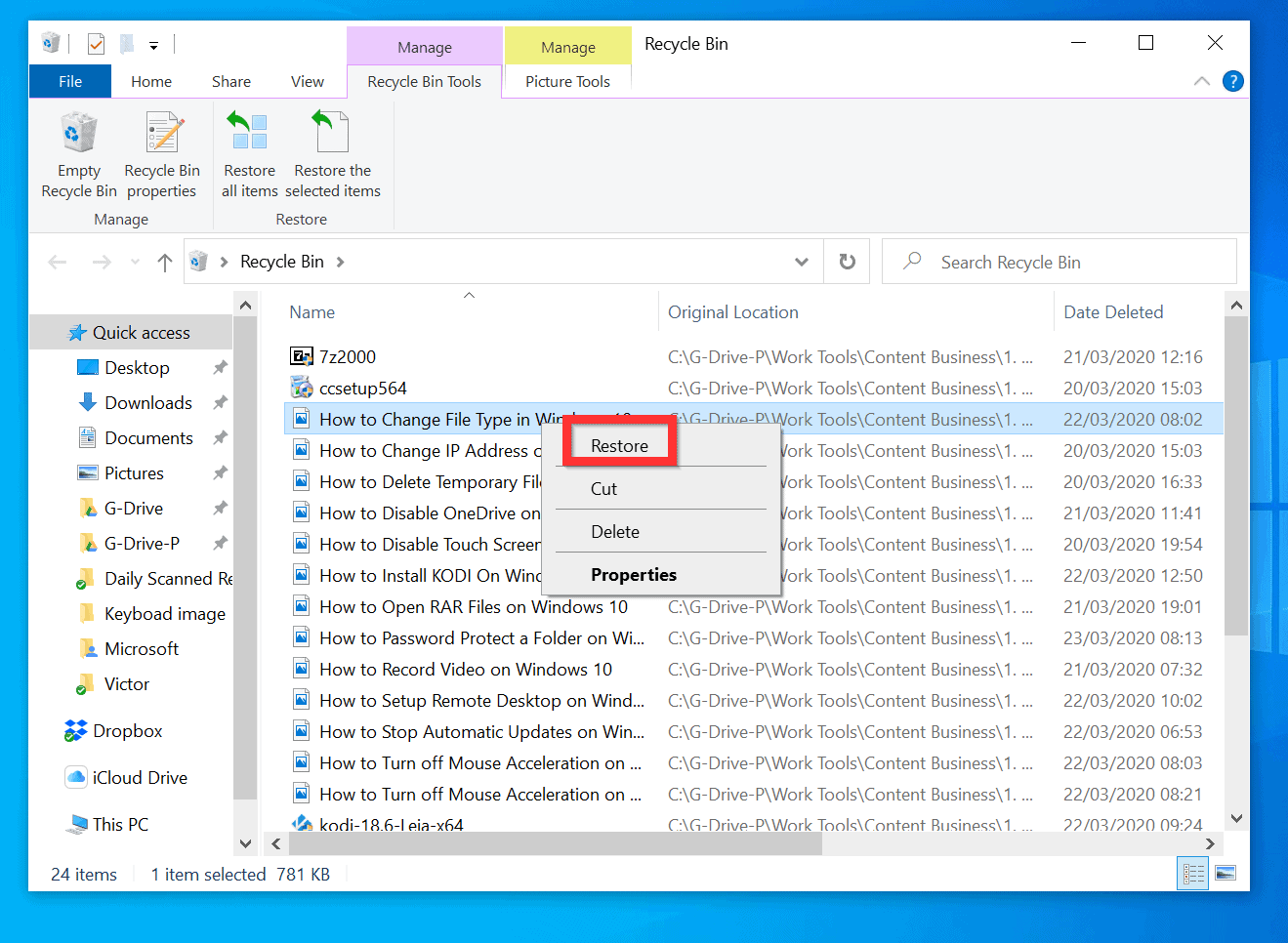
For Windows users, the Recycle Bin is the primary location to recover deleted files. Check the Bin to see if your deleted files are still present. If they are, right-click and select 'Restore' to retrieve the files.
Method 2: Use Windows File Recovery or File History
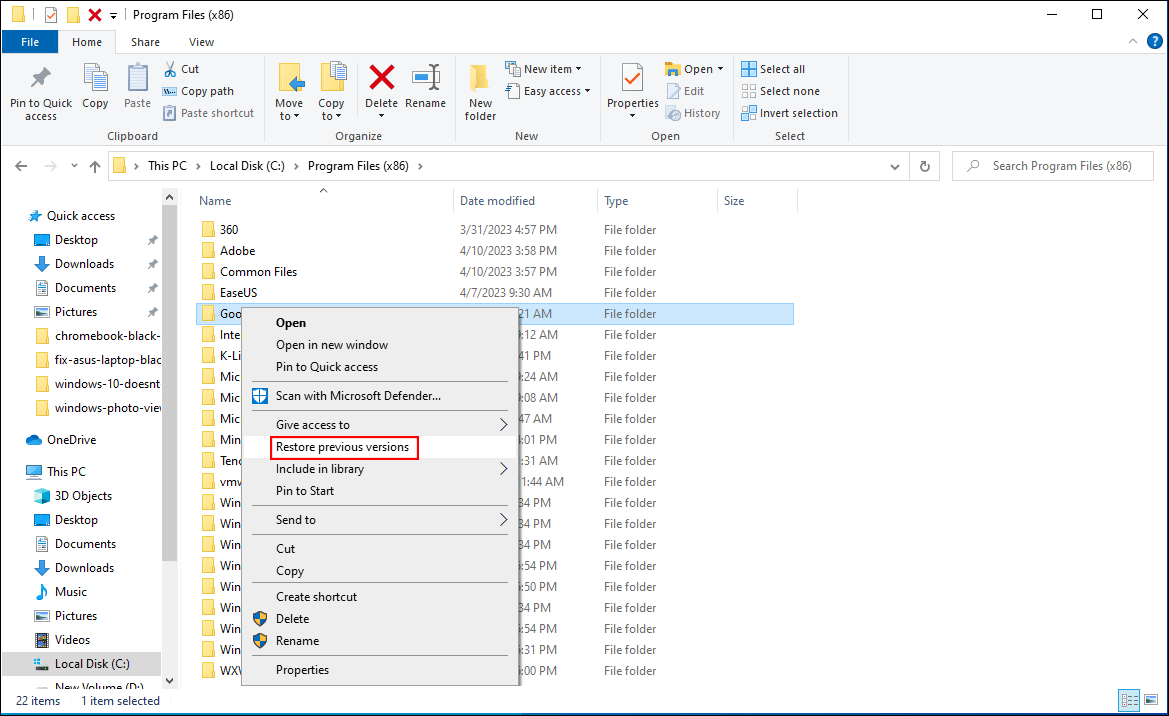
For Windows 10 or 11 users, use Windows File Recovery or File History to restore deleted files. Open the folder containing the deleted file, right-click, and choose 'Restore previous versions.' This allows you to restore the file to its original state.
Method 3: Use Third-Party Data Recovery Software
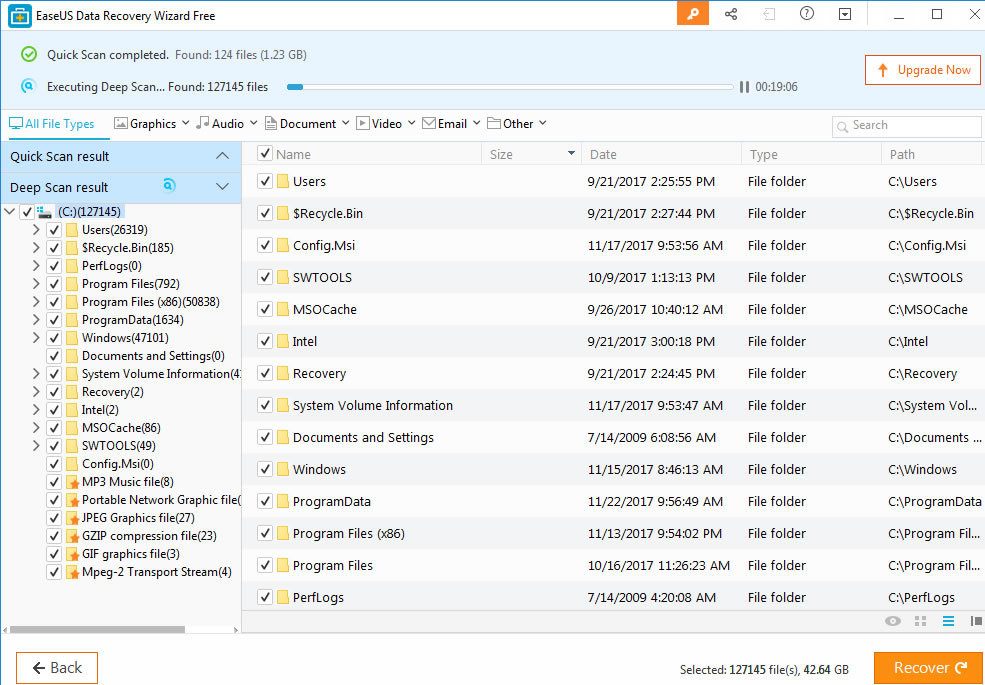
Third-party data recovery software, such as Recoverit, can help you recover deleted files quickly and efficiently. These tools use advanced algorithms to scan the storage device and retrieve recoverable files.
Method 4: Backup Services
Backup services like iCloud, Time Machine, or Dropbox can help you restore deleted files. Check if your data is backed up on these services and restore it accordingly.
Method 5: Data Recovery Services
Professional data recovery services employ advanced techniques and technologies to retrieve and restore data from various storage devices. These services are particularly useful for high-priority or critical data loss situations.
Method 6: Check Version History
If you've stored your files in cloud services like Dropbox, Google Drive, or OneDrive, check the version history to see if earlier versions of the file are available.
Method 7: Use System Restore
System Restore can help you restore your system to a previous state when the deleted file was still intact. Use System Restore to roll back your system to a previous point in time when the file was still accessible.
Method 8: Use Recovery Tools
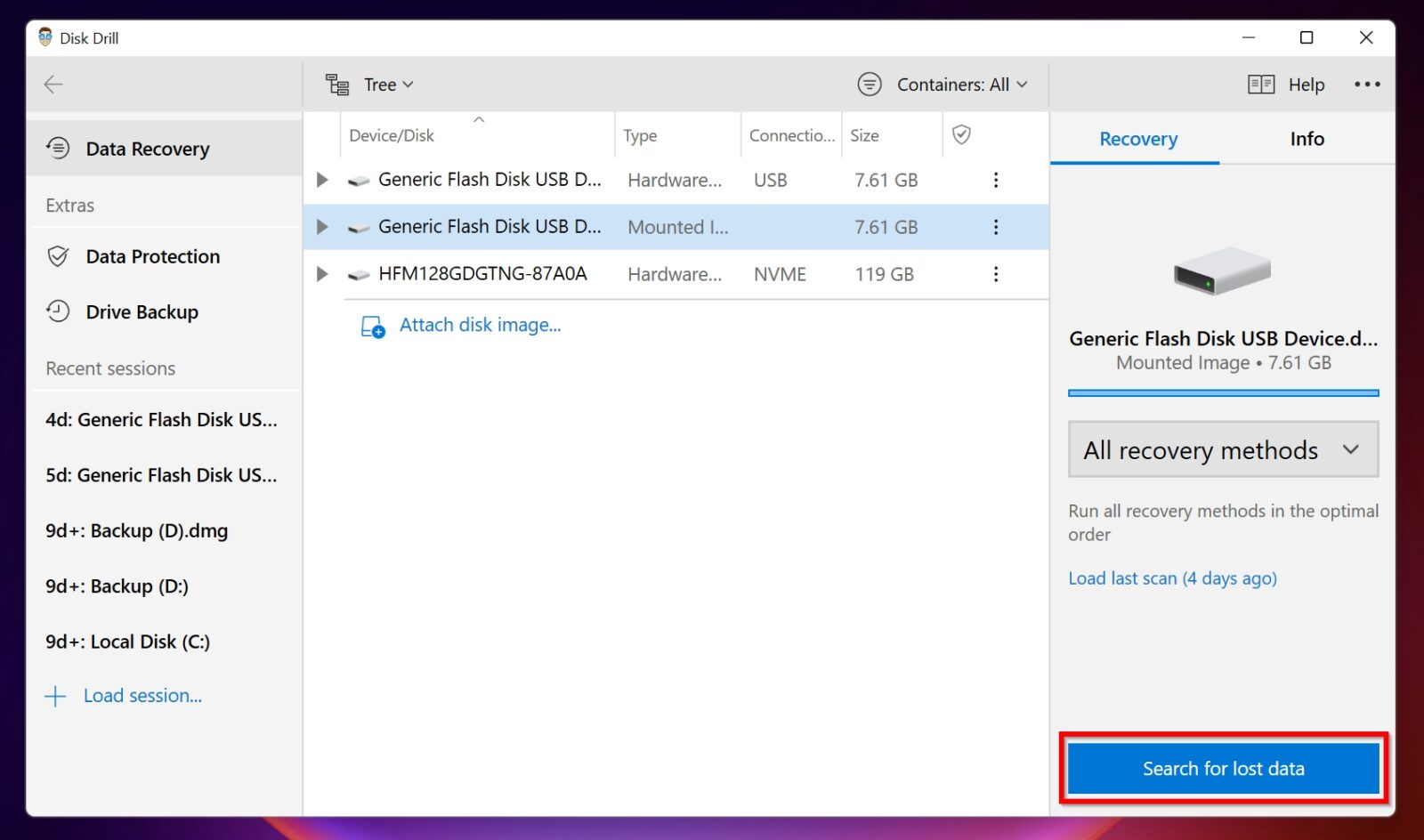
Recovery tools like TestDisk, Disk Drill, or PhotoRec can help you recover deleted files from various storage devices, including external hard drives, SSDs, or USB drives.
Method 9: Check with Cloud Providers
If you store your files in cloud services like OneDrive, SharePoint, or Teams, check with the cloud provider to see if the deleted file is stored in their backup systems.
Method 10: Use File System Tools
File system tools like chkdsk, fsck, or diskutil can help you repair corrupted file systems and recover deleted files.
Method 11: Use Hardware Encrypted Drives
Hardware encrypted drives, like secure USB sticks or self-encrypting hard drives, can help you recover deleted files securely.
Method 12: Consult Professionals
If all else fails, consult professional data recovery services or data recovery experts who can help you recover deleted files quickly and securely.

![How To Recover Deleted Files [Top 8 Proven Methods]](https://images.anyrecover.com/anyrecoveren/assets/guide/choose-mode-from-home-screen.png "How To Recover Deleted Files [Top 8 Proven Methods]")
![How to Recover Deleted Files: Complete Guide [2026] - DataNumen](https://www.ubackup.com/screenshot/en/data-recovery-disk/windows-recovery/select-another-backup-to-restore-files-from.png "How to Recover Deleted Files: Complete Guide [2026] - DataNumen")