Set Up a Mini Private Minecraft Server: A Step-by-Step Guide
Want to host your own Minecraft world without breaking the bank? Look no further! This guide shows you everything you need to know about setting up a Minecraft server on a mini PC in 2026. From picking the right hardware to optimizing performance, we'll help you get your server up and running like a pro.
Why Create a Private Minecraft Server?
Minecraft is one of the most popular video games of all time, and it's easy to see why. With a private server, you have unlimited possibilities for customized gameplay with friends. Whether you choose the simplicity of hosted solutions or the control of self-hosting, the key is starting small and expanding as needed.
Hardware Requirements
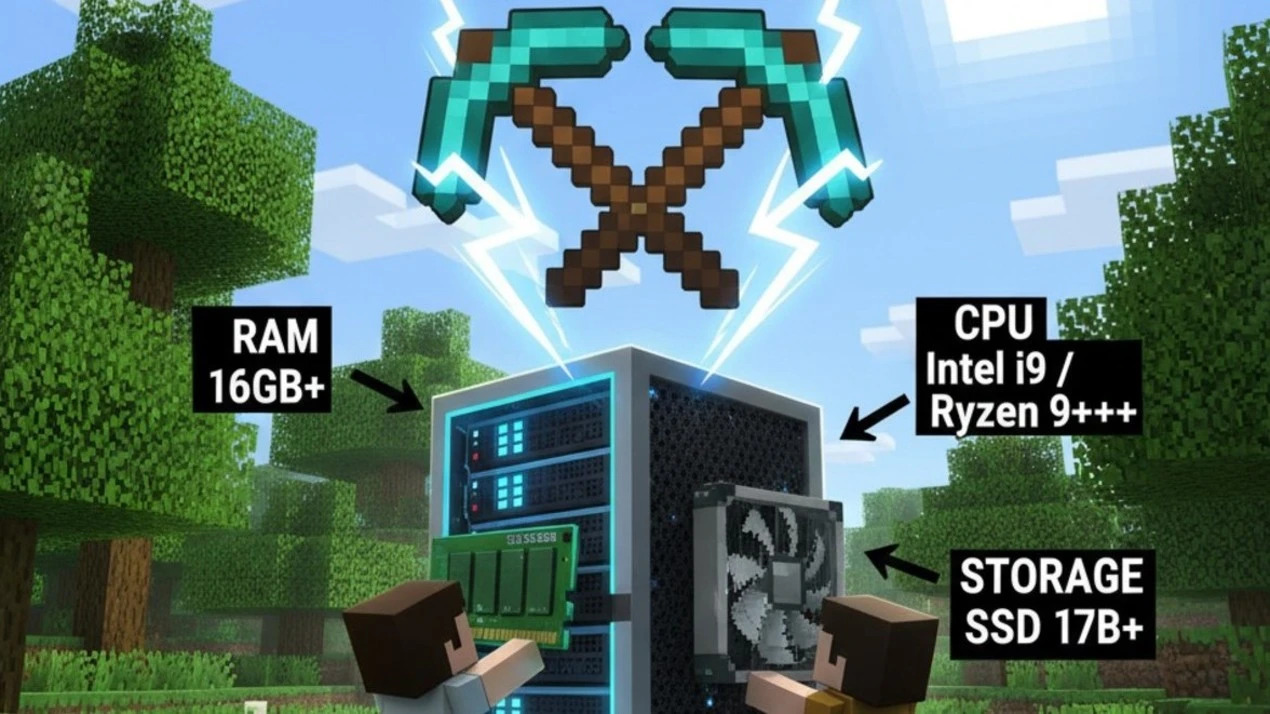
Before we dive into the setup process, let's talk about the hardware requirements for a mini private Minecraft server. You'll need the following:
- A mini PC with a powerful processor (at least quad-core)
- Adequate RAM (at least 8 GB)
- A solid-state drive (SSD) for fast storage
- A network interface controller (NIC) or a USB-to-Ethernet adapter
Software Requirements
Next, you'll need the following software:
- Minecraft server software (available for free from Mojang)
- A server management tool (such as MultiCraft or ServerTools)
- A text editor (such as Notepad++ or Sublime Text)
Step 1: Download and Install Minecraft Server Software
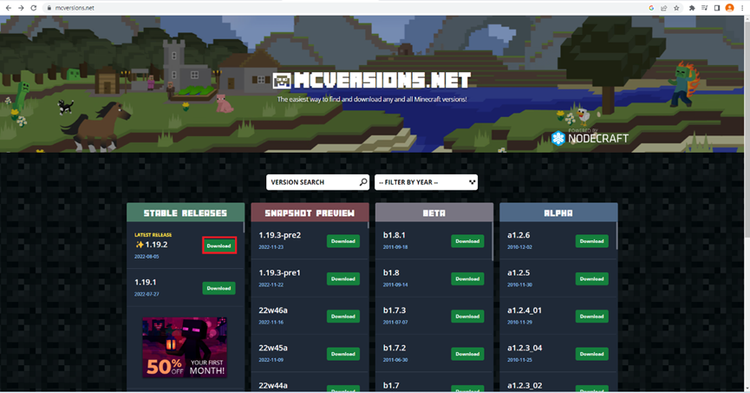
First, download the Minecraft server software from the official Mojang website. Then, extract the zip file to a folder on your mini PC. Next, launch the Minecraft server software and follow the prompts to complete the installation process.
Step 2: Configure the Server Settings
After installation, you'll need to configure the server settings. This includes setting up the server name, password, and port number. You can also customize the game rules, spawn rate, and other settings to suit your needs.
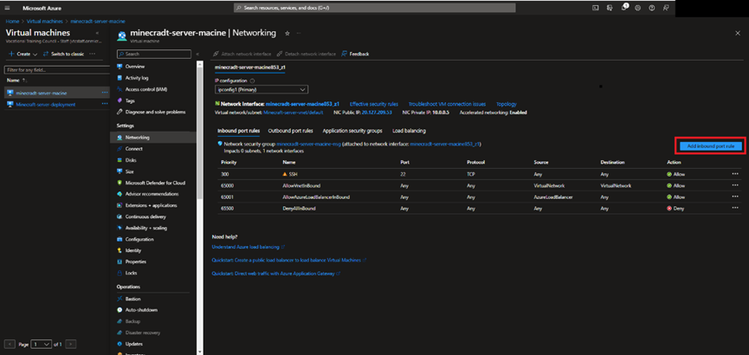
Step 3: Set Up Port Forwarding
Port forwarding is a critical step in setting up a private Minecraft server. This allows external players to connect to your server by forwarding the server's port to the internet. You'll need to set up port forwarding on your router and configure the Minecraft server software to use the forwarded port.
Step 4: Launch the Server
With the server settings configured and port forwarding set up, you're ready to launch the server. Simply start the Minecraft server software, and your server will be live and ready for play.
Optimizing Performance
Finally, let's talk about optimizing your server's performance. This includes configuring the server's settings, optimizing the network configuration, and monitoring the server's resources. By following these tips, you can ensure a smooth and enjoyable gaming experience for yourself and your friends.
Conclusion
Setting up a mini private Minecraft server is a great way to play the game with your friends and have more control over the game experience. By following the steps outlined in this guide, you can create a secure, customizable, and enjoyable Minecraft server for yourself and your friends.
Additional Resources
For more information on setting up a Minecraft server, check out the following resources:
- The official Minecraft wiki
- Minecraft server software documentation
- Online forums and communities for Minecraft server setup and optimization