Setting Up Google Voice Voicemail: A Comprehensive Guide
When using Google Voice, one of the essential features to understand and utilize is the voicemail setup. Google Voice voicemail setup allows users to send calls to their voicemail without ringing their number, create multiple voicemail greetings, and even have their voicemails sent to their email. In this article, we will delve into the process of setting up Google Voice voicemail and explore its advanced features and troubleshooting common issues.
Sign Up for Google Voice and Get Started
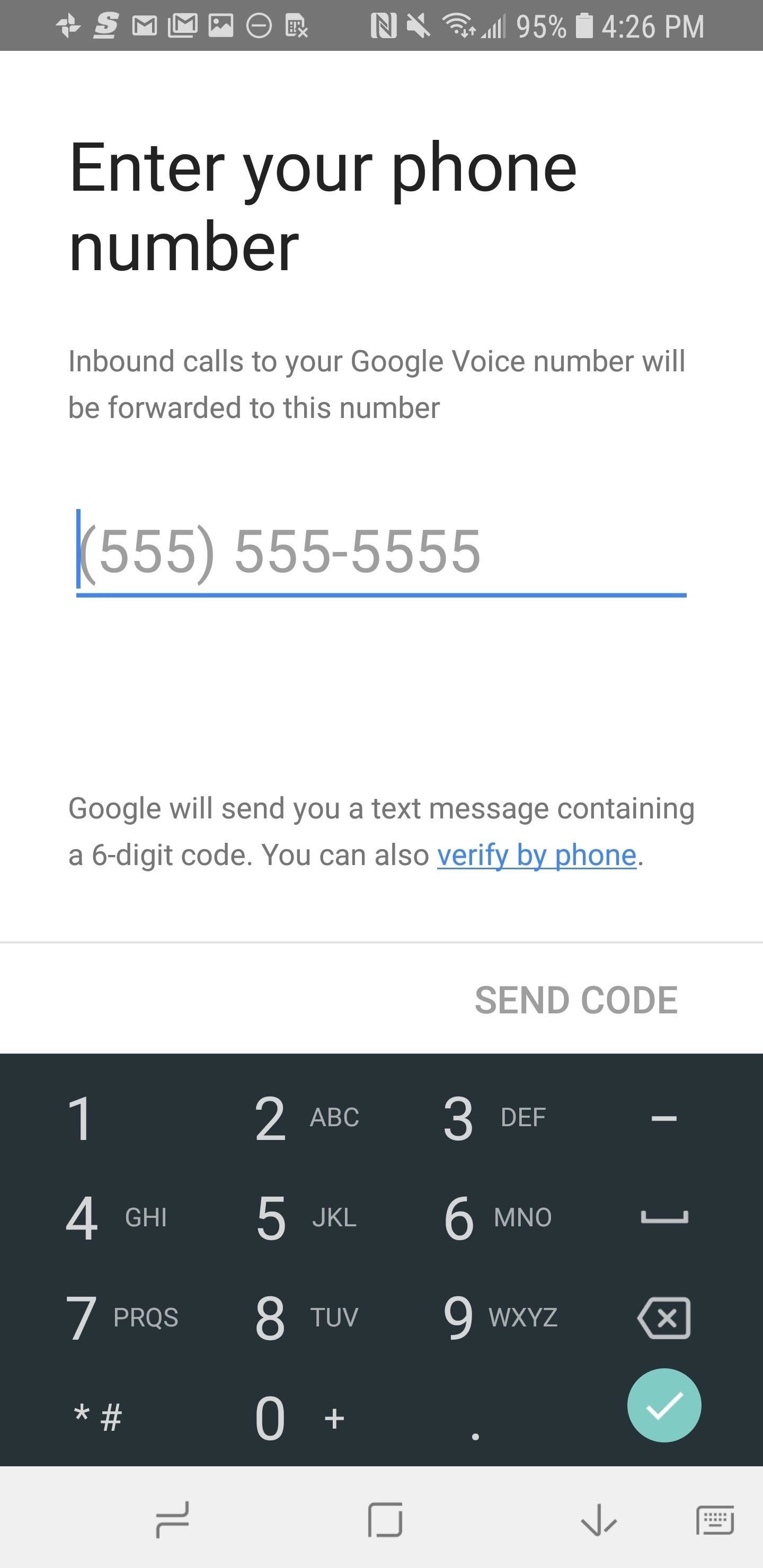
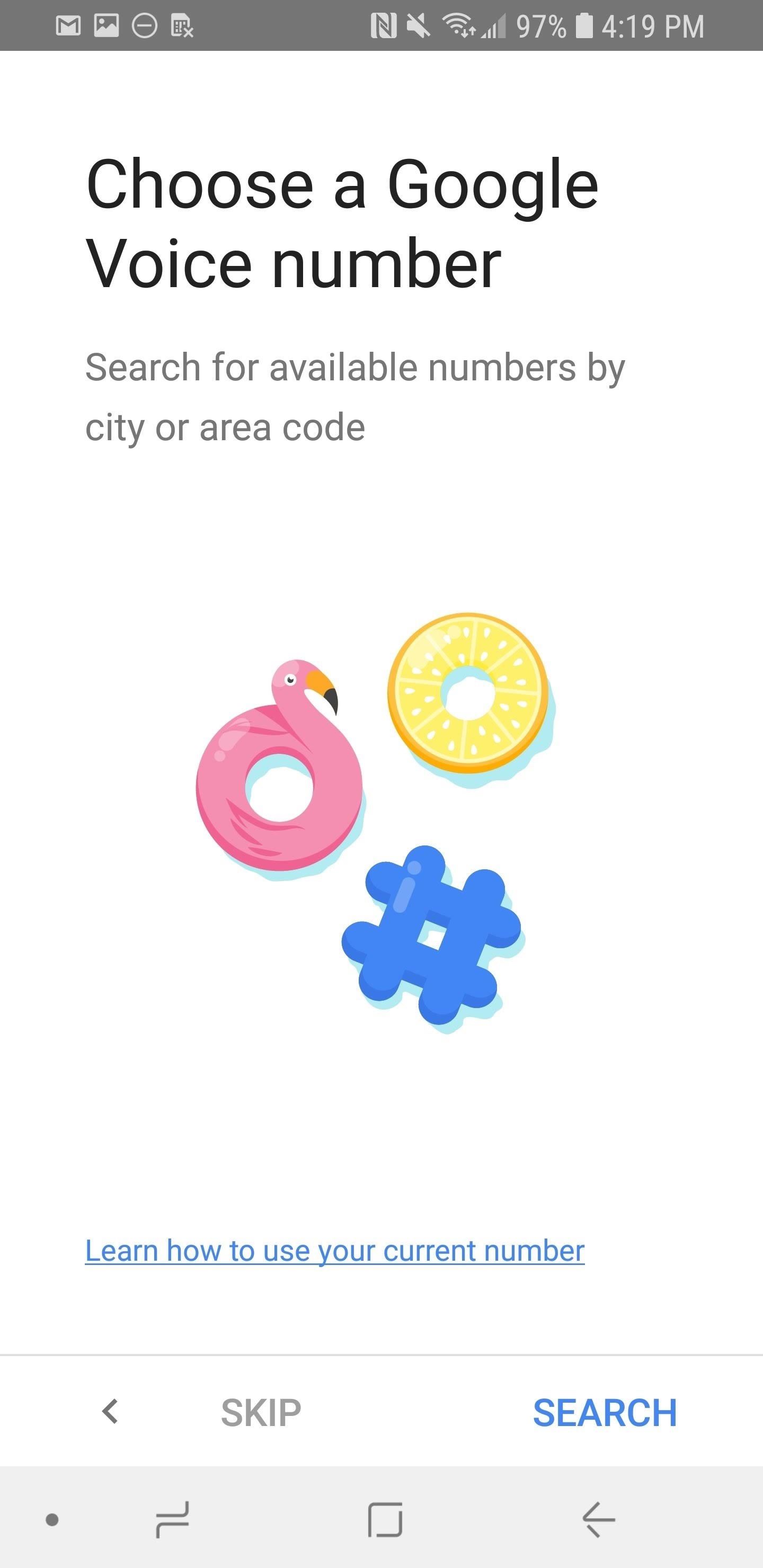
If you're new to Google Voice, the first step is to sign up for an account. Google Voice is a free service that offers a range of features, including voicemail, call forwarding, and text messaging. To get started, simply go to the Google Voice website and follow the sign-up process. If you're already a Google Voice user, you can skip this step and move on to the next section.
Accessing Google Voice Voicemail Settings
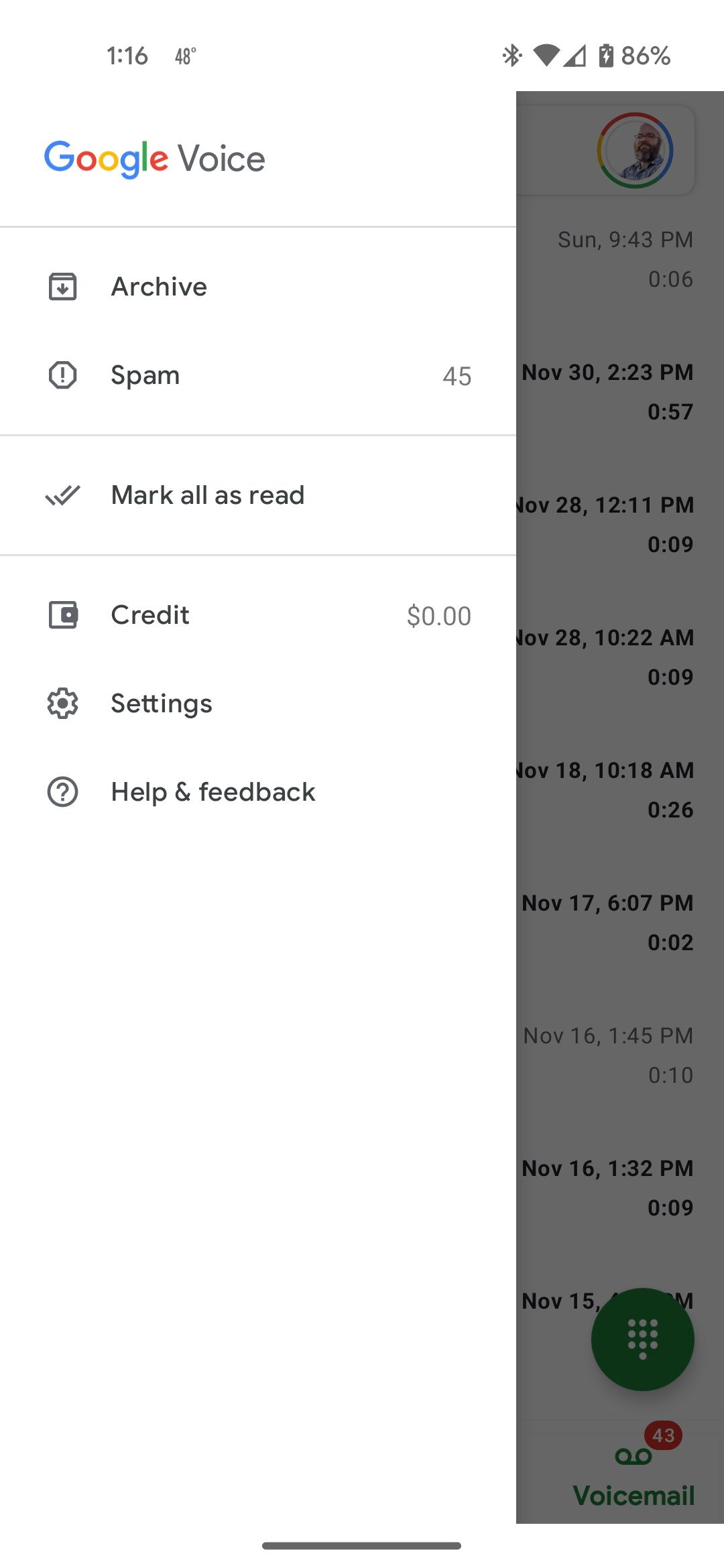
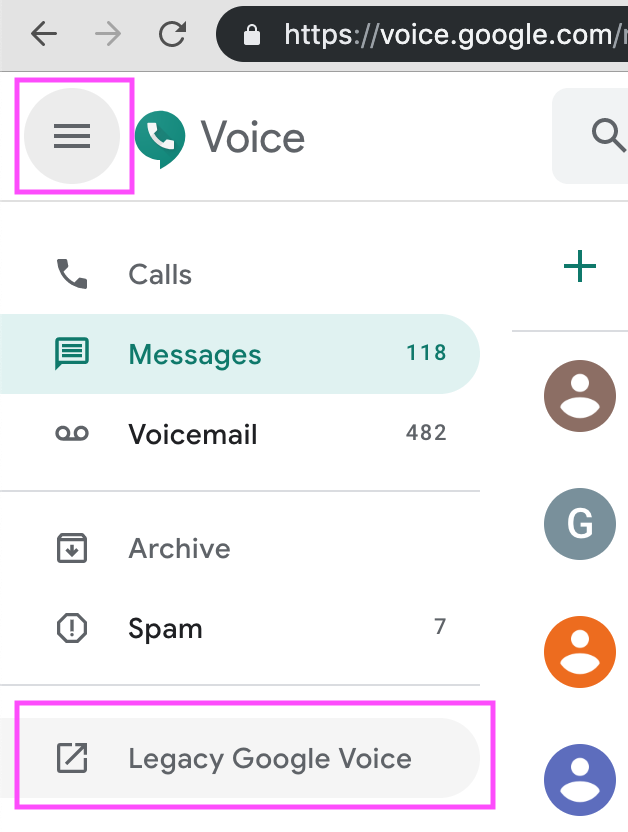
Once you're signed in to your Google Voice account, click on the settings icon (gear icon) in the top-right corner of the screen. From the drop-down menu, select "Voice & Audio." On this page, you'll see a section labeled "Voicemail." This is where you can access your voicemail settings and make changes to your voicemail setup.
Recording a Custom Voicemail Greeting
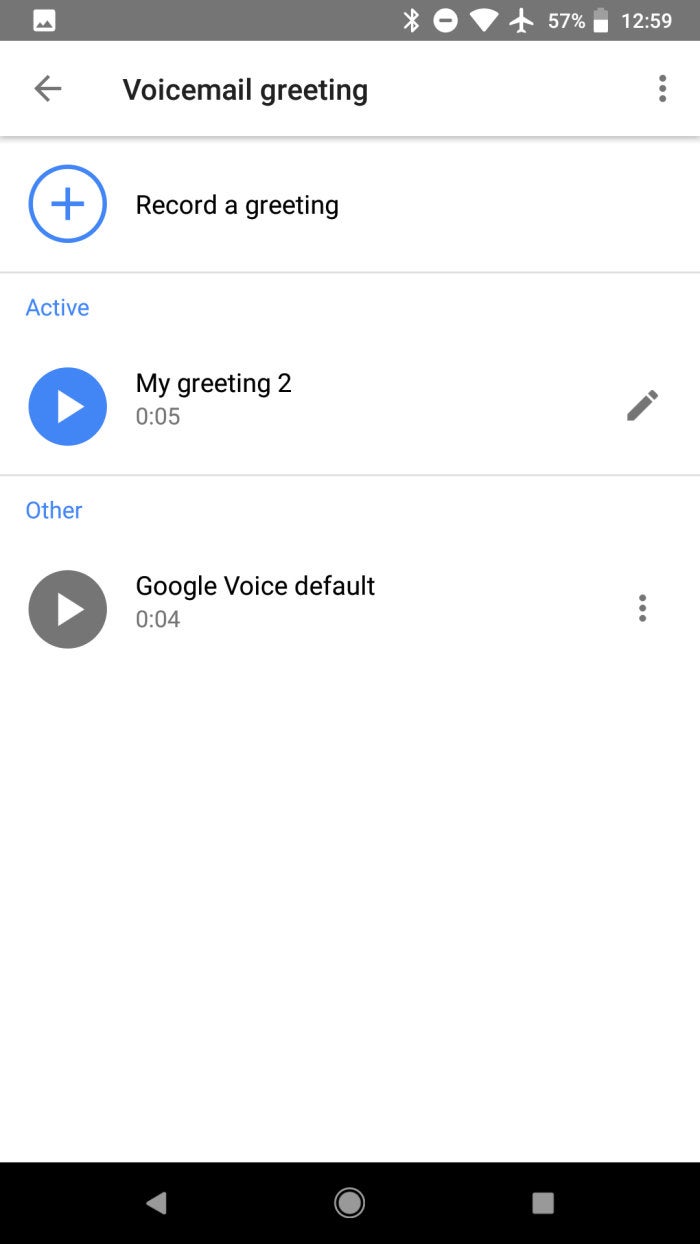
One of the first steps in setting up your Google Voice voicemail is to record a custom greeting. This greeting will play when someone calls your Google Voice number and you don't answer. To record a custom greeting, click on the "Record a custom greeting" button on the Voicemail settings page. You'll be prompted to record a 30-second message. You can record up to 10 different voicemail greetings and select the one you want to use.
Setting Up Automatic Voicemail Transcripts
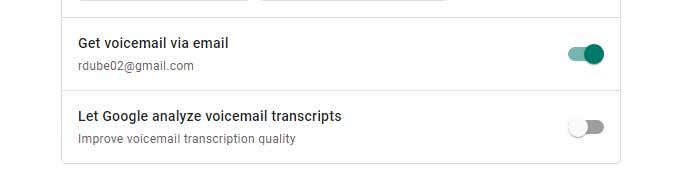
Another feature available in Google Voice is automatic voicemail transcripts. This feature allows you to view a transcript of your voicemail messages in your email inbox, similar to emails. To set up automatic voicemail transcripts, click on the "Transcripts" tab on the Voicemail settings page. From here, you can enable or disable the feature and customize your transcript settings as needed.
Configuring Call Forwarding and Voicemail
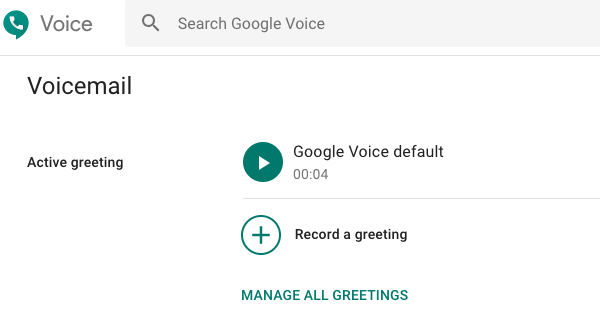
Call forwarding is another feature available in Google Voice that allows you to forward calls directly to your voicemail without ringing your number. To set up call forwarding and voicemail, click on the "Call forwarding" tab on the Voice & Audio settings page. From here, you can customize your call forwarding settings and choose whether to forward calls directly to voicemail or to ring your number first.
Conclusion
Setting up Google Voice voicemail is a straightforward process that offers a range of features and benefits. By following the steps outlined in this article, you can set up your Google Voice voicemail and start managing your missed calls and voicemails with ease. Whether you're a small business owner or an individual, Google Voice voicemail is an essential tool to have in your communication arsenal.
Additional Tips and Resources
For more information on setting up and using Google Voice voicemail, be sure to check out the following resources:
Common Problems and Solutions
While setting up Google Voice voicemail is generally a straightforward process, there may be times when you encounter issues or problems. Here are some common problems and their solutions:
- My voicemail greeting is not recording. Check that your microphone is working correctly and try recording a new greeting.
- I'm not receiving voicemail transcripts in my email inbox. Check that you have enabled automatic voicemail transcripts in your voicemail settings.
- I'm having trouble setting up call forwarding and voicemail. Check that you have correctly configured your call forwarding settings in the Voice & Audio settings page.