Windows 11 Setup for Low Resource Computers: Optimizing Performance and Efficiency
As the latest operating system from Microsoft, Windows 11 has brought numerous exciting features and improvements to the table. However, for those with low resource computers, the installation and running of Windows 11 can be a challenging task. In this article, we will explore the various ways to set up and optimize Windows 11 on low resource computers, ensuring a smoother and more efficient user experience.Understanding System Requirements
Before diving into the setup process, it's essential to understand the minimum hardware requirements for Windows 11. These include:- Processor: 1 GHz or faster with two or more cores on a compatible 64-bit processor or system on a chip (SoC)
- Memory: 4 GB or greater
- Storage: 64 GB or greater available disk space
Alternative Options for Low Resource Computers
For computers that don't meet the above requirements, there are alternative options to consider. One such option is Tiny11, a custom ISO image of Windows 11 that removes bloatware, allowing a small installation footprint. This version only requires 2 GB of RAM and 8 GB of storage and bypasses TPM and Secure Boot requirements. Another alternative is Windows 11 Lite, a streamlined edition designed to offer a lightweight, faster, and more efficient operating system experience. These lite variants remove unnecessary features, pre-installed apps, and other resources that take up space, making them perfect for older hardware or those seeking a minimal setup.Optimizing Windows 11 for Low Resource Computers

- Disable Unnecessary Features: Use the Windows Optional Features tool to turn off features that you don't need, such as Windows Sandbox.
- Adjust Visual Settings: Change the visual effects and reduce the quality of graphics to free up system resources.
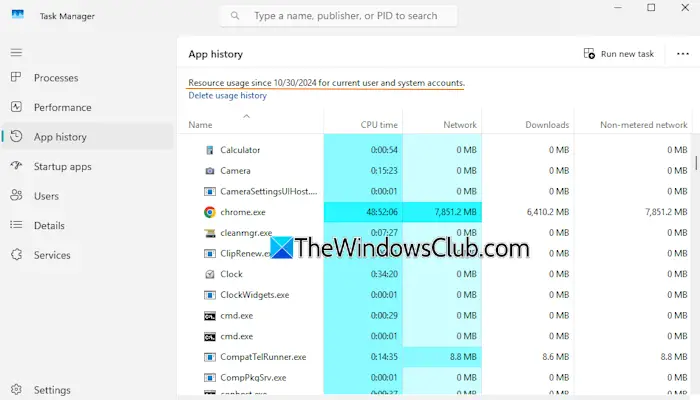
- Manage Startup Programs: Disable any unnecessary programs that run during startup to free up system resources.
- Use Lightweight Software Alternatives: Replace resource-intensive software with lightweight alternatives to conserve system resources.
Regular Maintenance and Storage Optimization
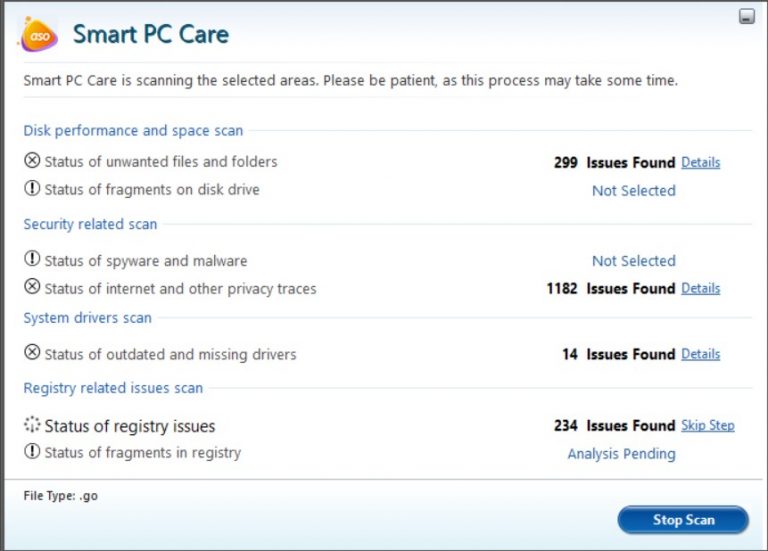
Regular maintenance and storage optimization are crucial to sustaining optimal performance on low resource computers. This includes:- Cleaning up Unnecessary Files: Regularly clean up unnecessary files, such as temporary files and system logs, to free up storage space.
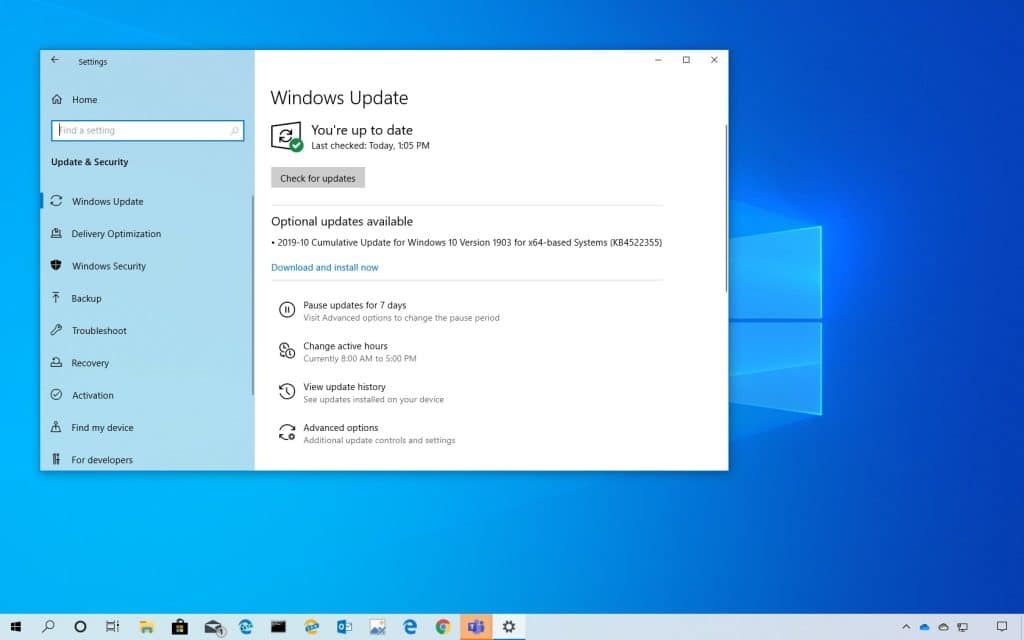
- Updating Windows 11: Regularly update Windows 11 to ensure you have the latest security patches and performance optimizations.
- Disabling Animations: Disable animations to reduce system resource usage.