Learning Python With Tkinter Library

Comprehensive Insights and Gallery of Learning Python With Tkinter Library

Learning Python with Tkinter Library

Introduction to Tkinter

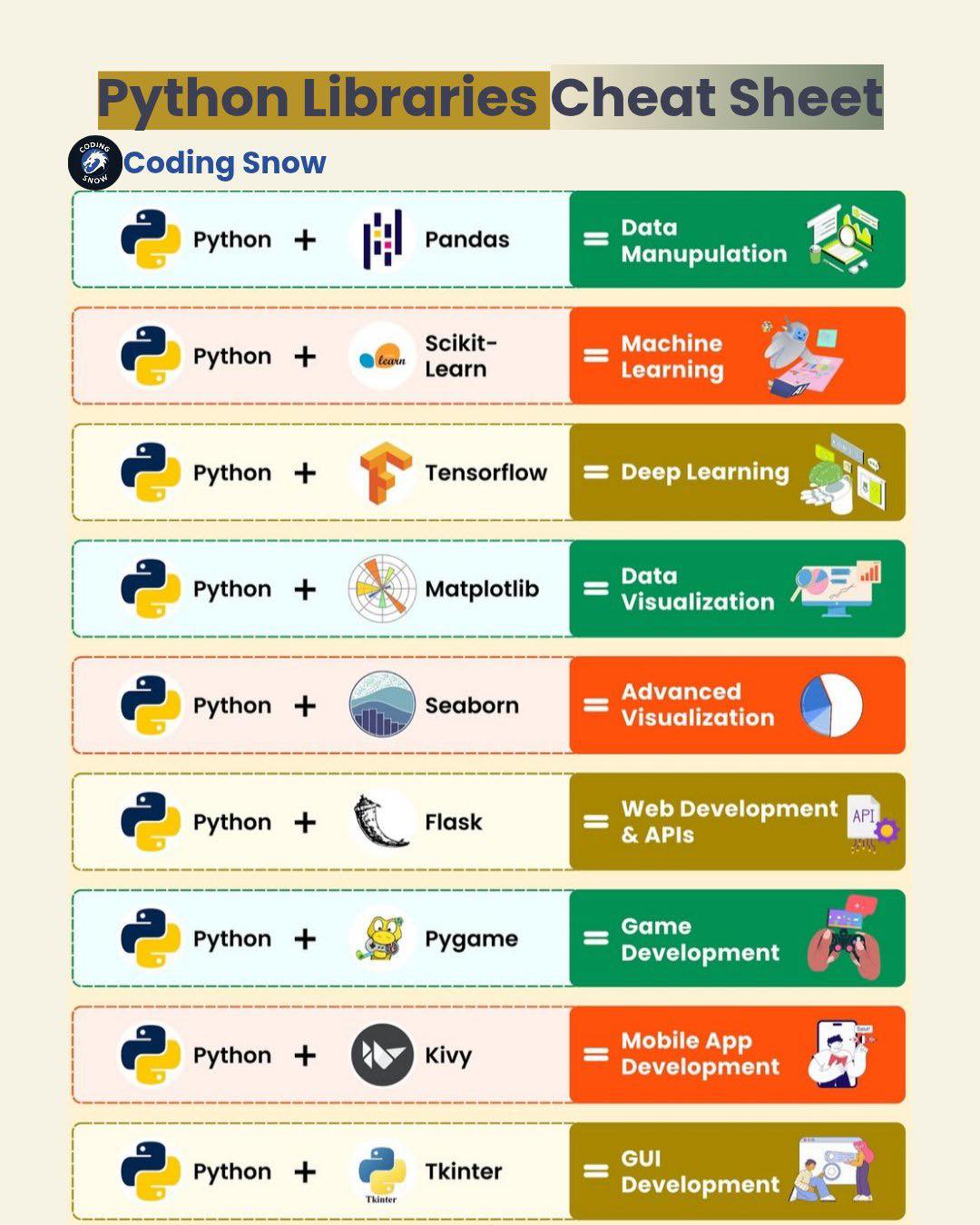
Tkinter is the most commonly used library for developing GUI (Graphical User Interface) in Python. It is a standard Python interface to the Tk GUI toolkit shipped with Python. Tkinter is a preferred choice for its ease of use, making it a great starting point for beginners. In this article, we will explore the world of Tkinter and learn how to create engaging GUI applications with Python.

Why Tkinter?

Tkinter is a valuable tool for GUI programming in Python due to its simplicity and ease of use. It is a built-in library, which means you don't need to install anything extra. Tkinter provides a collection of tools called widgets, such as buttons, labels, and entry fields, which are used to build and organize interactive user interfaces. This makes it an ideal choice for developers looking to create desktop applications quickly and efficiently.

Setting Up Tkinter

To start using Tkinter, you need to import the library into your Python script. You can do this by adding the following line of code: ```python import tkinter as tk ``` This imports the Tkinter library and assigns it the alias 'tk' for easier usage.

Basic Tkinter Widgets

Learning Python With Tkinter Library
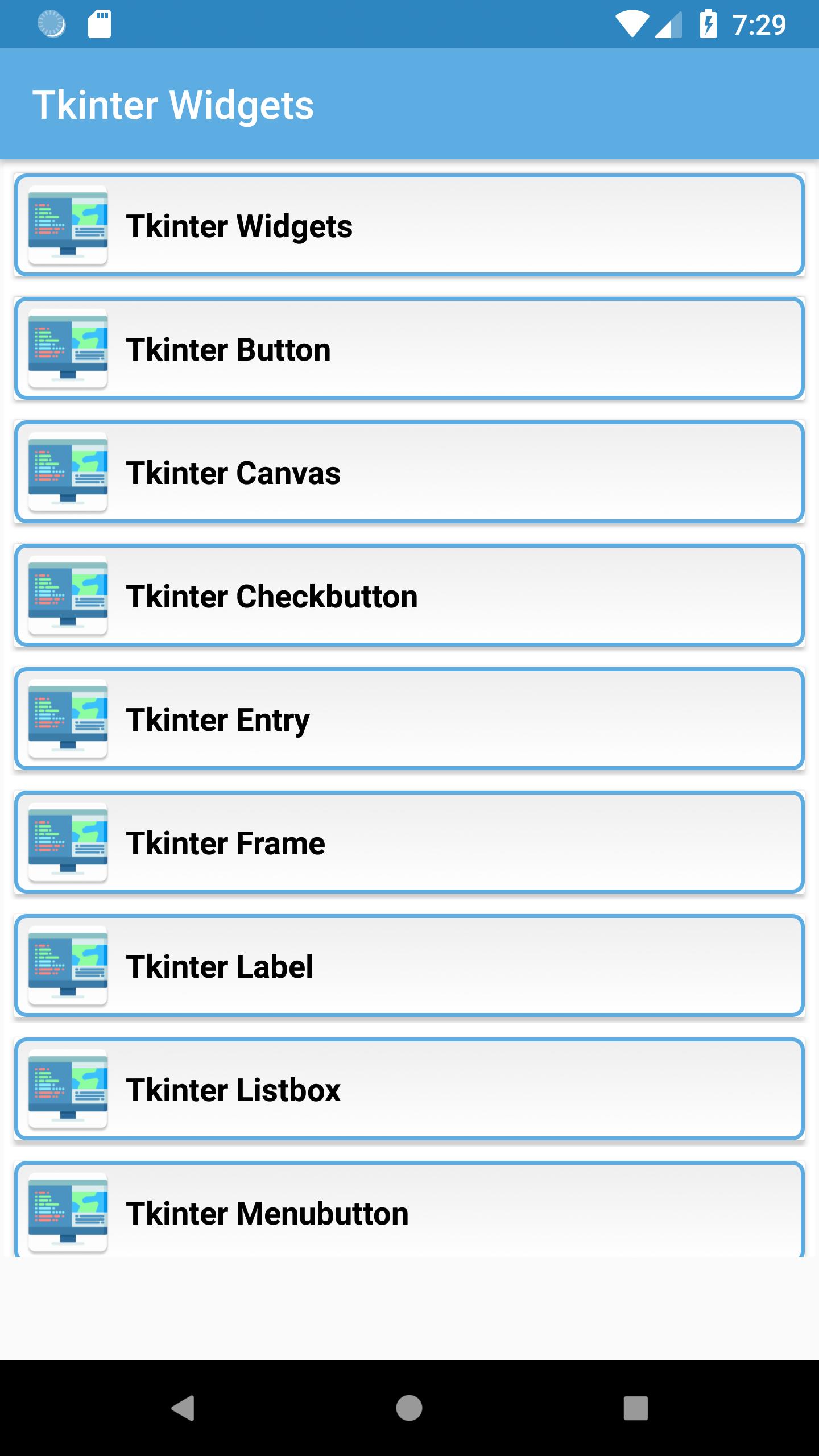
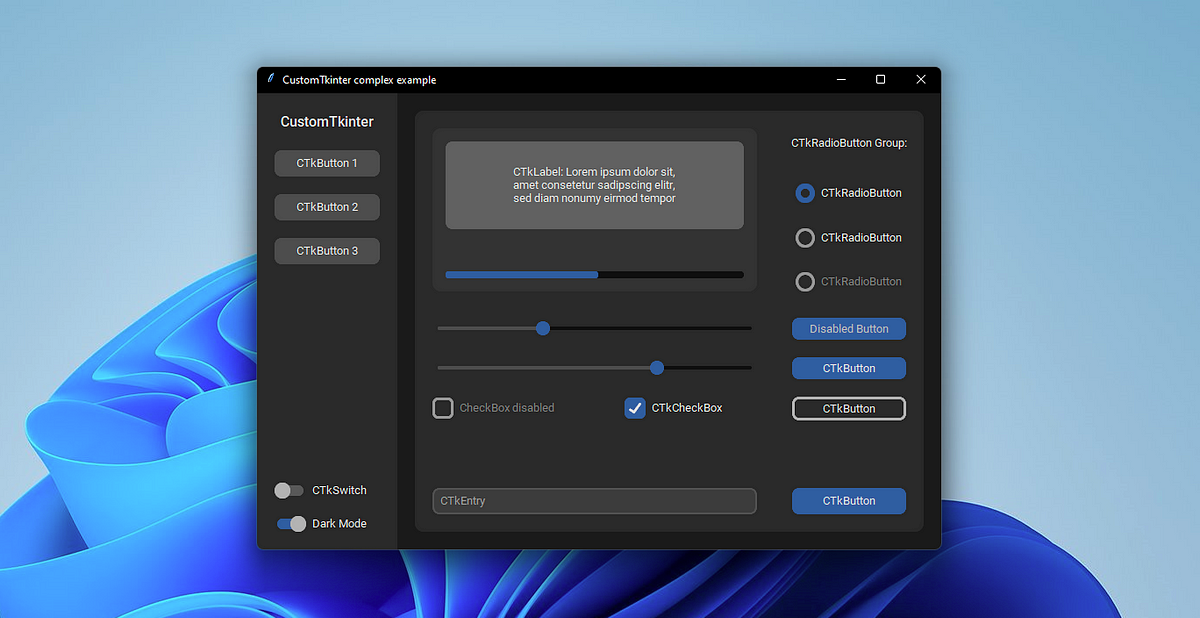
Tkinter provides a variety of widgets that can be used to create GUI applications. Some of the basic widgets include:

Creating GUI Applications with Tkinter

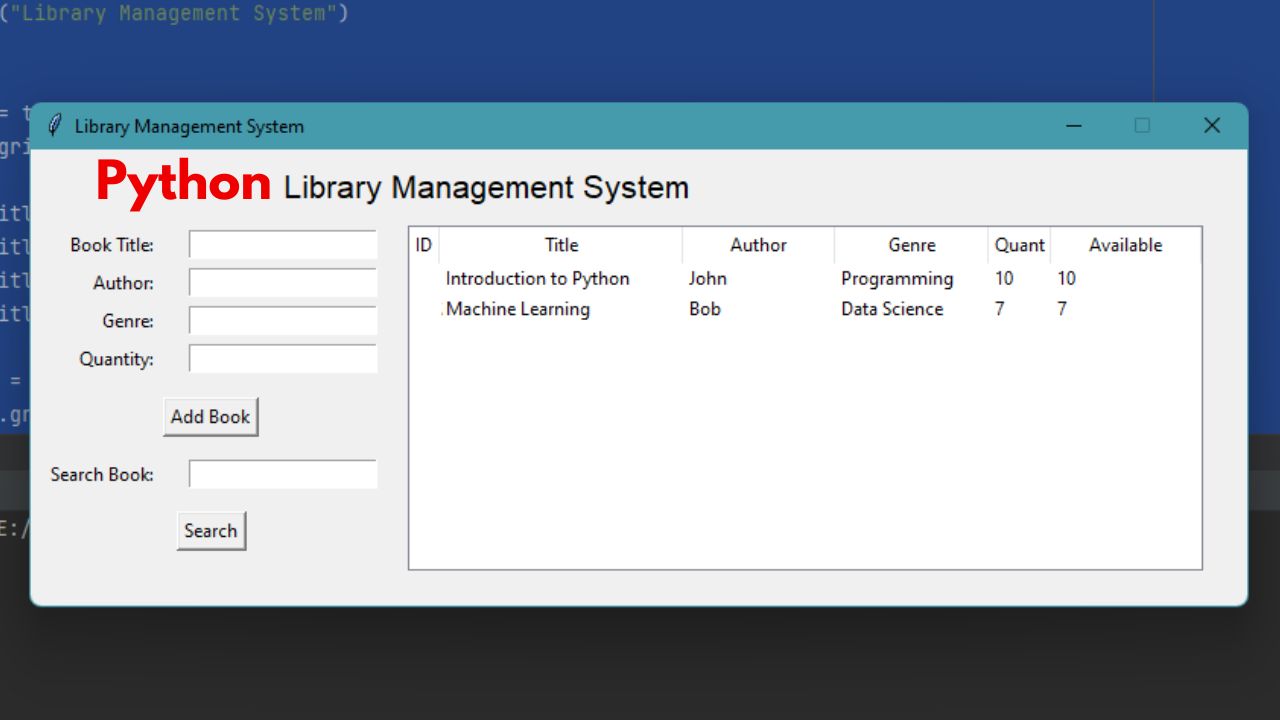
Creating GUI applications with Tkinter is a straightforward process. Here's a simple example of how you can create a GUI application that displays a label with the text "Hello, World!": ```python import tkinter as tk class Application(tk.Frame): def __init__(self, master=None): super().__init__(master) self.master = master self.pack() self.create_widgets() def create_widgets(self): self.hi_there = tk.Button(self) self.hi_there["text"] = "Hello World\n(click me)" self.hi_there["command"] = self.say_hi self.hi_there.pack(padx=10, pady=10) self.quit = tk.Button(self, text="QUIT", fg="red", command=self.master.destroy) self.quit.pack(side="bottom") def say_hi(self): print("hi there, everyone!") root = tk.Tk() app = Application(master=root) app.mainloop() ``` This code creates a GUI application with two buttons: "Hello World" and "QUIT". When you click on the "Hello World" button, it prints "hi there, everyone!" to the console.

Conclusion

Learning Python with Tkinter Library is an excellent way to develop GUI applications quickly and efficiently. With its ease of use and simplicity, Tkinter is a great tool for beginners and experienced developers alike. In this article, we covered the basics of Tkinter, including setting up the library, basic Tkinter widgets, and creating GUI applications. With practice and patience, you can create engaging GUI applications with Tkinter and make the most of its features.

Gallery Photos

Related Topics

Giving Dogs Human Medication For AnxietyGiving Dogs Medication For Skin IssuesGetting A Job In A Commercial Real Estate IndustryWays To Get Hired In A Company With A High DemandEclectic Halloween DecorOvercoming Nomophobia With Cognitive Behavioral TherapyFomo And Its Impact On LeadershipRansomware Security Solutions For EnterpriseHow To Stay Safe Online While Using Online AdvertisingModern Coastal StyleElectric Motorcycles For Sale In New YorkElectronics Soldering IronInstagram Content Creation TipsPeople Of The North Stark VargNautical Coastal Lighting FixturesHow To Set Up A Dutch TrustProtecting Your Online Presence From CyberbullyingSmart Home Setup With Alexa And SonosGetting Rid Of Gnats QuicklyWhat Is The-Effectiveness Of Benadryl For DogsSuper High Inflation Changing KitsHow To Keep Your Online Activity Secure OnlineSocial Security Card ReplacementWater Damage Dryer Vent InstallationCan Dogs Get Too Much Melatonin
📜 DMCA âœ‰ī¸ Contact 🔒 Privacy ÂŠī¸ Copyright