How to Set Up and Pair Apple Watch with iPhone: A Step-by-Step Guide
Are you excited to explore the world of Apple Watch? If so, you've come to the right place! In this article, we'll take you through the simple process of setting up and pairing your Apple Watch with your iPhone. Whether you're a seasoned Apple fan or a complete newbie, following these steps will ensure a seamless experience with your new watch.
What You Need to Get Started
Before you begin, make sure you have the following:
- An iPhone with the latest version of iOS (iOS 15 or later)
- An Apple Watch (any model)
- Your Apple Watch box and charger
- Your iPhone battery charged and connected to Wi-Fi
Step 1: Unboxing and Preparing Your Apple Watch
Unbox your Apple Watch and carefully remove it from its packaging. Next, locate the charging cable and plug it into your watch. The watch will start charging immediately.
Step 2: Pairing Your Apple Watch with Your iPhone
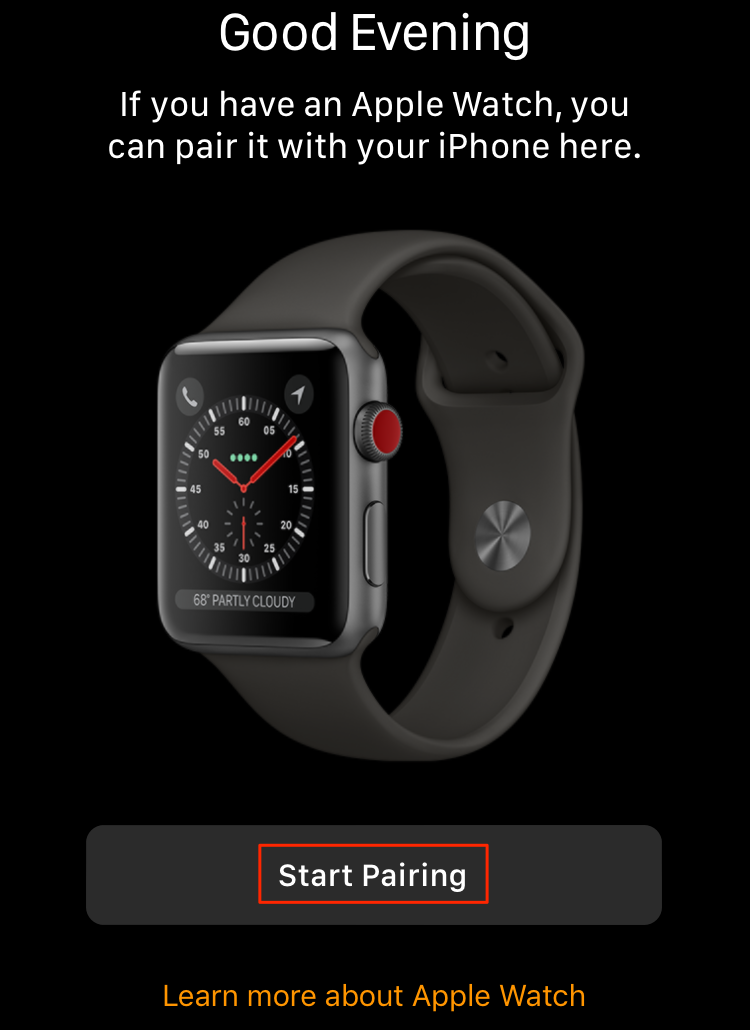
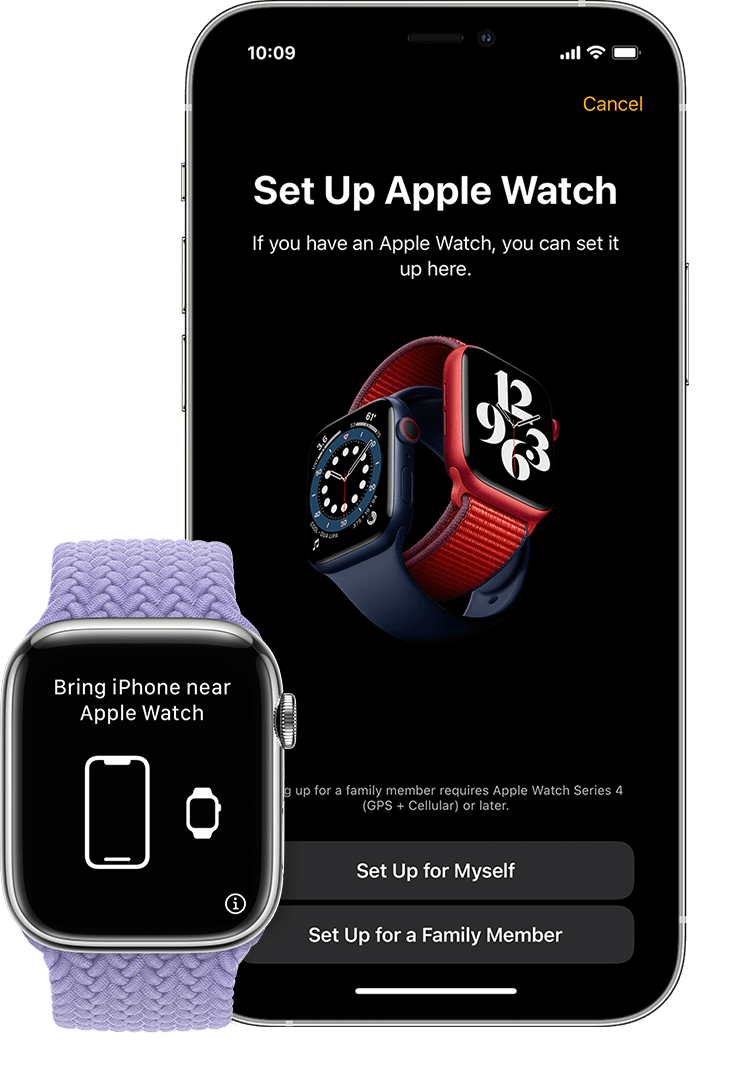
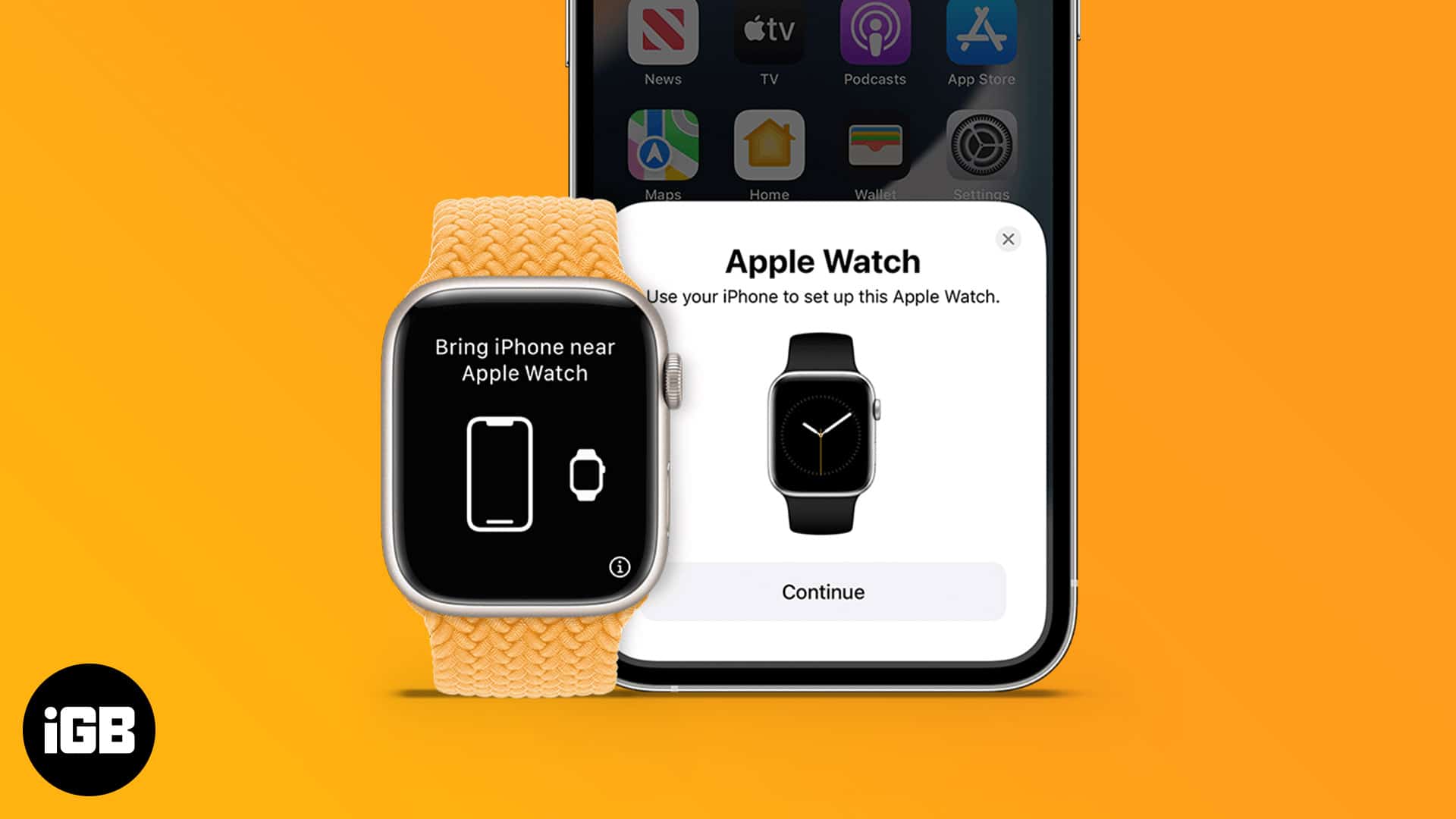
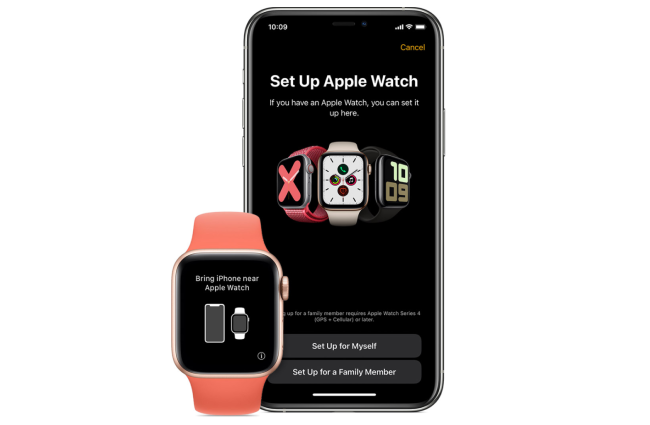
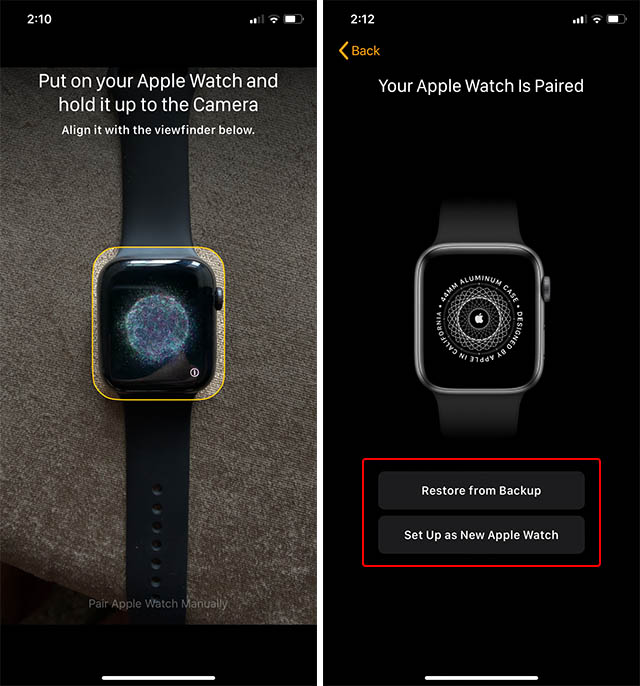
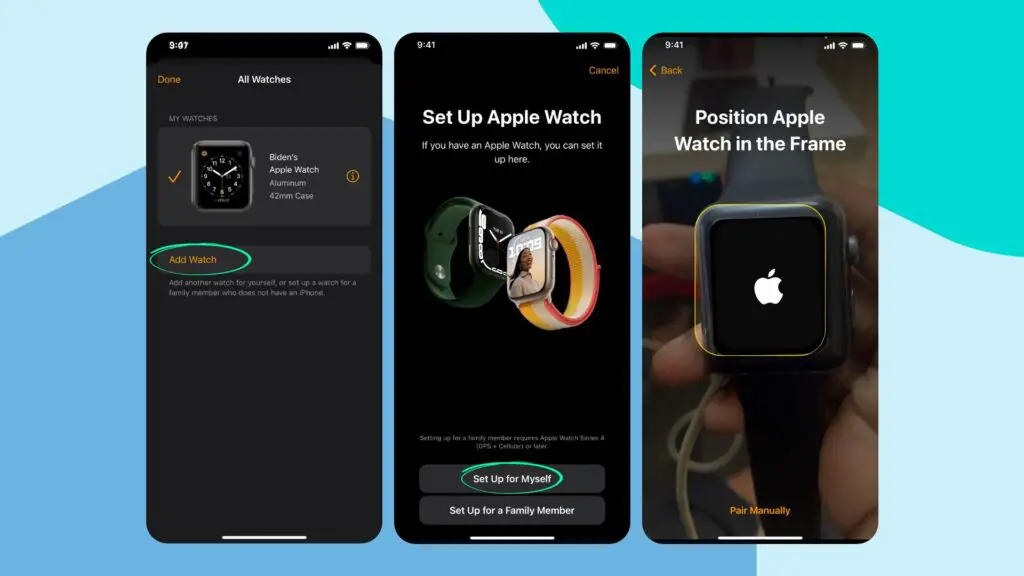
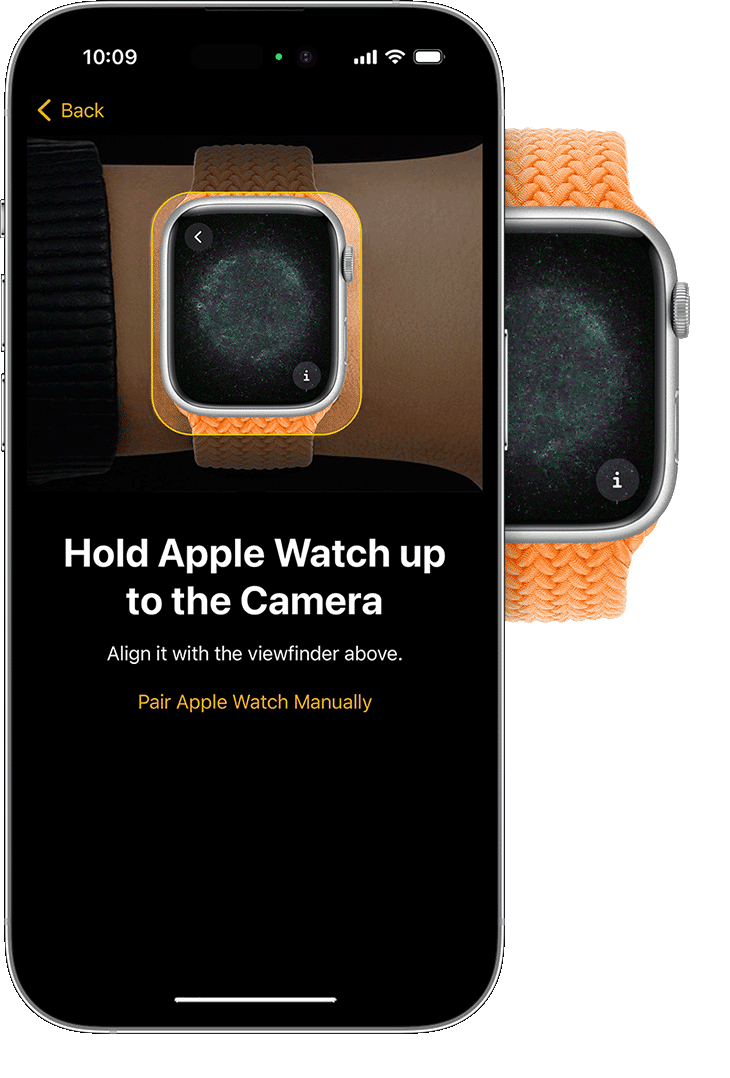
Open the Apple Watch app on your iPhone and select "Start Pairing." Your watch will now display a pattern of lines. Use your iPhone's camera to scan the watch screen. This will automatically connect the two devices.
- Locate the watch display and make sure it is clear and centered.
- Hold your iPhone so that the Apple Watch app is facing the watch.
- Align the camera on the iPhone with the display on the Apple Watch.
- Scan the pattern on the watch screen with your iPhone's camera.
Step 3: Setting Up Your Apple Watch
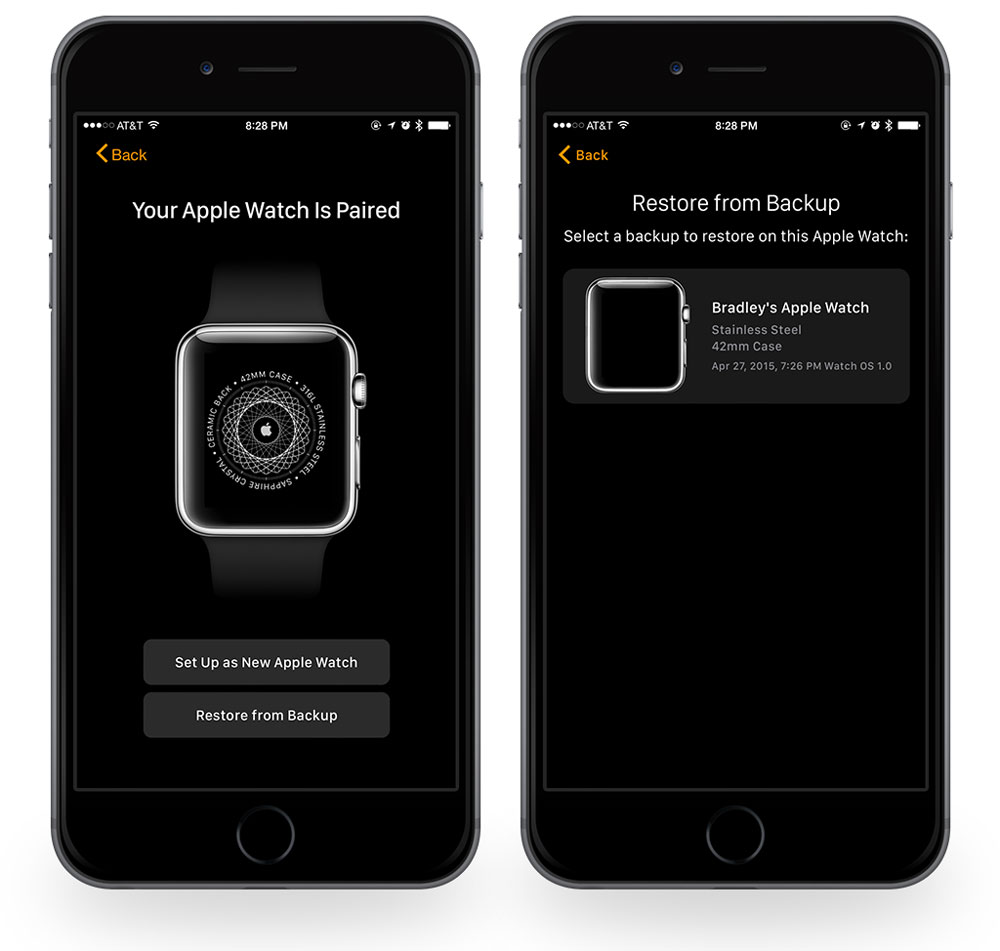
Once paired, select "Set up as New Apple Watch." You will then be prompted to choose which wrist you wish to wear your watch on. Once you've made your selection, your Apple Watch will be set up and ready to use.
Step 4: Customizing Your Apple Watch

Now that your Apple Watch is set up and paired, it's time to customize your device. You can adjust settings, add accessories, and explore the built-in features of your watch. This includes:
- Setting up cellular connectivity
- Configuring watch face options
- Accessing Apple Health and fitness features
- Linking your Apple Watch to iCloud
Troubleshooting Common Issues
Don't worry if you encounter any issues during the setup process. We've got you covered! The most common problems arise from software updates, incorrect pairing, or connectivity issues. Here are some quick fixes:
- Restart your Apple Watch and iPhone
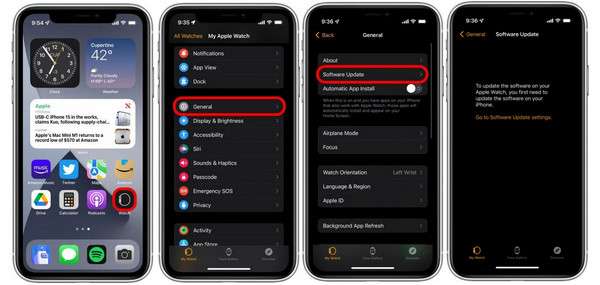
- Check for software updates on both devices
- Make sure Bluetooth is enabled on both your iPhone and Apple Watch
- Re-scan the Apple Watch display using your iPhone's camera
Conclusion
That's it! Your Apple Watch is now set up and paired with your iPhone. Enjoy exploring the world of Apple Watch and discover the many features and benefits that your new device has to offer. From fitness tracking to music streaming, you'll be able to do it all with ease. Don't be afraid to explore and experiment – and if you encounter any issues, we've got the solutions right here.
Resources: Apple Support
For more information and troubleshooting tips, visit the Apple Support website. They offer a wealth of resources and guides to help you get the most out of your Apple Watch and iPhone combo.
Need More Help?
Feel free to reach out to our team for additional support or guidance. We're always happy to help you troubleshoot or answer any questions you may have about your Apple Watch and iPhone.