Channel Setup on Twitch: A Comprehensive Guide
The world of live streaming is exciting, dynamic, and incredibly rewarding. For many, Twitch is the ultimate platform to share their passions, connect with like-minded individuals, and build a vibrant community. But before you can dive into broadcasting your first gameplay session, art piece, or casual chat, you need to lay the groundwork: setting up your Twitch channel.
Level 1: Setting Up Your Channel
Starting your streaming journey on Twitch? In this step-by-step tutorial, I'll walk you through everything you need to set up your Twitch account the right way. From creating your profile and customizing your channel settings to preparing your equipment and software, we'll cover it all.
Step 1: Create Your Profile and Channel Settings
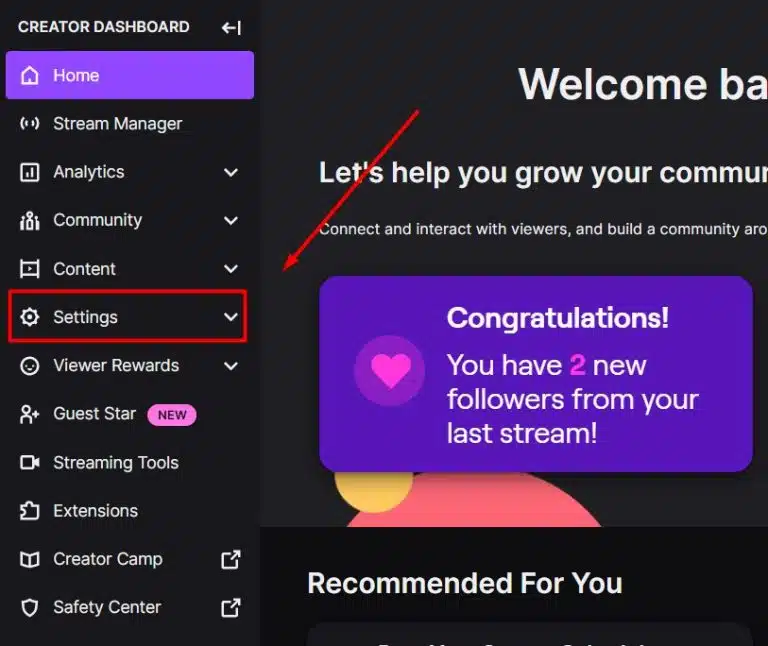
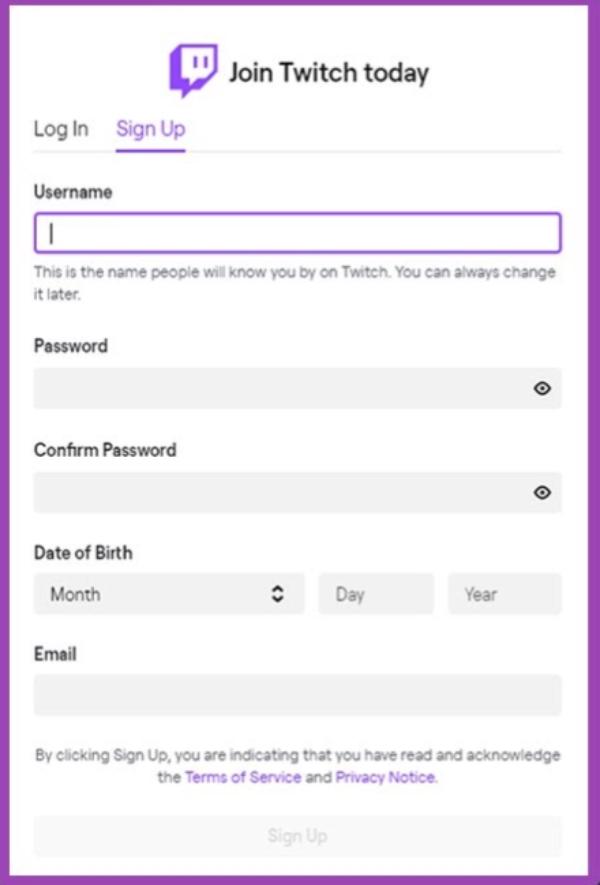
The first step in setting up your Twitch channel is to create a profile. This involves providing basic information about yourself, including your name, username, and bio. Your username will be the name of your Twitch channel, so choose wisely. Additionally, you'll need to set up your channel settings, including your profile picture, cover image, and notification preferences.
Step 2: Prepare Your Equipment and Software
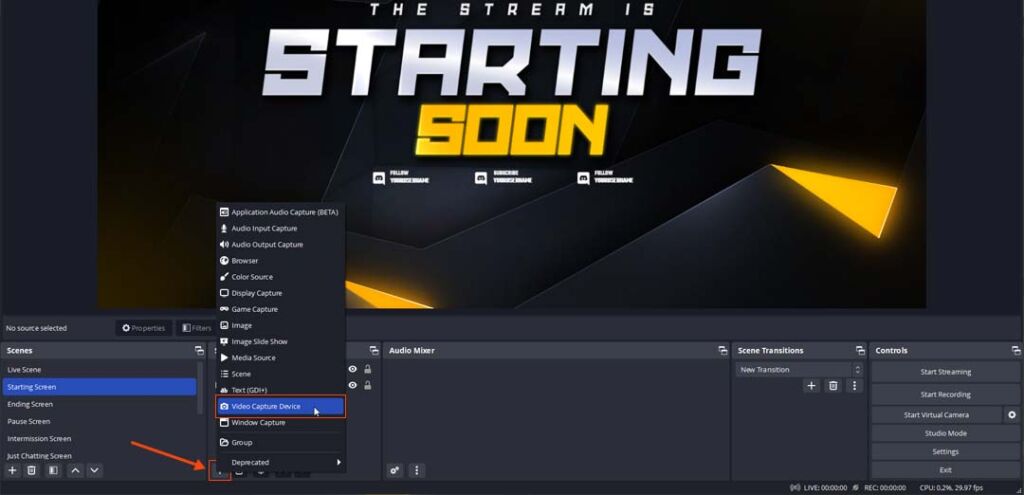
Next, you'll need to prepare your equipment and software for streaming. This may include investing in a high-quality webcam, microphone, and capture card. You'll also need to set up your streaming software, such as OBS Studio, which will allow you to capture and stream your gameplay, video, or other content.
Step 3: Set Up Your Channel Categories and Tags
Once you've set up your profile and channel settings, it's time to create categories and tags for your channel. This will help viewers find your channel and content when searching for specific topics or genres. You can also use tags to categorize your stream categories and make it easier for viewers to find related content.
Level 2: Customizing Your Channel
Now that you have the basics set up, it's time to customize your Twitch channel. This includes adding visual elements, such as a custom banner, and configuring your channel settings to make it stand out from the crowd.
Step 1: Add a Custom Banner
A custom banner is a great way to personalize your Twitch channel and make it stand out from the crowd. You can use a banner template or design your own using a graphics editor like Adobe Creative Cloud.

Step 2: Configure Your Channel Settings
Configure your channel settings to make it easy for viewers to find and interact with your content. This includes setting up your channel description, keywords, and tags, as well as configuring your notification preferences and subscription settings.
Level 3: Advanced Channel Setup
Once you've customized your channel, it's time to take it to the next level with advanced channel setup. This includes setting up Twitch Extensions, creating a Community Guidelines document, and configuring your channel analytics.
Step 1: Set Up Twitch Extensions
Twitch Extensions allow you to add custom features to your channel, such as polls, quizzes, and other interactive experiences. You can find extensions in the Twitch Extension Directory.
Step 2: Create a Community Guidelines Document
A Community Guidelines document outlines the rules and expectations for your Twitch channel and community. This helps to establish a positive and respectful environment for your viewers.
Step 3: Configure Your Channel Analytics
Channel analytics provide valuable insights into your channel performance, including viewcounts, engagement, and audience demographics. Use this data to optimize your content and strategy for maximum effect.
Conclusion
Setting up your Twitch channel requires attention to detail and a willingness to learn. By following these steps, you'll be well on your way to creating a professional and engaging channel that attracts new viewers and fosters a positive community. Remember to stay up-to-date with the latest Twitch features and best practices to ensure your channel remains competitive and successful.



:max_bytes(150000):strip_icc()/A4-StreamonTwitch-annotated-2a5e5dbe5b864c71949ff2c7c21eb299.jpg "Twitch channel design - profile setup, banner, panels, how to create ...")