How to Set Up Windows 11: A Step-by-Step Guide
Setting up a new Windows 11 laptop or computer can be a daunting task, especially for those who are new to the operating system. However, with the right guidance, you can easily and efficiently set up your new device and optimize your experience. In this article, we will provide a comprehensive guide on how to set up Windows 11, covering the essential configuration steps and customizations to get you started.
Step 1: Upgrade to Windows 11
Before you can set up Windows 11, you need to ensure that your device meets the minimum system requirements. If you're upgrading from Windows 10, you can use the Windows Update page in Settings to check for any available updates. If you're upgrading from an earlier version of Windows, you may need to download and install the Windows 11 installation media.
Step 2: Run the Setup Wizard
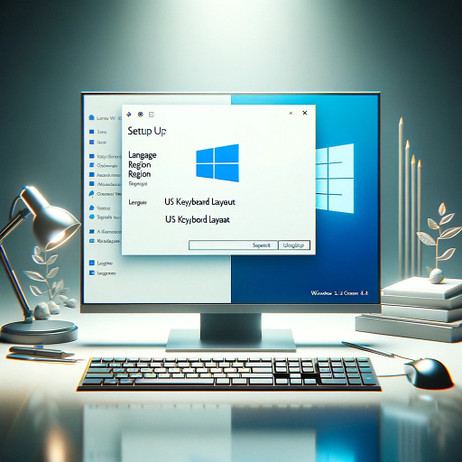
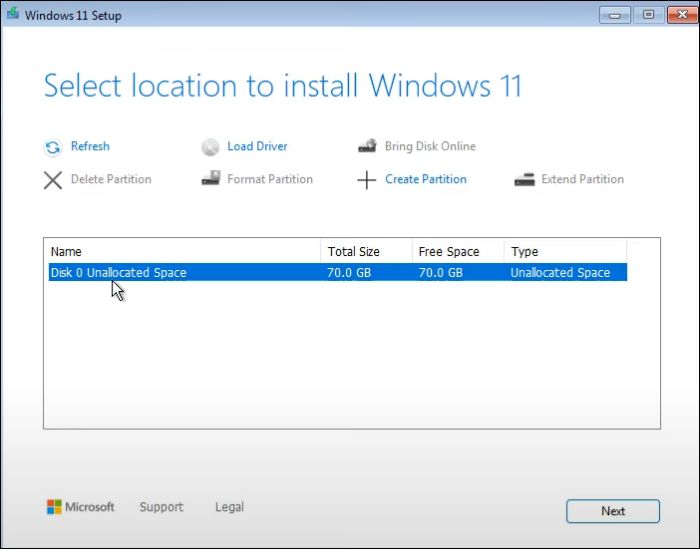
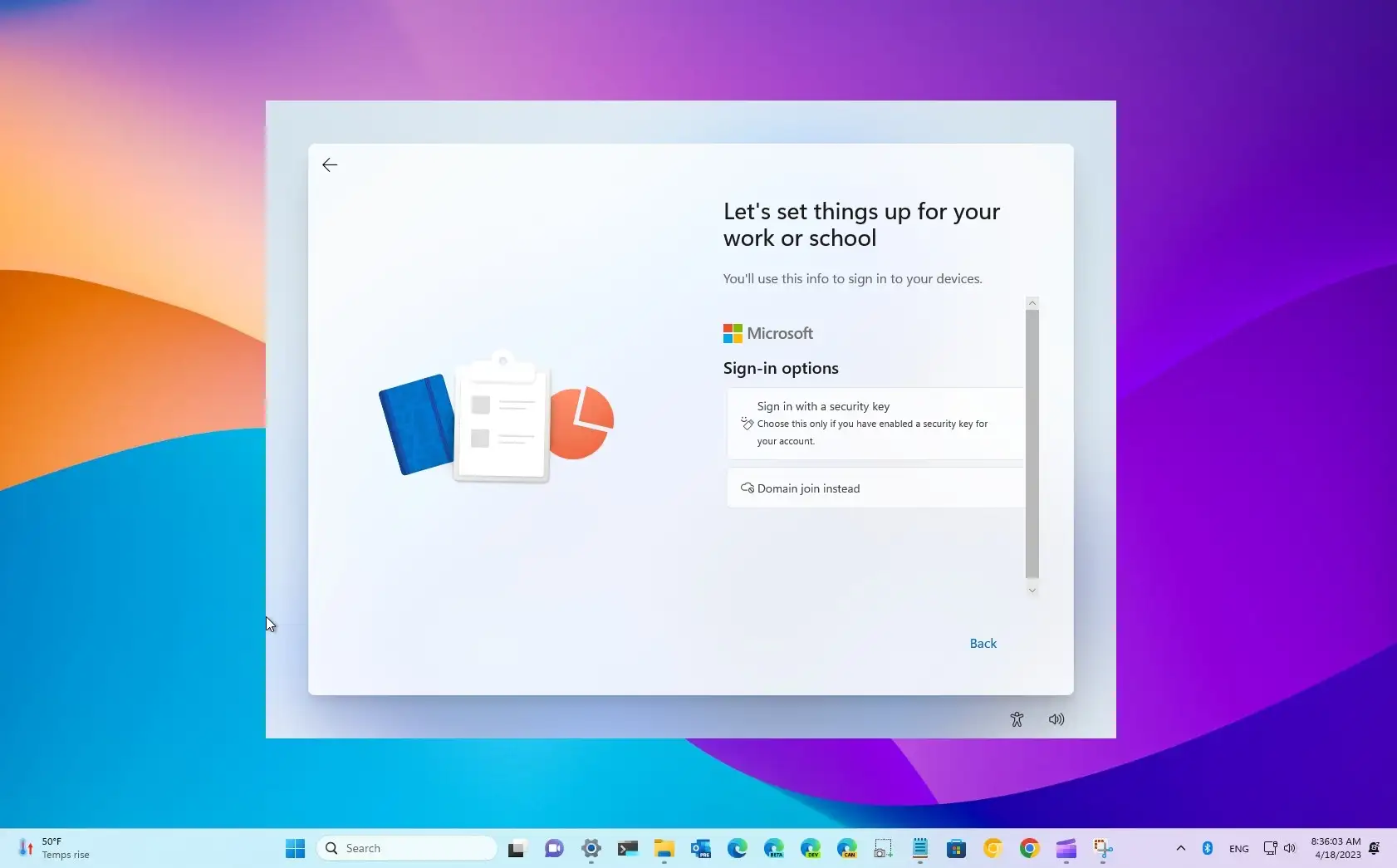
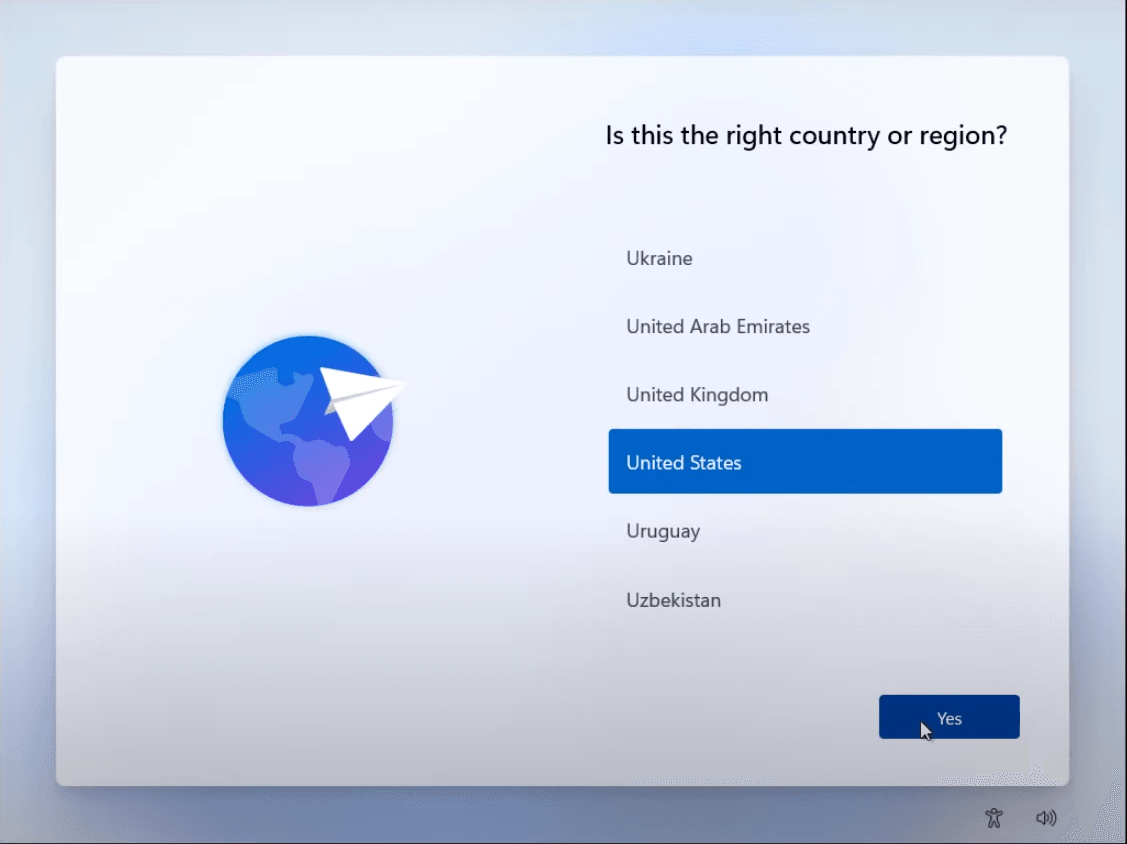
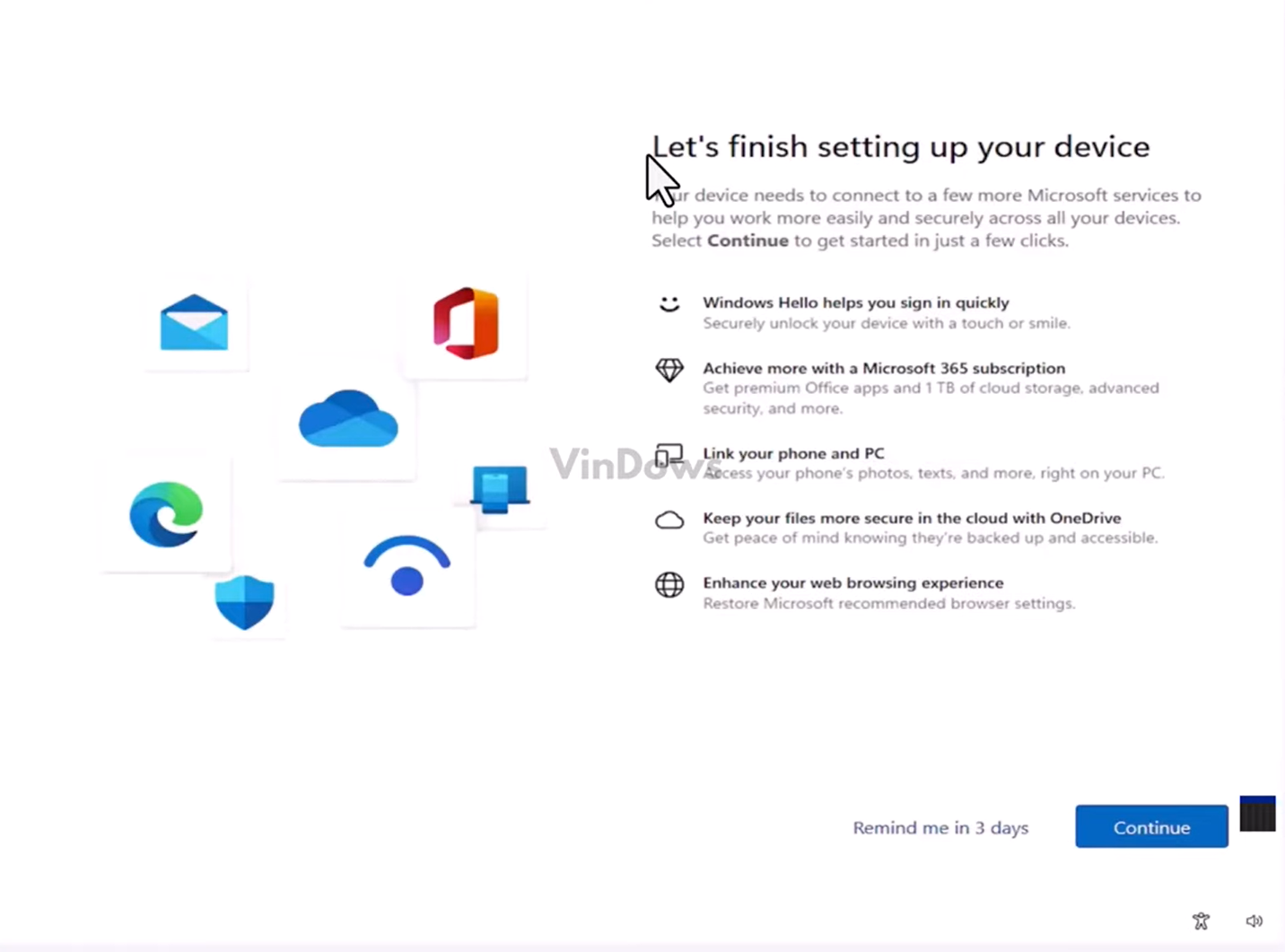
Once you have the installation media, you can run the setup wizard. This built-in tool will guide you through the essential configuration steps, ensuring the system is personalized, secure, and ready for use. The setup wizard will ask you to:
- Choose your language and time zone
- Create a user account and password
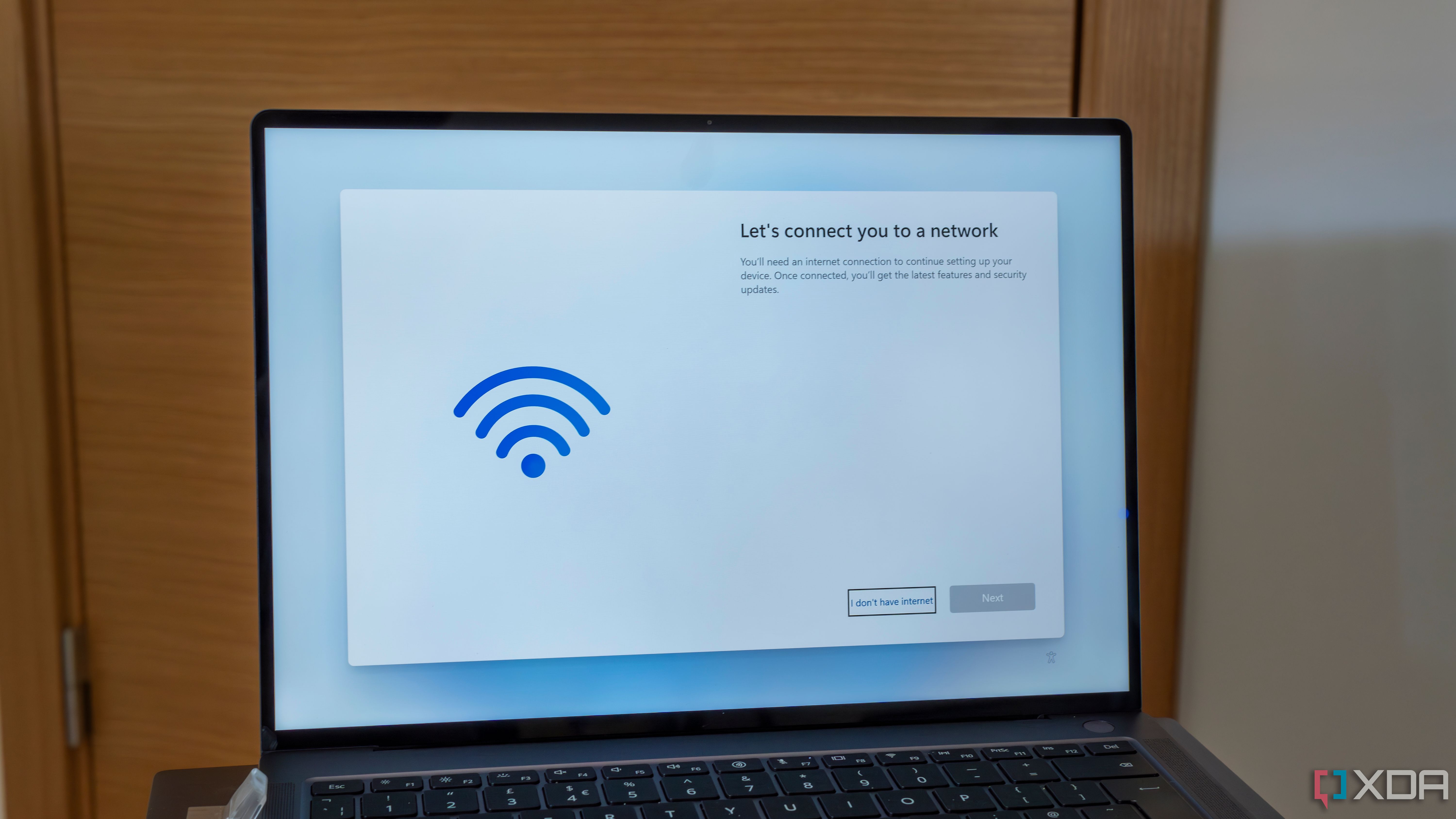
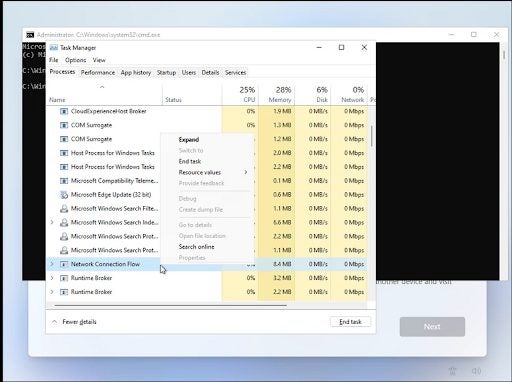
- Configure network settings
- Set up location services
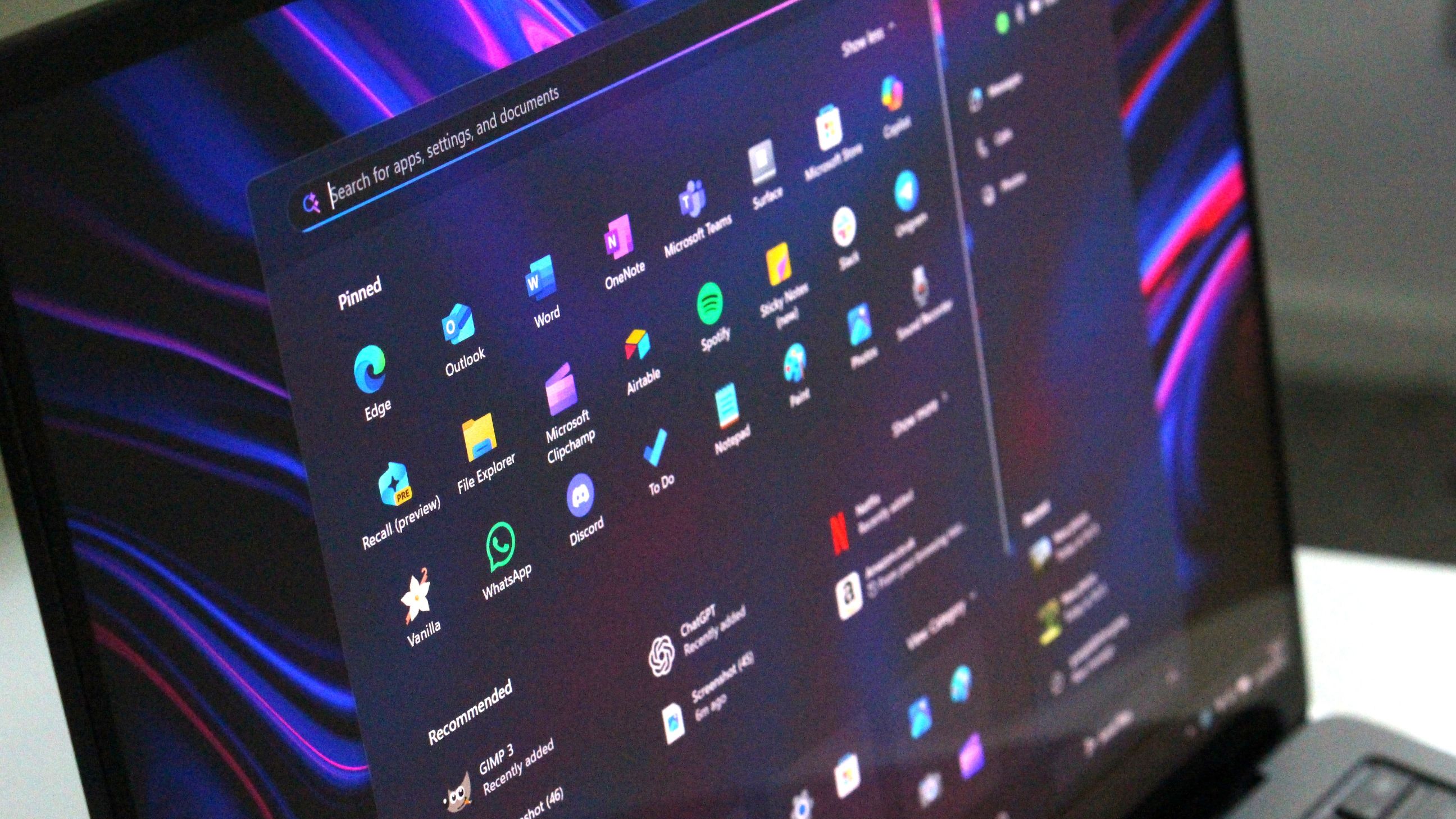
- Customize other settings, such as settings, desktop, and start menu
Step 3: Configure Network Settings
Once you have completed the setup wizard, you can configure your network settings. This includes setting up your Wi-Fi, Ethernet, or other network connections. You can also configure your router and modem settings, as well as set up your antivirus software.
Step 4: Customize Your Settings
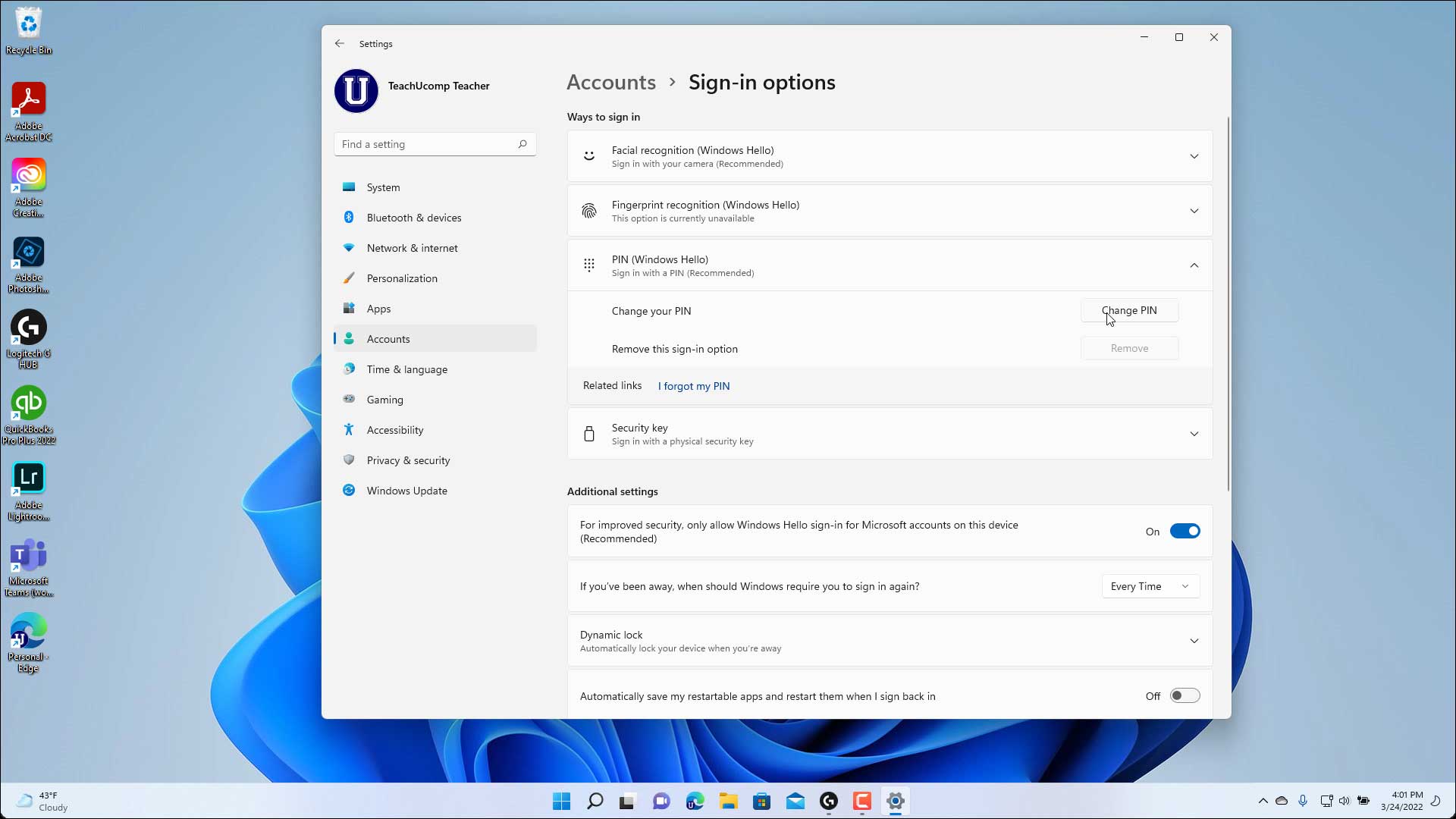
After completing the setup wizard and configuring your network settings, you can customize your settings to suit your preferences. This includes customizing your desktop, start menu, and other settings. You can also configure your notification settings, as well as set up your Microsoft account and Cortana assistant.
Step 5: Install Drivers and Software
Once you have completed the setup process, you will need to install any necessary drivers and software. This includes drivers for your hardware devices, as well as any software applications you need to use. You can install drivers and software from the Windows Store, or download them from the manufacturer's website.
Step 6: Configure Your Security Settings
Finally, you will need to configure your security settings, including firewalls, virus and malware protection, and Windows Defender. This will help protect your device from any potential threats and ensure your data remains safe.
Conclusion
Setting up Windows 11 can seem daunting, but with the right guidance, you can easily and efficiently get your device up and running. By following these steps, you can customize your settings, configure your network, and install drivers and software to optimize your experience. Whether you're a seasoned Windows user or a newcomer to the operating system, this guide provides the essential information you need to get started with Windows 11.
Additional Tips and Resources
Here are some additional tips and resources to help you get the most out of Windows 11:
- Check out the Windows 11 tutorial video to learn more about the operating system.
- Explore the Windows Store to discover new applications and games.
- Configure your notification settings to receive important updates and alerts.
- Customize your desktop and start menu to make your device more personalized.
- Set up your Microsoft account and Cortana assistant to streamline your productivity.


![[Motherboard] Which ASUS model supports Windows 11 and how to setup TPM ...](https://i.ytimg.com/vi/BMVtFKk33oQ/maxresdefault.jpg "[Motherboard] Which ASUS model supports Windows 11 and how to setup TPM ...")