Setting Up OBS for 60fps Recording: A Comprehensive Guide
If you're a content creator or a gamer looking to capture crystal-clear 1080p60fps video, you're not alone. However, getting the settings just right can be a challenge, and lag can be a frustrating issue.
Understand the Basics of 60fps Recording
Recording in 60fps requires a significant amount of computational power, especially when working with high-definition resolutions like 1080p. To achieve this, it's essential to understand the basics of frame rates, bitrates, and encoding techniques.
Setting Up OBS for 60fps Recording
To start, you'll need to set up your OBS Studio software. Here's a step-by-step guide:
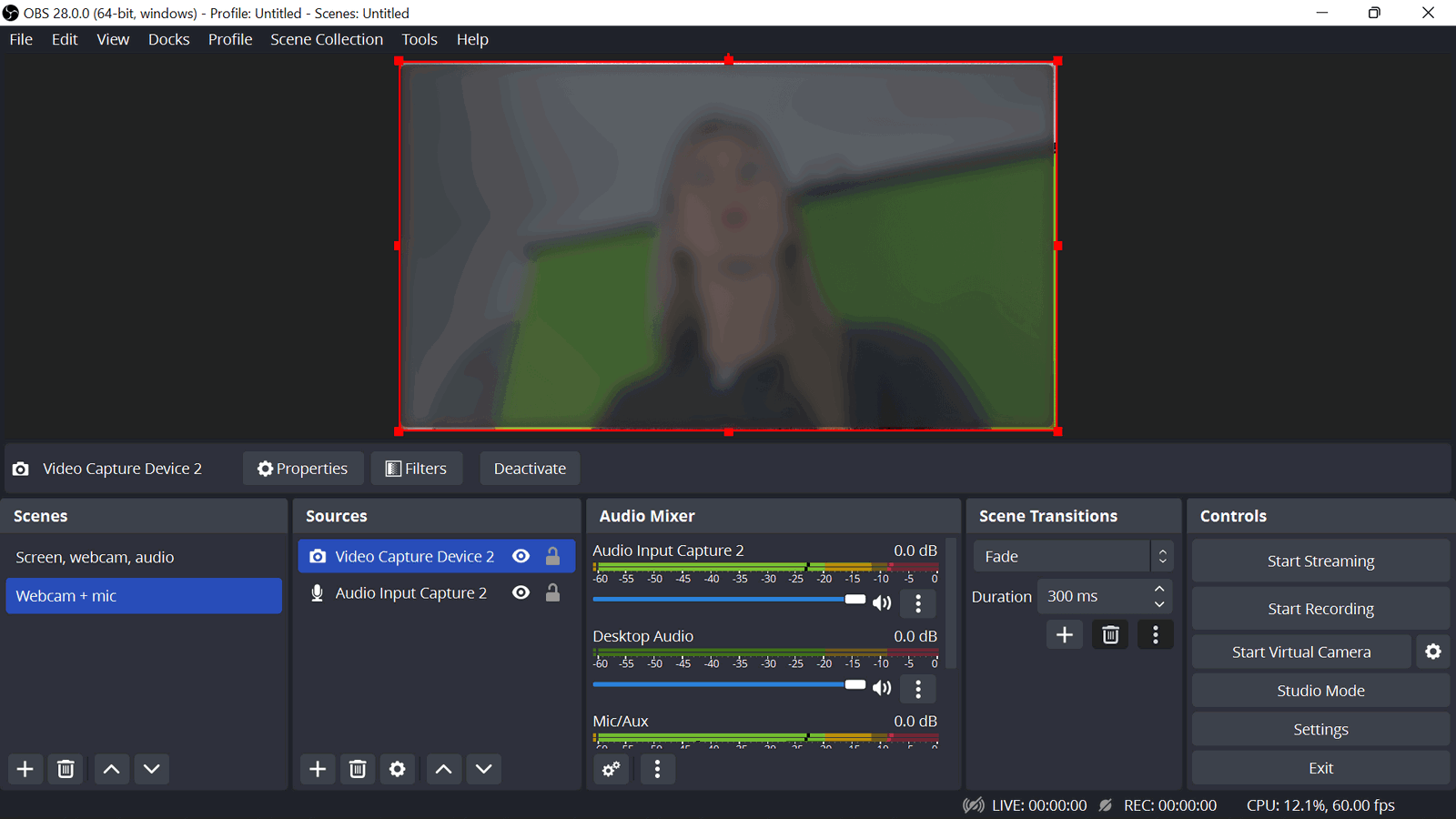
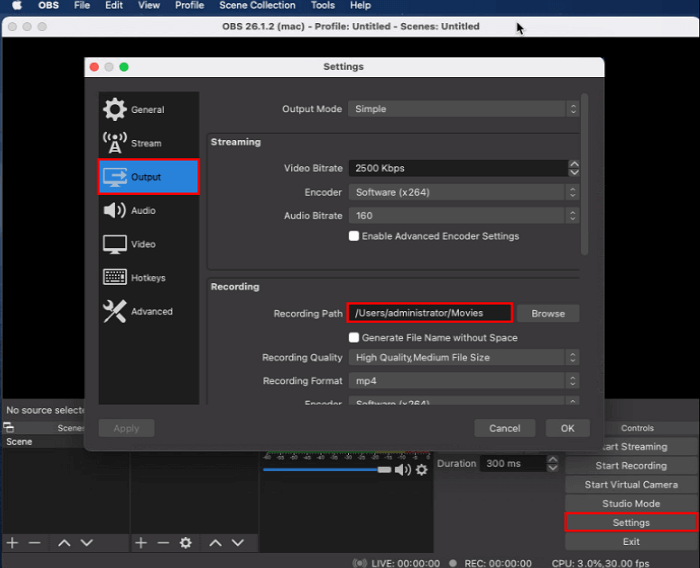
- Open OBS Studio and click on the Settings button on the bottom right.
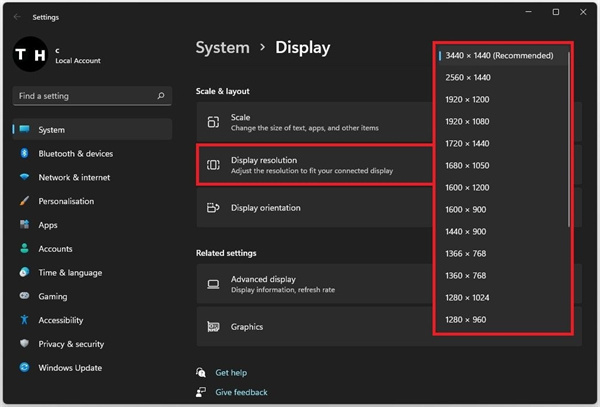
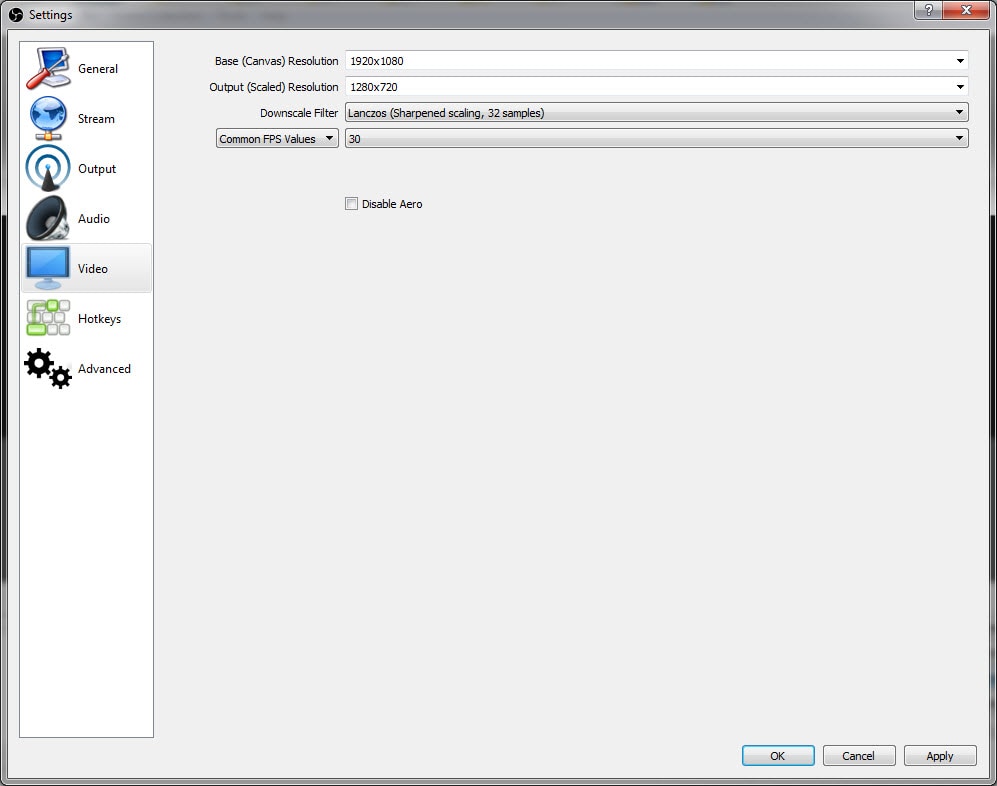
- Go to the Video tab and select the Resolution dropdown menu. Choose 1920x1080 (1080p) as your resolution.
- In the Framerate dropdown menu, select either 59.94 or 60fps. Both will achieve 60fps.
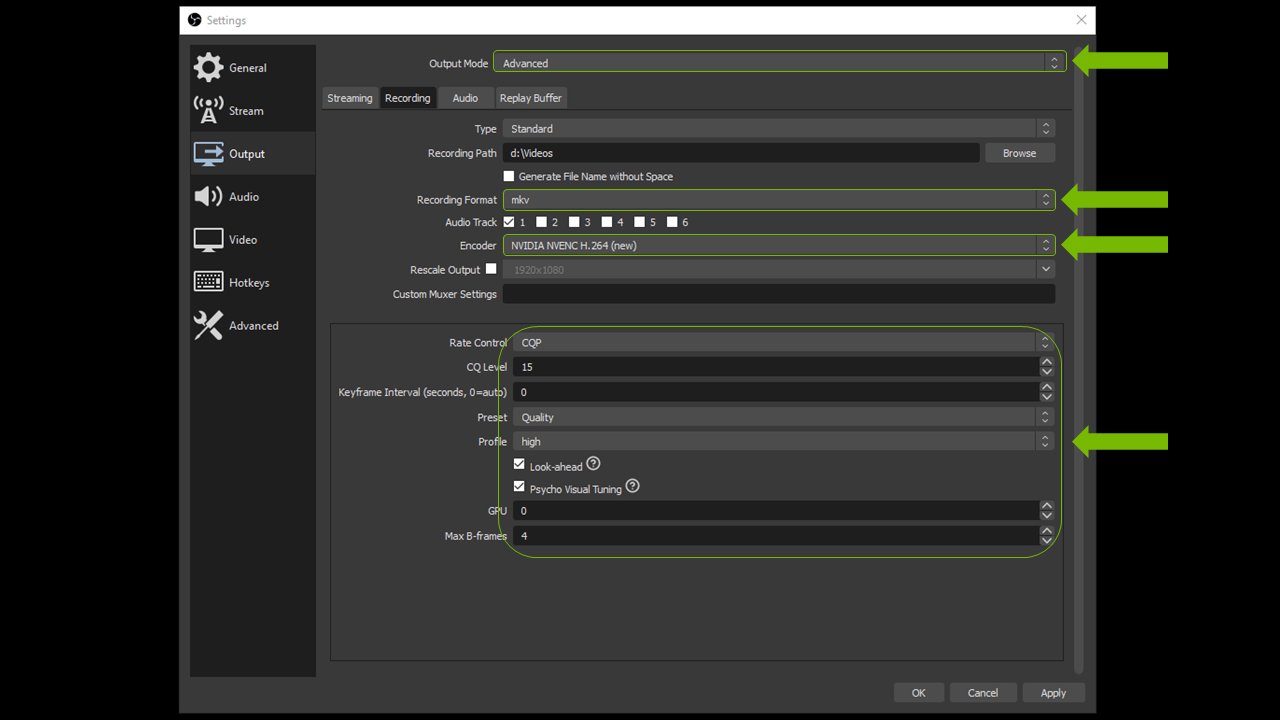
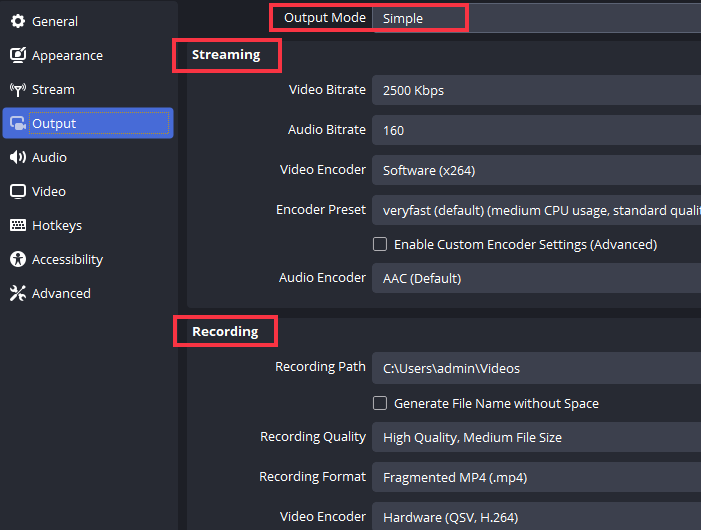
- For the Bitrate, it's recommended to use a variable bitrate (VBR) or a constant quality (CQP) encoder. Avoid using Constant Bitrate (CBR) as it can waste disk space and lead to poor video quality.
- Set the Quality to a lower value (around 18-20) for better video quality.
- Click OK to save your settings.
Encoder Settings for 60fps Recording
When it comes to encoder settings, you'll need to choose between AMD AMF/VCE or NVIDIA NVENC. These are hardware encoders that can handle the computationally intensive task of 60fps recording.
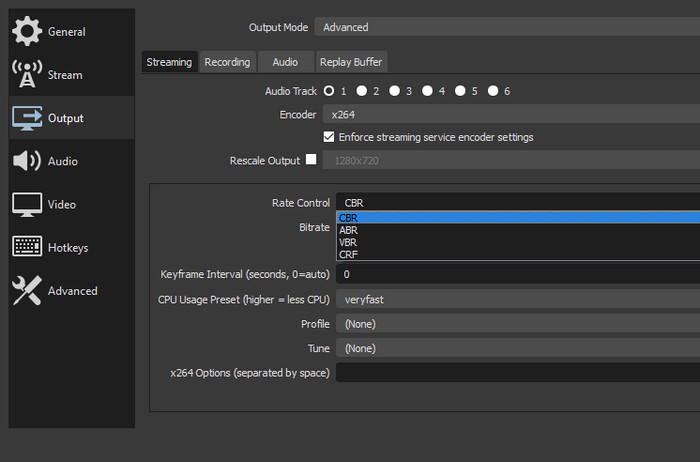
- If you're using a computer with an AMD graphics card, select the AMD AMF/VCE encoder.
- If you're using a computer with an NVIDIA graphics card, select the NVIDIA NVENC encoder.
Performance Monitoring for 60fps Recording
To avoid encoding errors and dropped frames, it's essential to monitor your performance in real-time. Here's how:
- Open OBS Studios and navigate to the Statistics panel (View > Statistics).
- Monitor the CPU Usage, which should ideally remain below 90% (ideally 70-80%).
- Check the "Dropped frames" warnings during recording. If you see warnings, it may indicate that your system is struggling to keep up with the 60fps recording demands.
Best Practices for 60fps Recording
Here are some best practices to keep in mind when recording at 60fps:
- Make sure your computer meets the minimum system requirements for 1080p60fps recording.
- Use a high-quality graphics card that supports 60fps encoding.
- Monitor your performance in real-time and adjust settings as needed to prevent dropped frames.
- Consider using a capture card if you're having trouble achieving 60fps recording with your computer's built-in hardware.
![The Best OBS Setting for Recording in 2026 [Detailed Guide] - OBSBOT](https://i.ytimg.com/vi/JocPGgFbfNE/maxresdefault.jpg "The Best OBS Setting for Recording in 2026 [Detailed Guide] - OBSBOT")


![How to Increase OBS Recording Quality [Best Settings & Guide 2026]](https://i.ytimg.com/vi/_IIFxw7w-mk/maxresdefault.jpg "How to Increase OBS Recording Quality [Best Settings & Guide 2026]")