Connecting Two Monitors to Your Computer: A Step-by-Step Guide
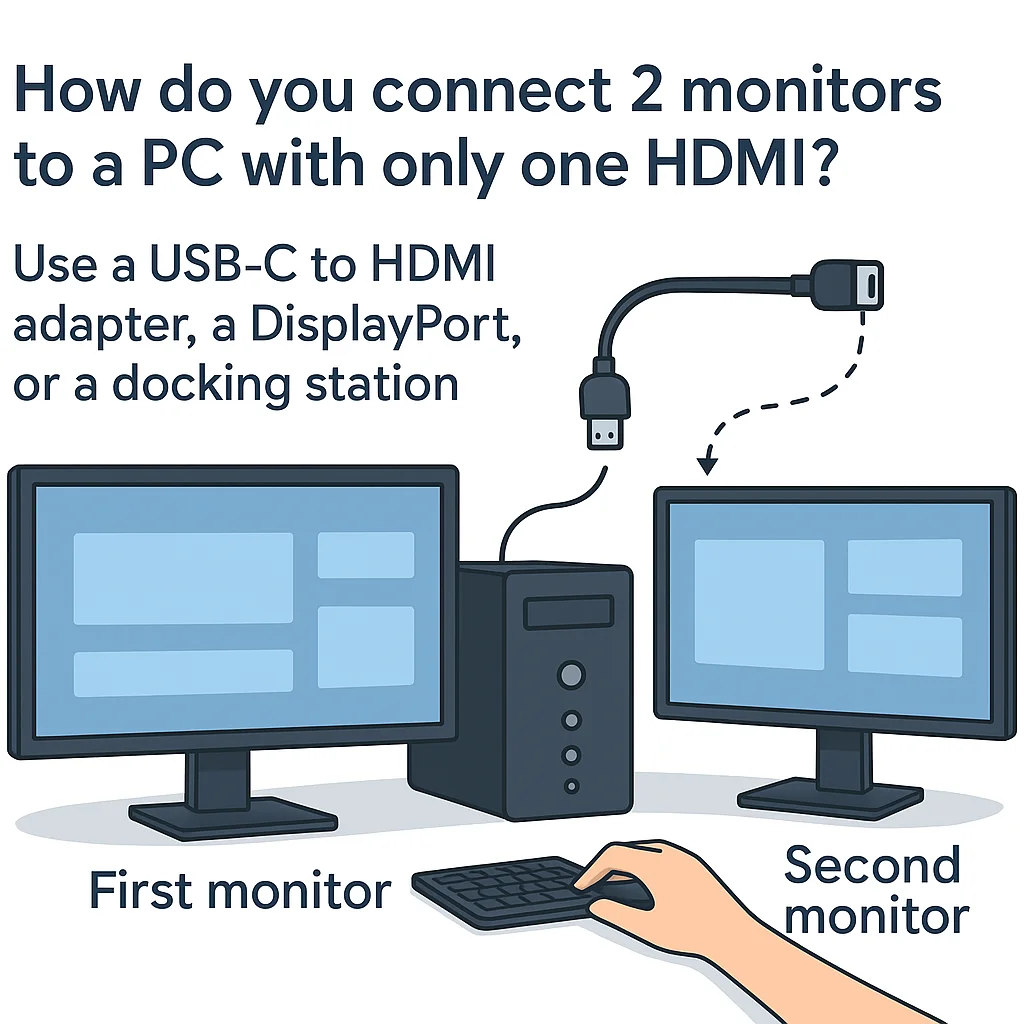
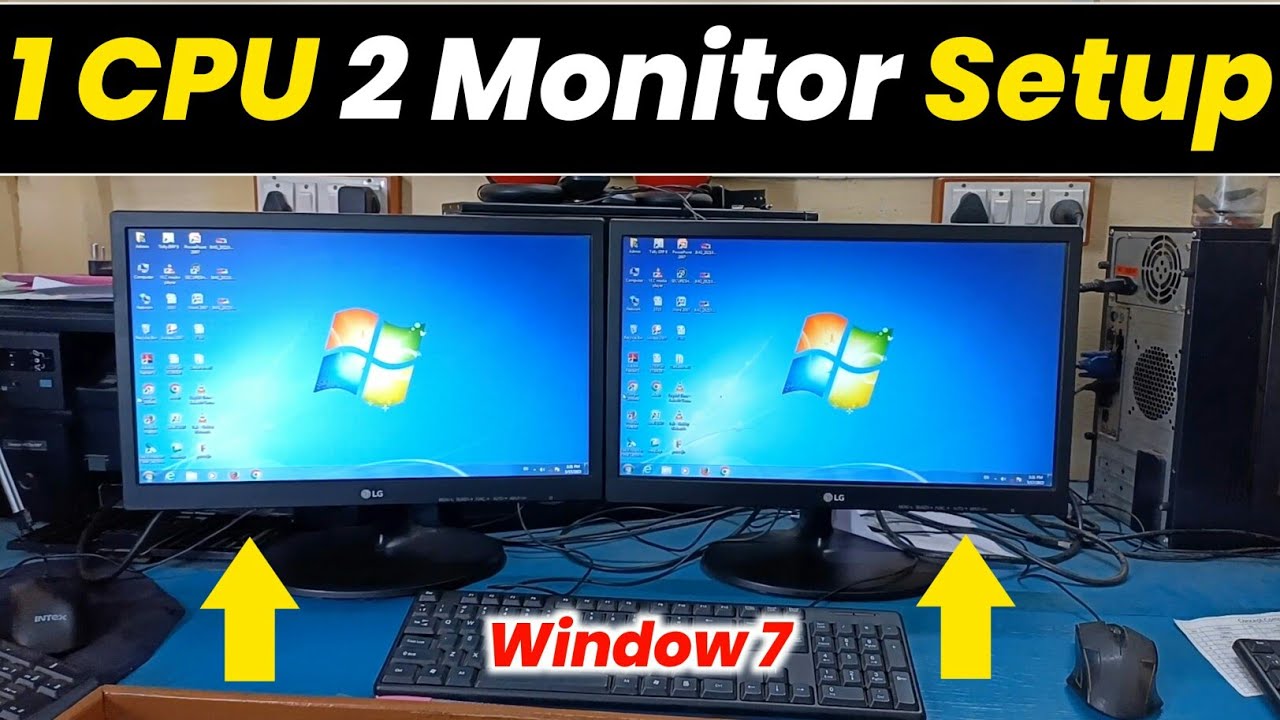
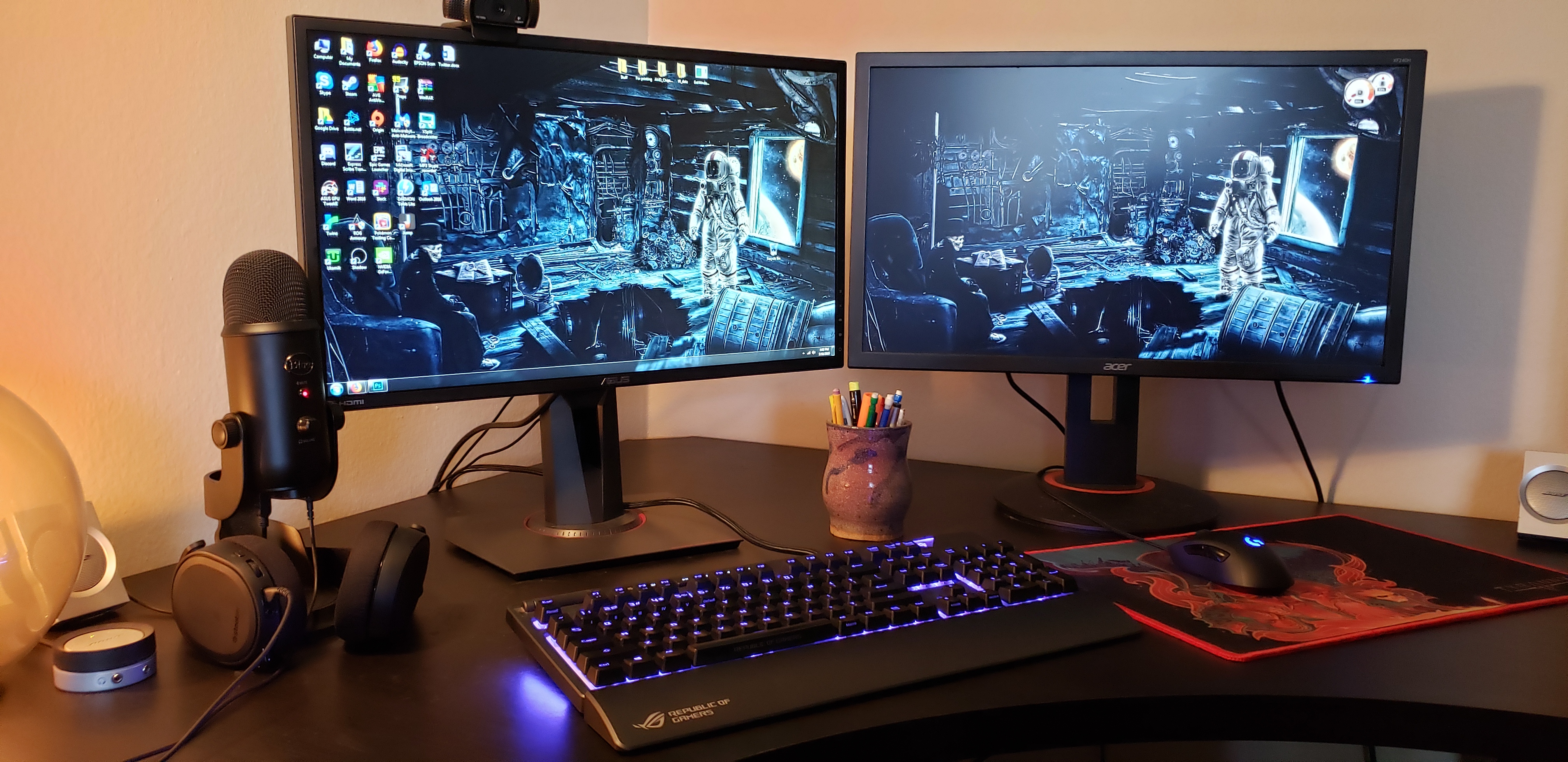
Are you looking to boost your productivity and multitasking skills? Connecting two monitors to your computer is a great way to do so. With multiple screens, you can easily juggle between different tasks, work on multiple projects simultaneously, and enjoy a more immersive gaming experience. In this article, we will guide you through the process of connecting two monitors to your computer, whether you're using a Windows or Mac computer.
Equipment Needed
To connect two monitors to your computer, you'll need the following equipment:
- Two monitors (LCD or LED monitors work best)
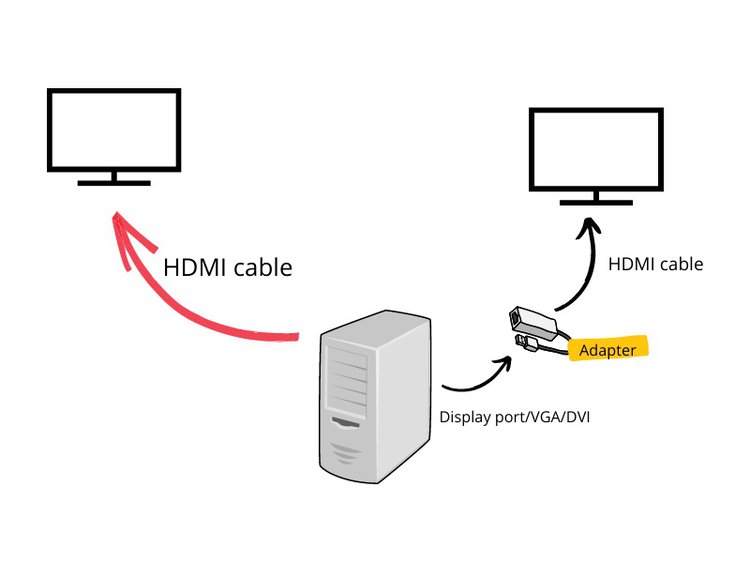
- A computer with multiple video ports (HDMI, DisplayPort, or VGA)
- Video cables (HDMI, DisplayPort, or VGA) that match your computer's video ports
- A power cord for each monitor
Step 1: Prepare Your Workspace
Before connecting your monitors, make sure your workspace is set up properly. Position your monitors so that they're at eye level and facing you at an angle. Ensure that your computer and monitors are turned off and unplugged.
Step 2: Identify Your Computer's Video Ports
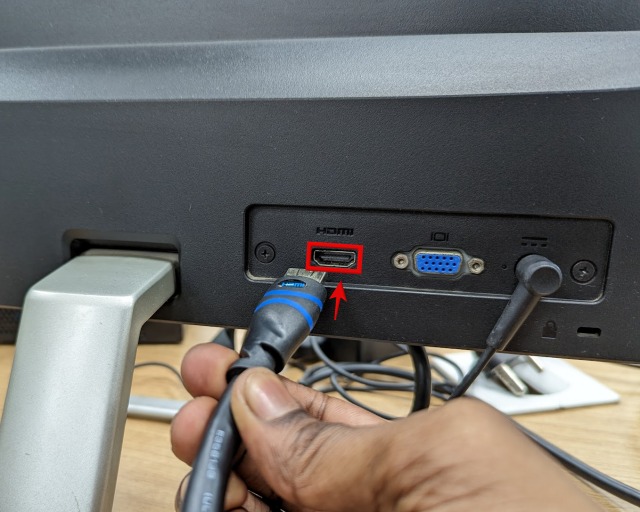
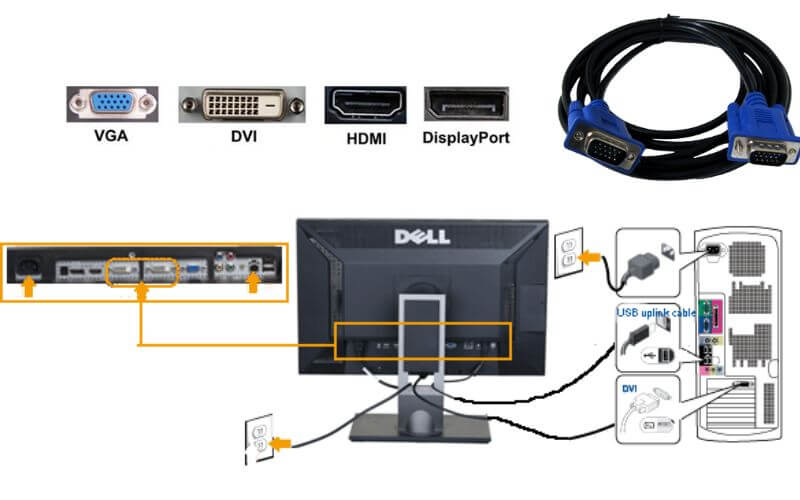
Locate the video ports on your computer. Most modern computers have multiple video ports, including HDMI, DisplayPort, and VGA. Identify the type of video ports your computer has and match them with the video cables you'll be using.
Step 3: Connect the First Monitor
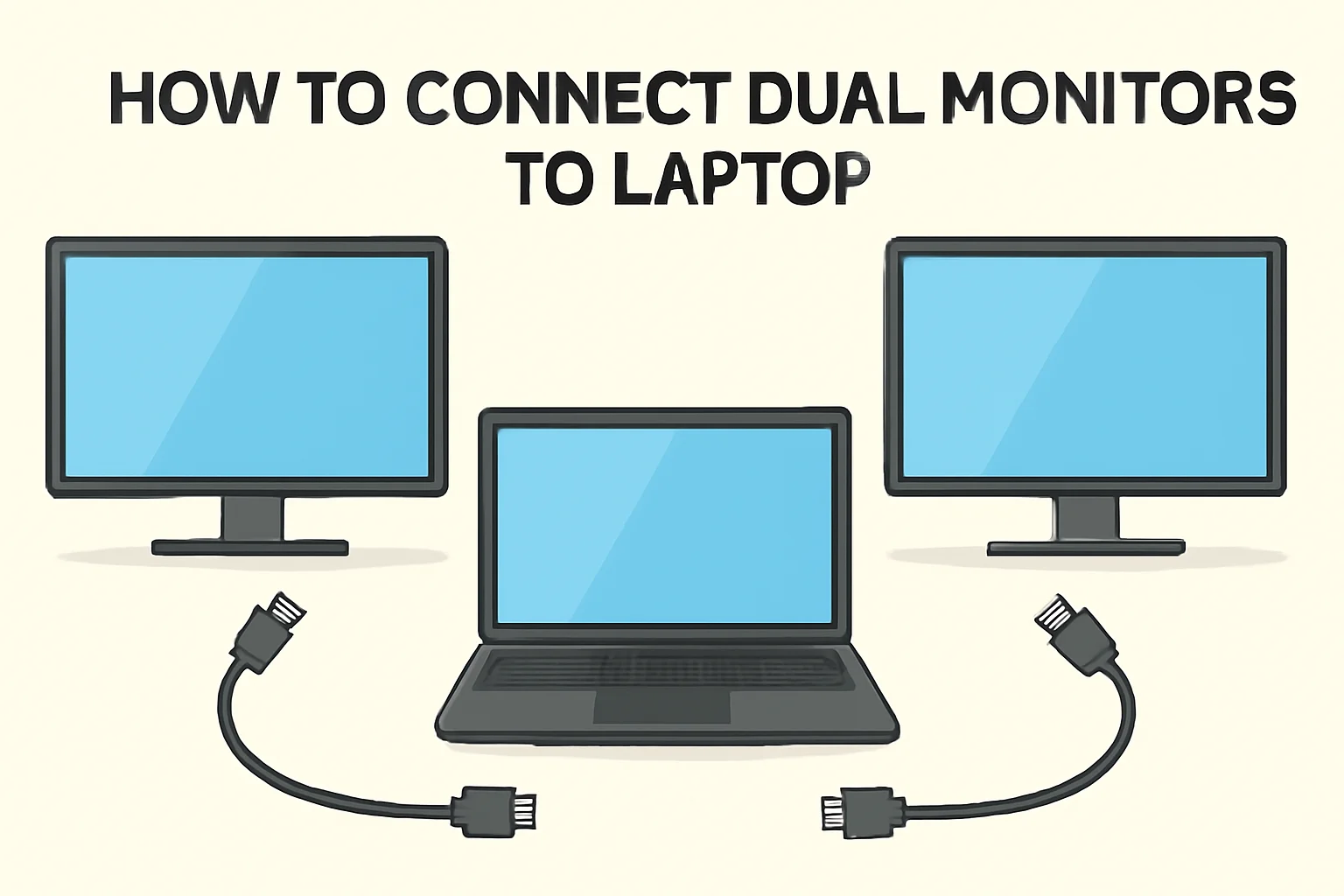
Connect the first monitor to your computer using a video cable. Insert one end of the cable into the video port on your computer and the other end into the video port on your monitor. Make sure the cable is securely connected to both devices.
Step 4: Connect the Second Monitor
Connect the second monitor to your computer using another video cable. Follow the same procedure as Step 3, making sure the cable is securely connected to both devices.
Step 5: Power On Your Monitors
Turn on your monitors and adjust the display settings to your liking. You may need to adjust the display settings on your computer to match the resolution and orientation of your monitors.

Step 6: Configure Your Display Settings
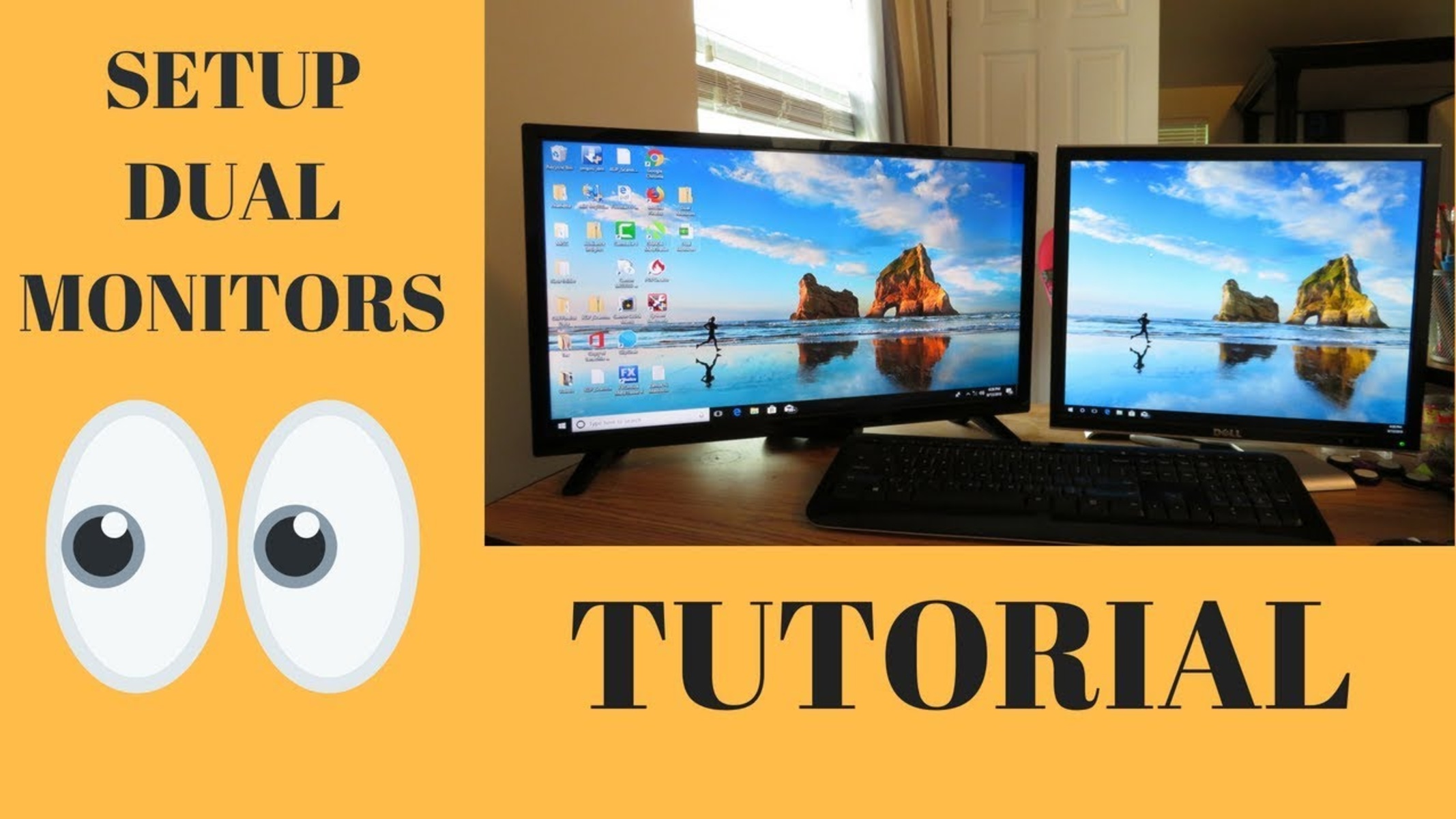
Configure your display settings to extend your desktop across both monitors. You can do this by going to your computer's display settings and selecting the "Extend" option. This will allow you to use both monitors as a single desktop.
Common Display Issues
When connecting multiple monitors, you may encounter common display issues such as:
- Monitors not detecting
- Display settings not syncing
- Monitor resolution not matching
To troubleshoot these issues, refer to your computer's user manual or online documentation for specific instructions.
Types of Video Ports
There are three different types of video ports on modern computers and monitors: HDMI, DisplayPort, and VGA. Here's a brief overview of each:
- HDMI: HDMI ports are commonly found on computers and monitors. They support high-definition video and audio.
- DisplayPort: DisplayPort ports are also commonly found on computers and monitors. They support high-definition video and can daisy-chain multiple monitors.
- VGA: VGA ports are older and less common than HDMI and DisplayPort ports. They support lower-resolution video and are often used for older computers and monitors.
Conclusion
Connecting two monitors to your computer is a simple process that can boost your productivity and multitasking skills. By following the steps outlined in this article, you can easily connect two monitors to your computer and enjoy a more immersive gaming experience. Remember to troubleshoot common display issues and identify your computer's video ports before connecting your monitors.
Frequently Asked Questions
Q: Can I connect more than two monitors to my computer?
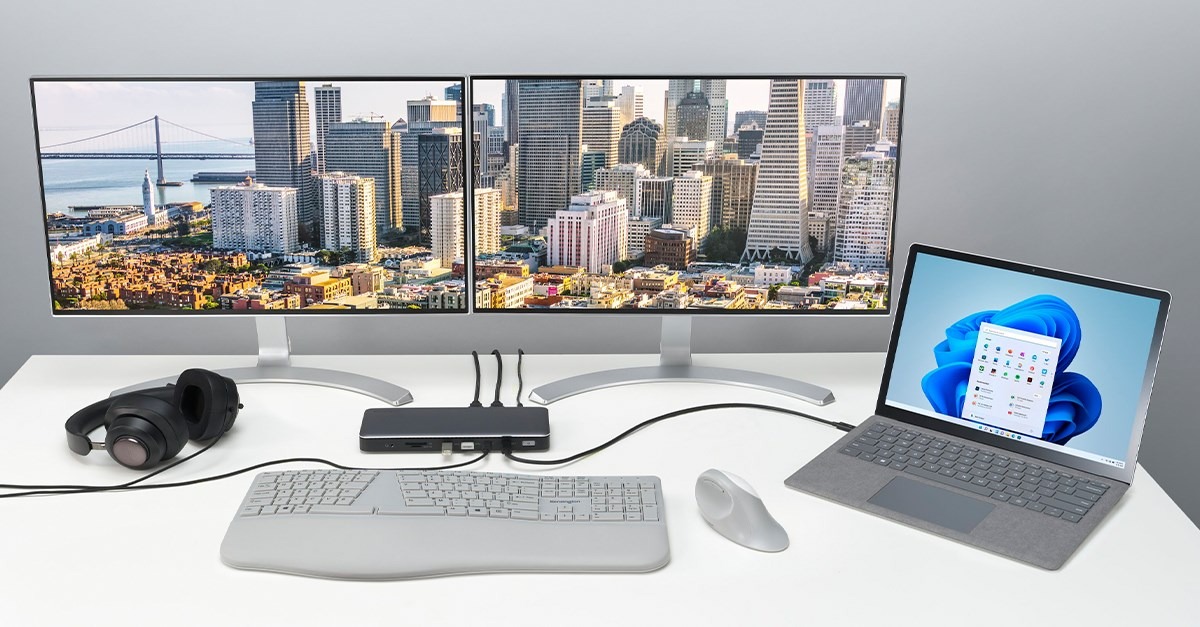
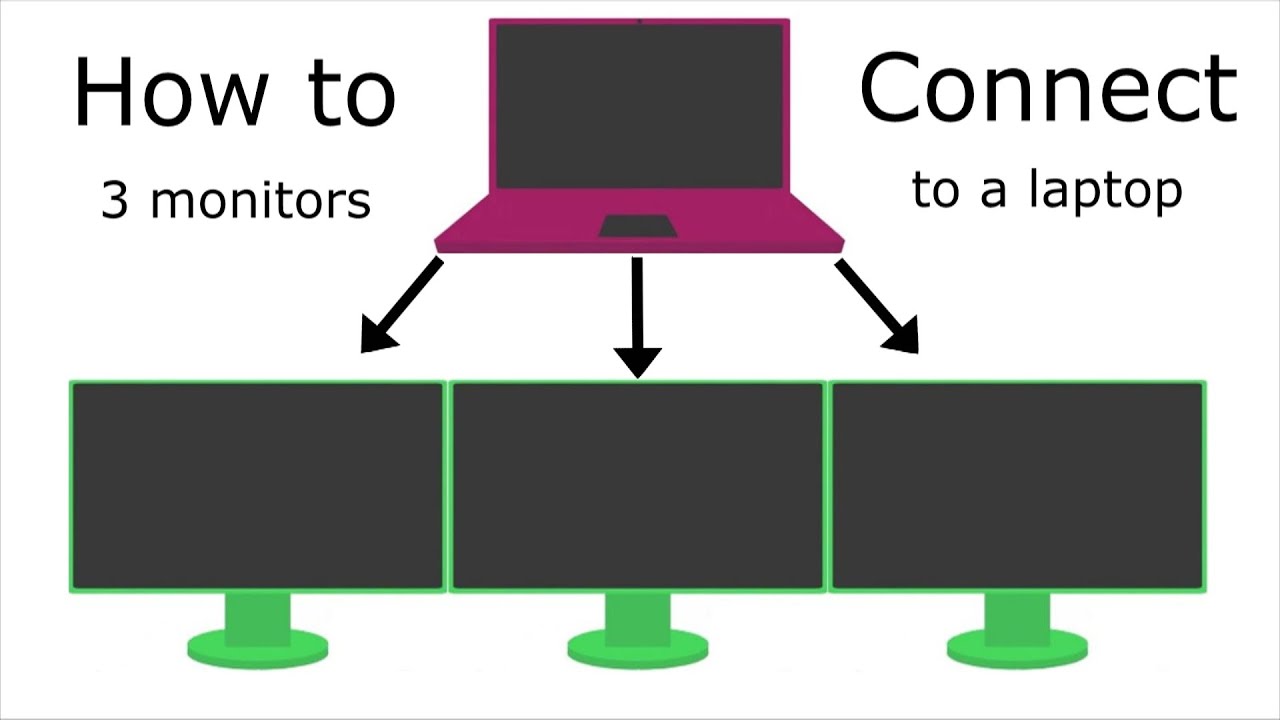
A: Yes, you can connect more than two monitors to your computer. However, you'll need a computer with multiple video ports and a docking station or a casting device to connect multiple monitors.