Automatic VPN Setup for Windows: Secure Your Internet Connection
As a Windows user, you're probably aware of the importance of having a secure internet connection, especially when using public networks or accessing sensitive information. One of the most effective ways to ensure your online security is by using a Virtual Private Network (VPN). In this article, we'll show you how to set up an automatic VPN connection on your Windows device, so you can browse the internet with confidence.
Types of Auto-Trigger Rules for VPN Connections
Windows provides auto-trigger VPN profile options that allow you to automatically establish a VPN connection based on IT admin-defined rules. There are several types of auto-trigger rules that you can create for VPN connections, including:
- When app is launched
- When connecting to untrusted networks
- When a specific app is launched
- When a specific network is detected
By configuring these auto-trigger rules, you can ensure that your VPN connection is established automatically whenever you launch a specific app, connect to an untrusted network, or launch a specific app on an untrusted network.
How to Set Up Automatic VPN Connect on Windows
Setting up automatic VPN connect on Windows is easy and straightforward. Here's a step-by-step guide to get you started:
1. Open the Settings app on your Windows device.
2. Click on the "Network & Internet" option.
3. Select the "VPN" tab.
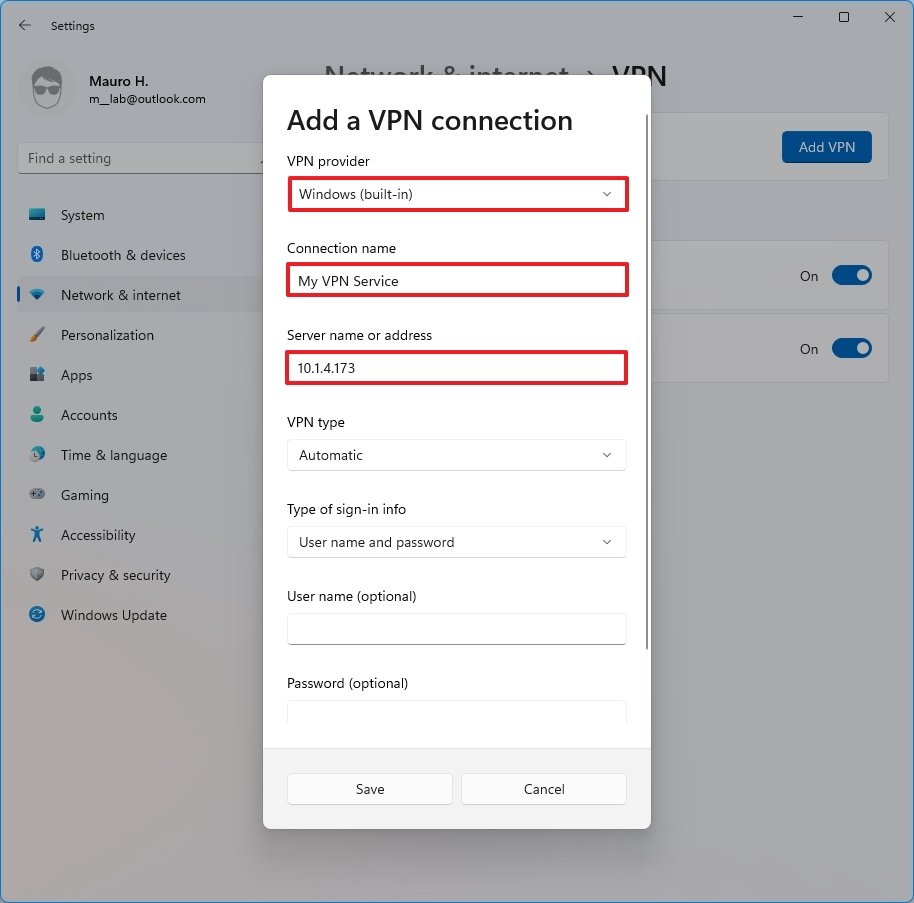
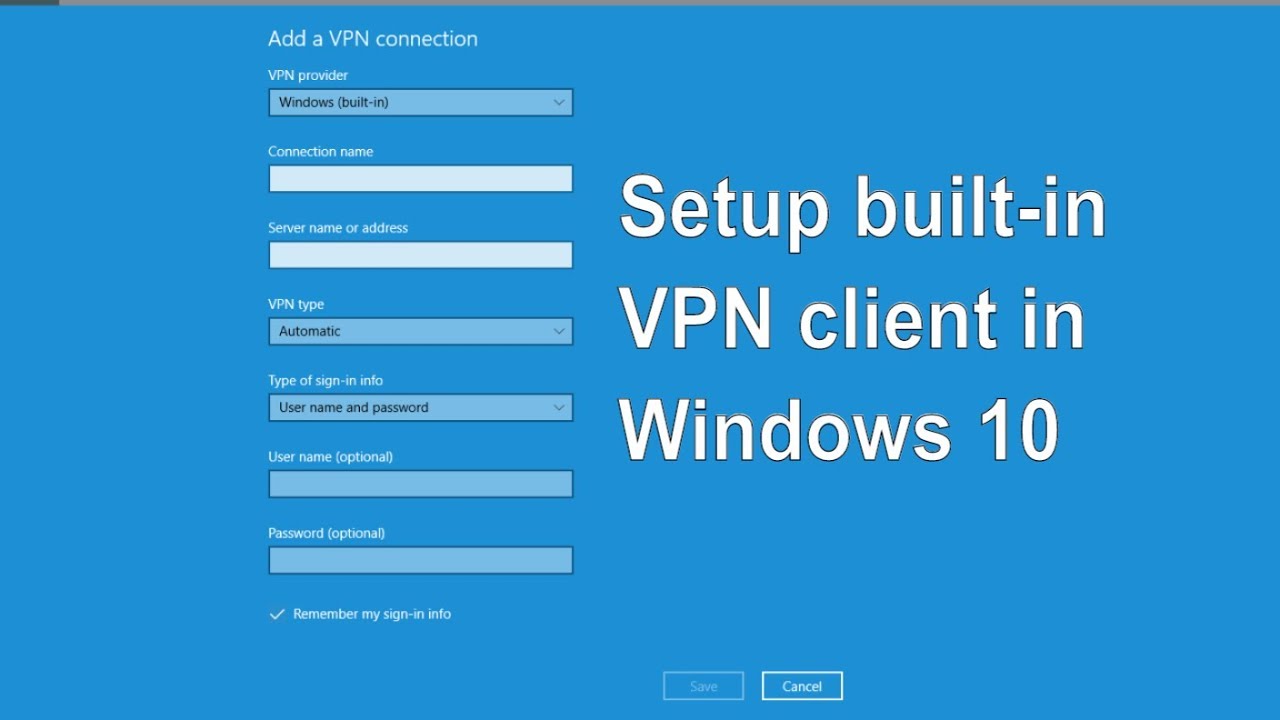
4. Click on the "+" button to add a new VPN connection.
5. Select the protocol you want to use (such as OpenVPN or IKEv2).

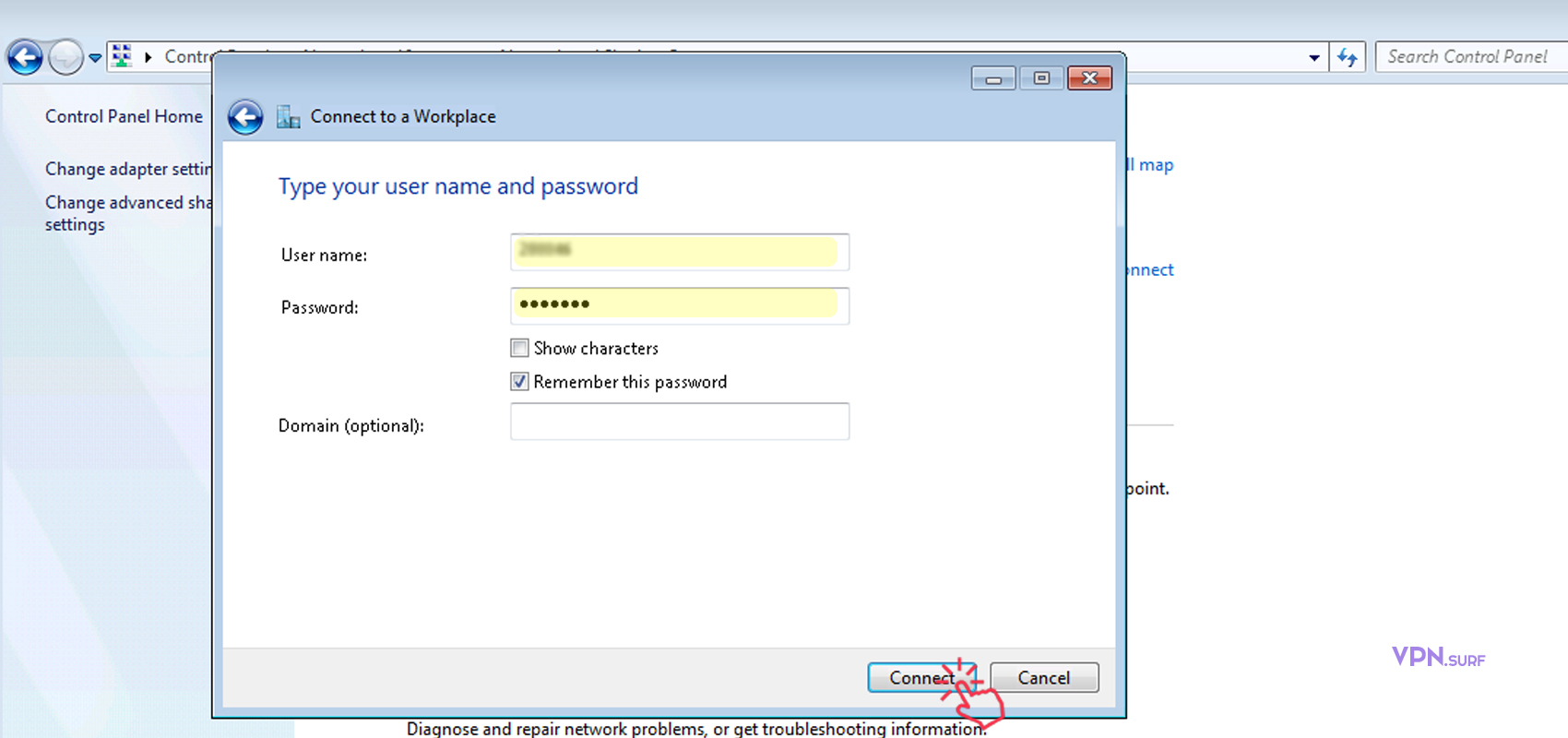
6. Enter the details of your VPN server, including the server address, username, and password.
7. Check the box next to "Automatically connect when available."
8. Click "Save" to save your VPN connection settings.
Benefits of Automatic VPN Setup for Windows
Setting up an automatic VPN connection on your Windows device provides several benefits, including:
- Security: Automatic VPN connects ensure that your internet connection is always secure, even when using public networks or accessing sensitive information.
- Convenience: With automatic VPN connects, you don't need to manually connect to a VPN server each time you want to browse the internet securely.
- Improved productivity: By ensuring that your internet connection is always secure, automatic VPN connects can help you stay focused on your work without worrying about online security.
Troubleshooting Common Issues with Automatic VPN Setup for Windows
While setting up automatic VPN connects is relatively straightforward, you may encounter some common issues. Here are some troubleshooting tips to help you resolve common issues:
- Check your VPN connection settings to ensure that the protocol and server details are correct.
- Verify that your VPN server is up and running and that the VPN connection is not blocked by your router or firewall.
- Check for any network connectivity issues that may be preventing your VPN connection from establishing.
- Try restarting your VPN connection or uninstalling and reinstalling the VPN client.
Conclusion
In this article, we've shown you how to set up an automatic VPN connection on your Windows device, so you can browse the internet with confidence. By following the steps outlined in this article, you can ensure that your internet connection is always secure, even when using public networks or accessing sensitive information. Whether you're a business user or an individual looking to protect your online security, automatic VPN connects are an essential tool for anyone who uses the internet regularly.


![How to Add VPN in Windows in 2025 [2 Methods] - GeeksforGeeks](https://poweradm.com/wp-content/uploads/2022/05/openvpn-connect-3-3-automatically-connect-with.png "How to Add VPN in Windows in 2025 [2 Methods] - GeeksforGeeks")
.png "Setup Windows Task Scheduler for automatically connect to VPN")